Simply RCS — Product Guide
SimplyRCS is a multi-channel messaging platform for SMS, MMS, and RCS Business Messaging, with WhatsApp onboarding and rendering currently limited to development/scaffold use. It pairs registered sender identities (toll-free, 10DLC, short code, and RCS agents) with content tooling, a real-time Inbox, notifications, billing, and a compliance pipeline for Brand KYC and carrier/registry submissions.
This guide walks every surface a customer-side user touches. Operators who run the platform should consult the separate Admin Guide.
The customer rail is organized as Home, Messaging Setup, Audience, Create, Send, Inbox, Results, and Account. It preserves the existing route paths and permissions while placing the work under the target product vocabulary: Company Profile, Brands & KYC, Senders & Numbers, Submissions and Consent & Compliance are under Messaging Setup; Broadcasts are under Send; Conversations and Queues are under Inbox; and analytics is grouped as Results. Existing feature-gated Knowledge and account policy/developer tools remain compatibility destinations until their owning object workspaces land. Messaging Programs, Appointments and Automations do not yet have dedicated customer routes, so the rail does not pretend that they do. Related pages stay in the same workspace through top tabs; the mobile path is Home · Tasks · Send · Inbox · More, with More opening the same customer drawer.
Table of Contents
- Getting Started
- Company Profile and Brand KYC
- Dashboard
- Senders & Numbers
- Compliance
- Contacts
- Subscription Lists
- Inbox
- Notifications
- Bots
- Blasts
- Content
- Assets
- Acquisition Campaigns
- Analytics
- Submissions
- Settings
- Developer Portal
1. Getting Started
Sign in
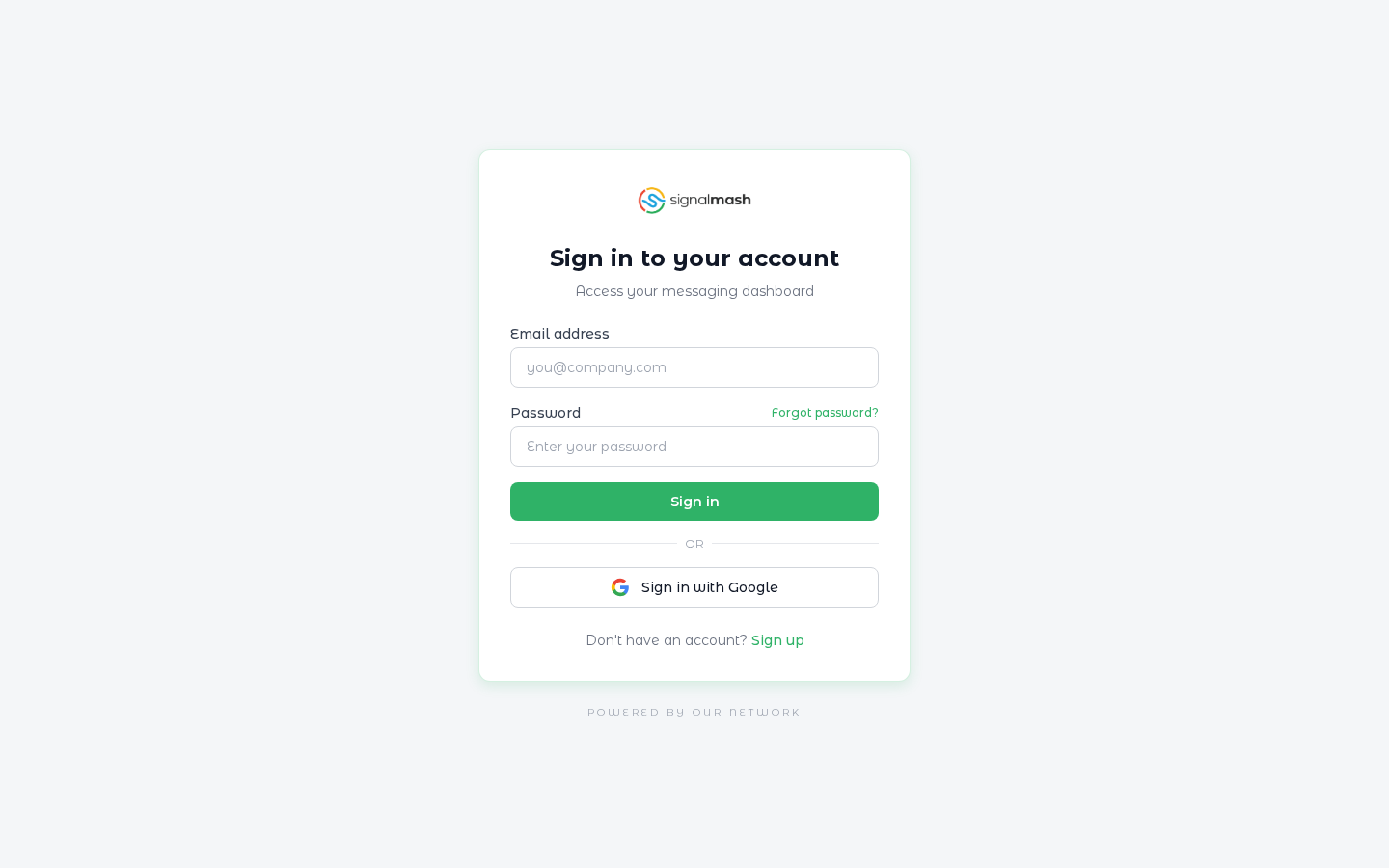
Returning users sign in with email + password. Single sign-on via Keycloak is supported when configured for the organization.
Key actions:
- Enter your work email and password, then click Sign In.
- Use the password-reset link if you have lost your credentials.
2. Company Profile and Brand KYC
Before any channel can be submitted to a carrier or registry, the organization must complete the Company Profile. Simply RCS captures the legal business, contact, website, and authorized representative fields used to create the default Brand and prefill channel submissions. Company-profile completeness, SimplyRCS Brand KYC, and carrier approval are three separate states.
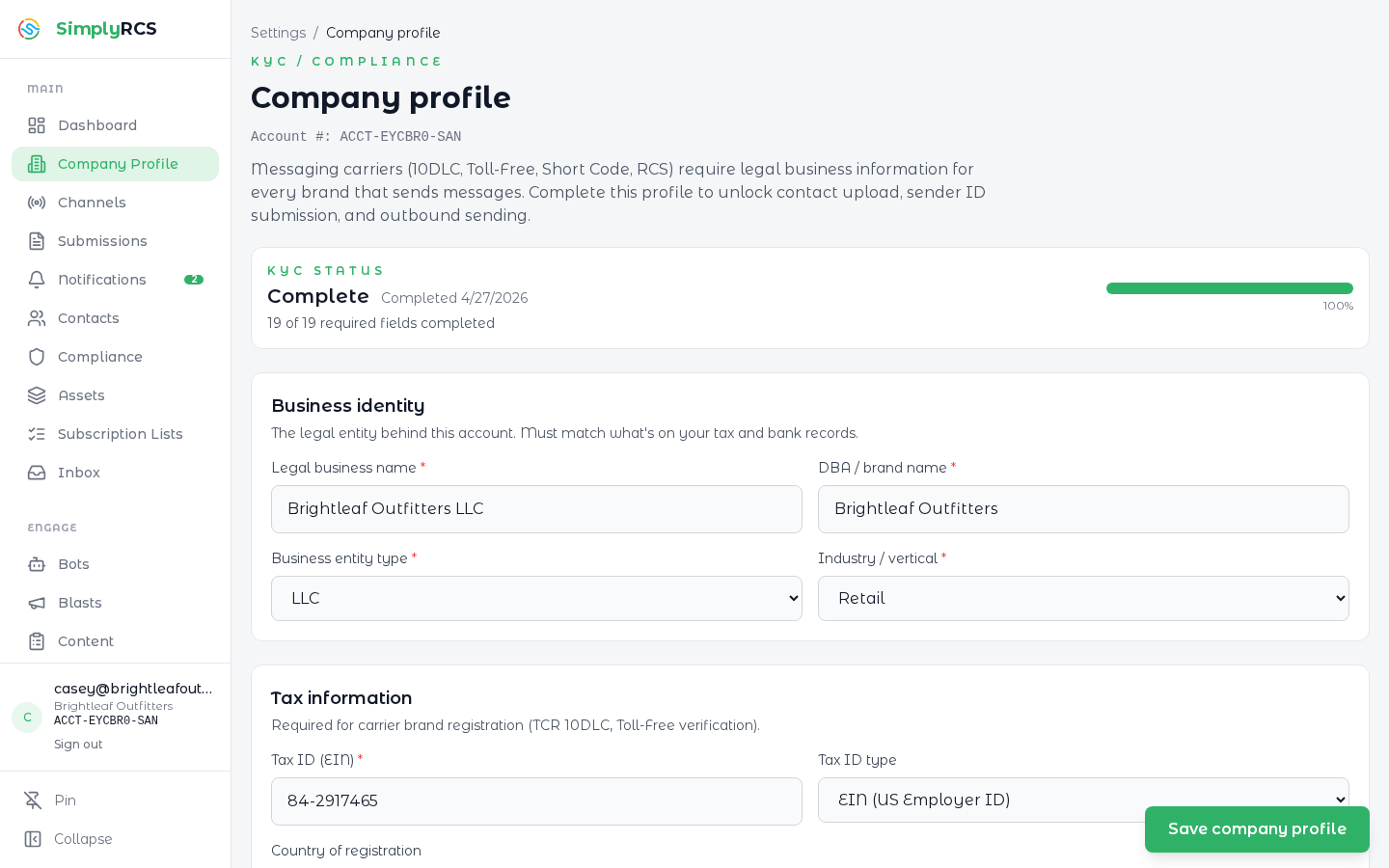
The image predates the compact profile-completeness and Default Brand review band. It must be refreshed from the reviewed candidate before publication.
Key actions:
- Start with the single status band: Profile completeness names the required legal/contact fields still missing, while Default Brand review shows its separate KYC/attestation state. Completing profile fields alone does not verify a Brand or authorize sending.
- Fill out legal name, EIN, business type, vertical, address, website, support email/phone, and the authorized representative's name, title, and email. The representative phone is optional.
- Read and sign the Brand KYC attestation, then save. The default Brand moves to Ready for review when its current business information and signed attestation are both recorded.
- Review Settings > Brands for each Brand's SimplyRCS KYC state and separate US SMS preparation and provider-Brand capability. Changes required includes the reviewer reason and means the information must be corrected and attested again.
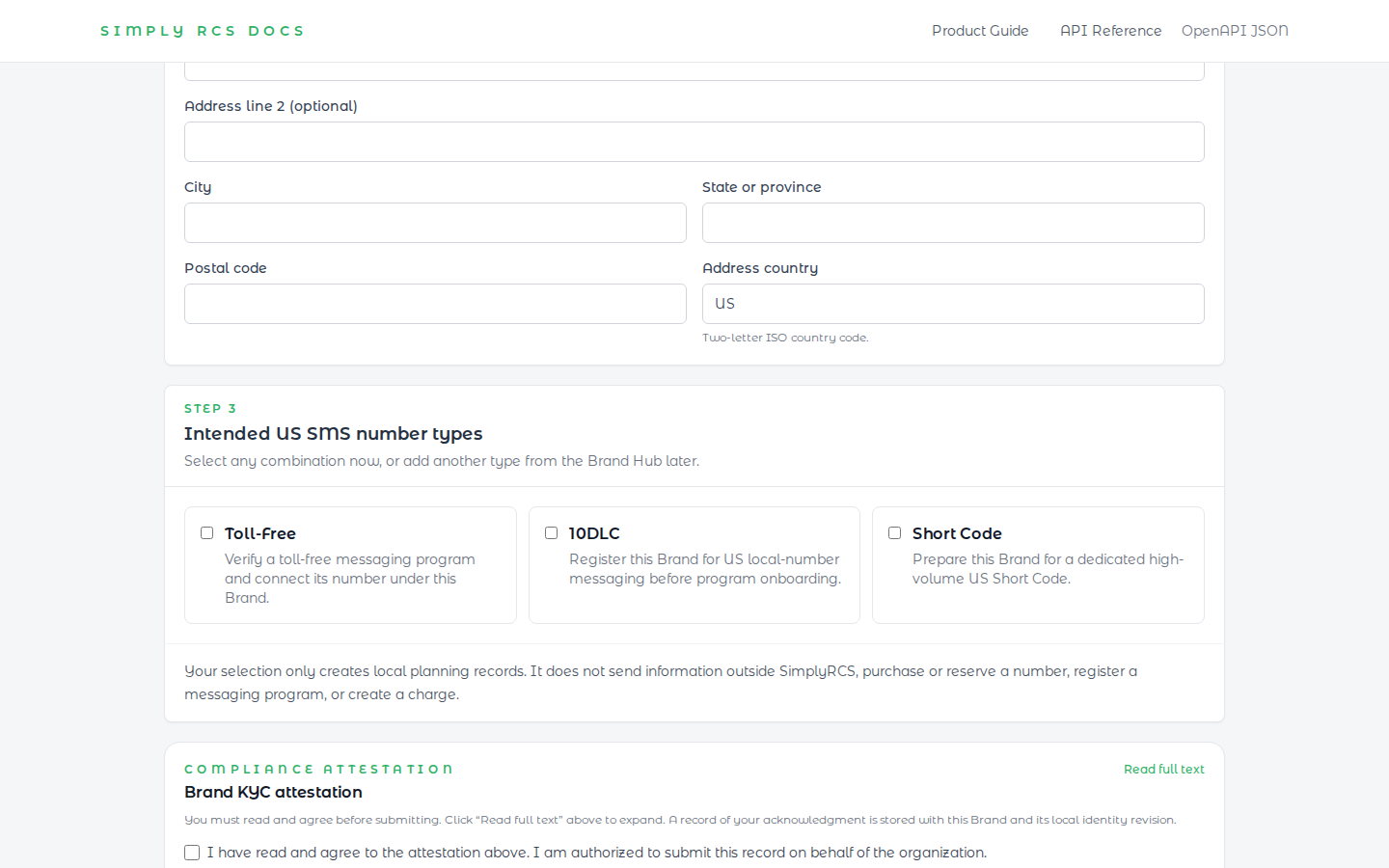
- Use Settings > Brands > Create brand to enter one legal identity and optionally prepare any combination of Toll-Free, 10DLC, and Short Code registration details. Selected types are saved as independent local Planned records; selection does not contact a provider, purchase or reserve a number, register a messaging program, or create a charge.
- Open a Brand to use Overview, KYC, Programs, Senders, Submissions, and Activity. Overview summarizes identity, pricing sign-off, and the current US SMS Brand status for each number type. Pricing approval uses the same status pill as the other facts and does not establish permission to send. Select KYC for the separate Brand identity and KYC and US SMS Brand details sections.
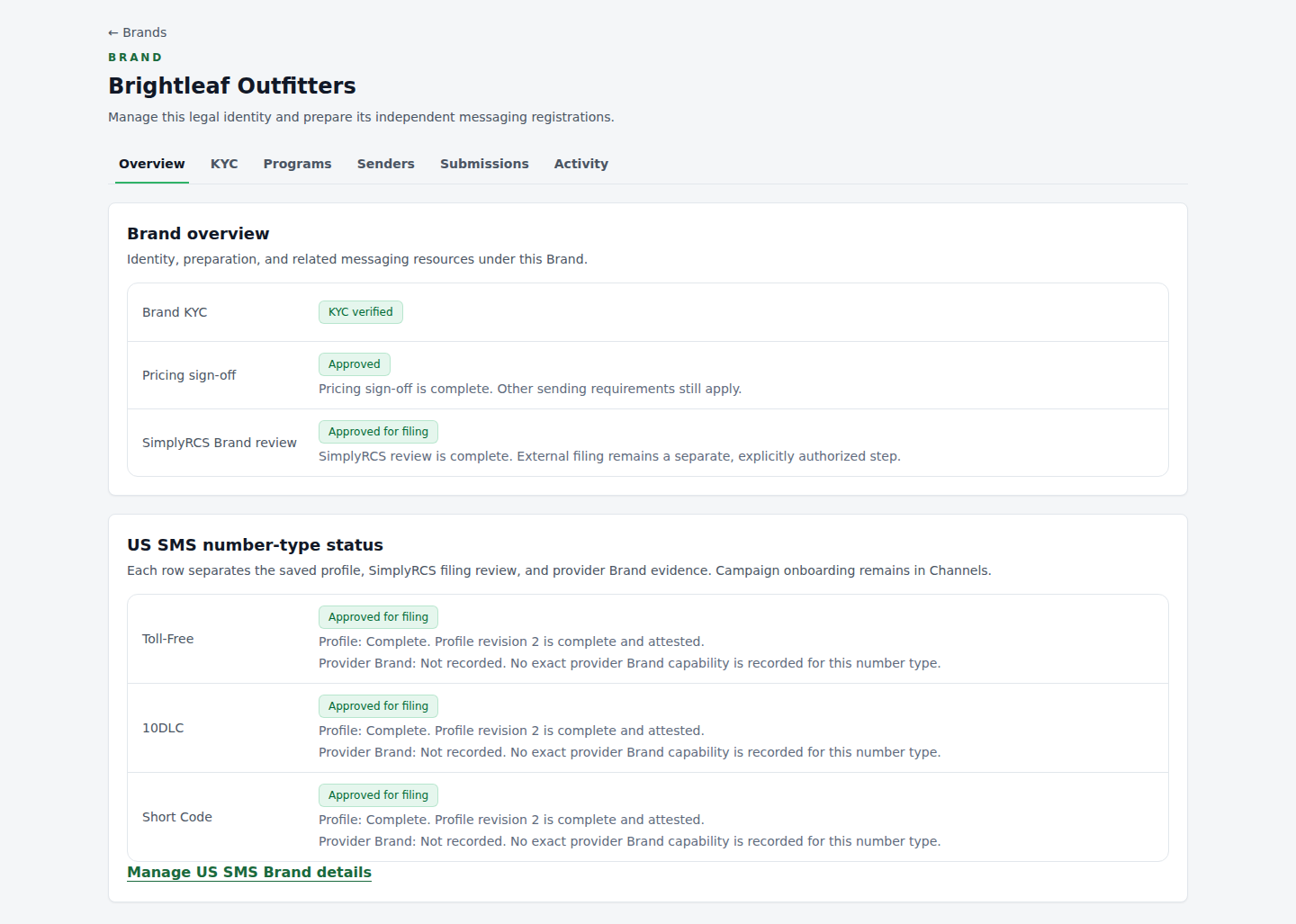
Fictional local component capture of the six-tab Brand Hub; it does not establish deployment or provider approval.
- Open KYC > US SMS Brand details to see all three US SMS number types. Each row separates three facts: Profile is the saved and attested local preparation, SimplyRCS review is the status of the exact frozen filing packet, and Provider Brand is exact type-specific external evidence. A type not selected during Brand creation remains Not started and can be added later. RCS sender creation and launch remain a separate workflow.
- A complete, attested profile shows Complete. Submitting it changes the separate review status to Submitted for review; local approval changes that review status to Approved for filing. The profile remains Complete, and the provider status remains Not recorded until exact provider evidence exists. These labels describe different steps and should not be read as conflicting states.
- Linked means SimplyRCS has an exact account-bound provider Brand reference for that number type. It does not mean the Brand, number, Messaging Program, carrier network, or sending traffic is approved. Qualified appears only when that number type's committed contract proves the required qualification; unknown or conflicting evidence fails closed as Needs reconciliation.
- Brand Hub contains the preparation and correction actions for each type’s Brand details. Start channel and campaign registration from Channels. Number acquisition and Short Code purchase eligibility remain part of those downstream workflows.
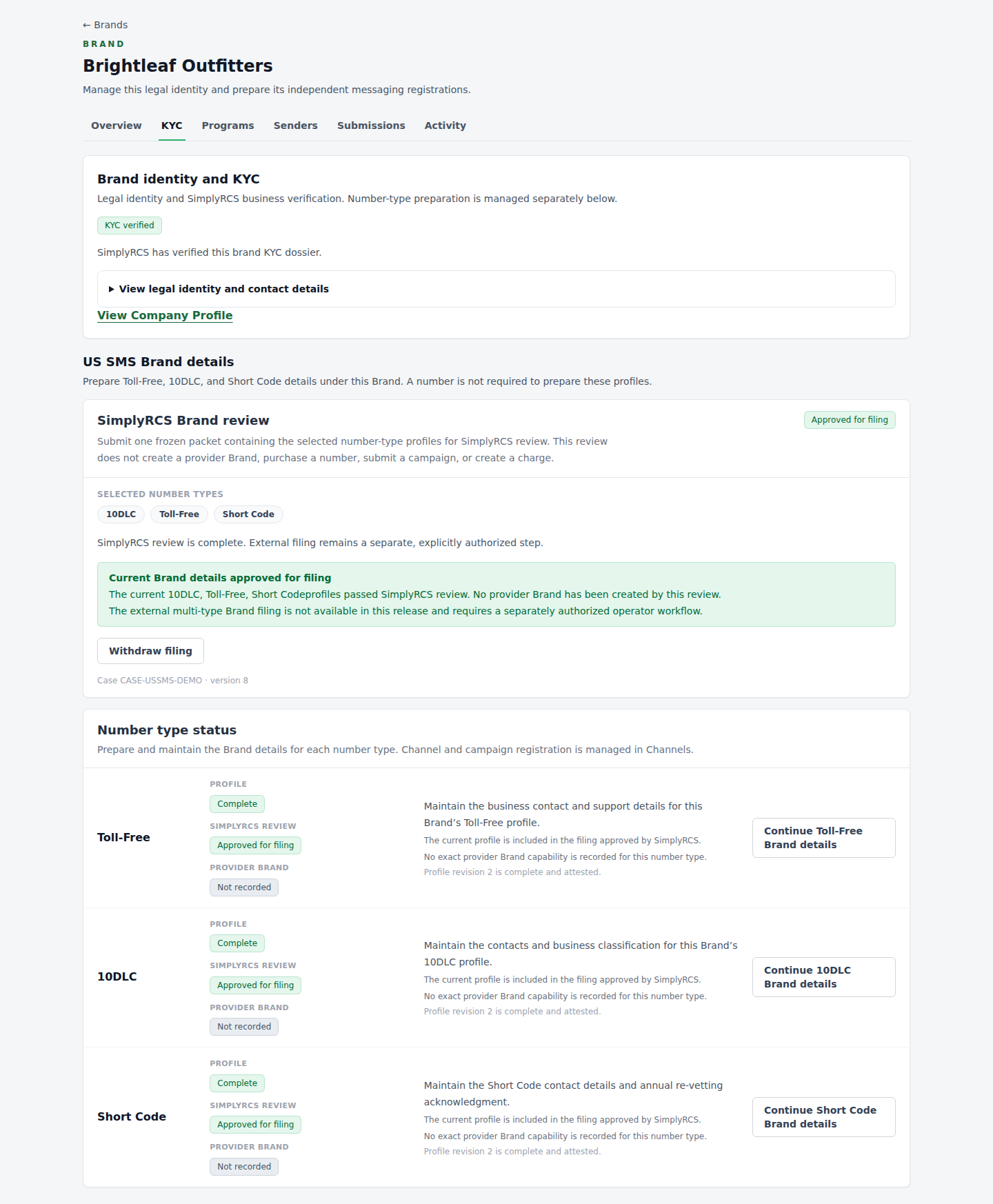
Fictional local component capture: identity verification is separate from number-type preparation and filing.
- Programs lists this Brand’s Messaging Programs. Select an existing program to view its Senders in Channels; that list can be empty until a Sender is attached. Start new campaign preparation from Channels. Senders links the actual numbers and sending identities attached to this Brand. Submissions shows related Cases; Activity highlights the latest customer-visible milestone and shows six earlier milestone groups. Expand long details, repeated observations, or earlier milestones as needed. These views show up to 50 recent records each and distinguish empty results from unavailable data.
- Tab destinations remain in the URL for refresh and browser Back. Existing profile URLs and requested-field anchors remain valid. Return to Brand and resubmit opens KYC’s filing section directly.
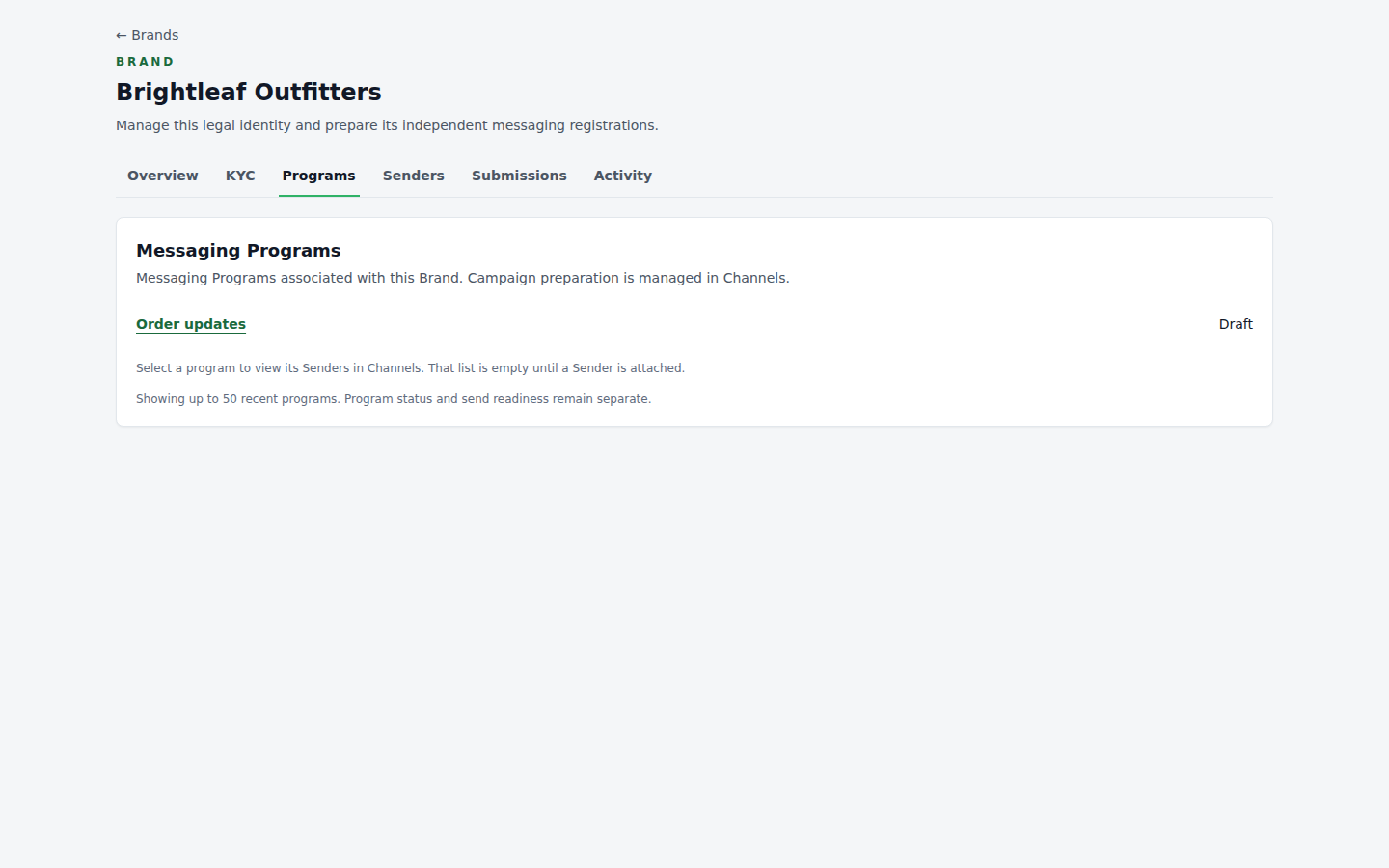
Fictional local Next capture; the program link opens existing Sender inventory.
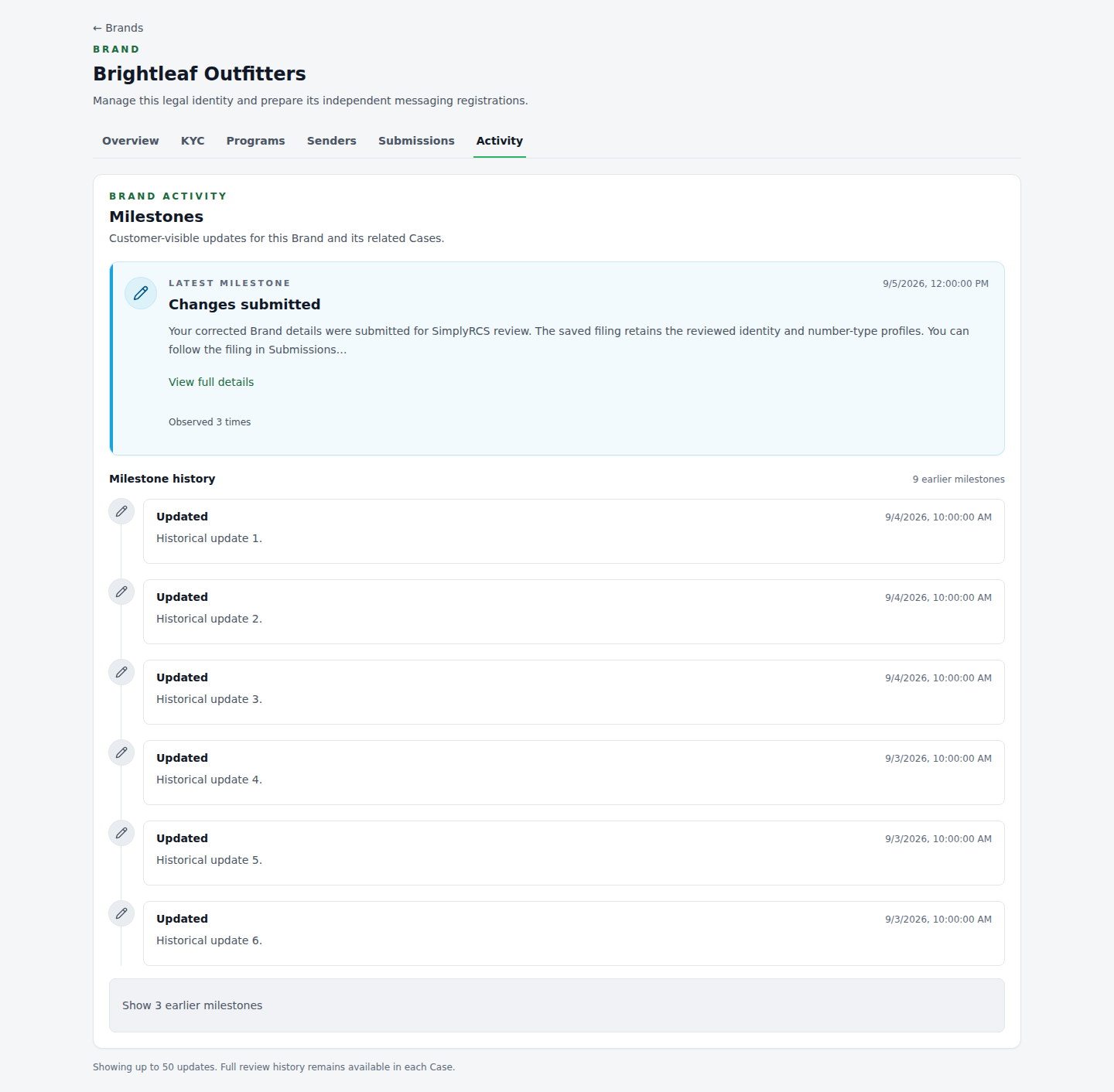
Fictional local Next capture: repeated updates from the same record are grouped; full details and earlier events remain available. The global console navigation is outside these component captures.
- A legacy Brand may require Review and confirm Brand identity before its first filing can be prepared. Review the displayed authoritative identity, confirm the attestation, and save the frozen local revision. This does not repeat Brand KYC or contact a provider.
- After identity recovery, previously attested number-type profiles show Re-attestation required. Open each selected type and use Save and attest to bind a new profile revision to the frozen identity; no artificial field edit is required.
- Identity recovery and profile re-attestation do not register a provider Brand, order a number, submit a Messaging Program, create a lease or charge, or change RCS.
- When every selected number-type profile is complete and attested, use Prepare filing. This freezes the exact Brand identity and selected profiles in one local review Case. If a selected profile changes before submission, Update filing to current details refreshes that draft; Submit for SimplyRCS review continues to review the exact frozen packet and the page identifies when it is earlier than the current profiles.
- Use Submit for SimplyRCS review for the frozen filing you intend SimplyRCS to review. Preparation and review do not contact an external party, order a number, submit a messaging program, or create a charge.
- Follow SimplyRCS Brand review for the Brand-level filing and Number type status for the three independent facts on Toll-Free, 10DLC, and Short Code. Profile completion, SimplyRCS review, provider Brand capability, number lifecycle, Messaging Program lifecycle, and carrier/network status are separate facts. Approval of the filing does not mean a provider Brand, number, program, carrier, or sender is approved.
- If current details change after review, only the affected number-type row loses its current review result. A newly selected type is not included in the earlier filing, while a new Brand identity revision affects every selected profile.
- After internal approval, Brand Hub, the Submissions list, and the customer Case show Approved for filing from the same filing record. SimplyRCS review is complete; external filing remains separate. This Brand filing does not use a campaign’s Carrier review, Testing, or Live progress steps.
- If the current attested number-type details change after that approval, Brand Hub says This filing does not contain the current Brand details and offers Submit current Brand details for review. The review status for each affected current profile becomes Current details not reviewed. The action creates and submits a new local review Case from the current revisions. The earlier approved filing and Case remain unchanged in Submissions. This action does not create a provider Brand, campaign, number, lease, or charge.
- After SimplyRCS approves the packet, the admin starts provider creation with Approve and create in Infobip. SimplyRCS creates or reuses separate 10DLC and Toll-Free Brand records through Infobip's public Number Registration API. The customer does not sign in to Infobip or provide external evidence. Short Code Brand association remains part of Short Code number acquisition/import because Infobip's public Create Brand union has no Short Code member. The action does not register the 10DLC Brand, purchase a number, or create or submit a campaign. A clean result shows Created in Infobip; an ambiguous, partial, or conflicting result shows Needs review.
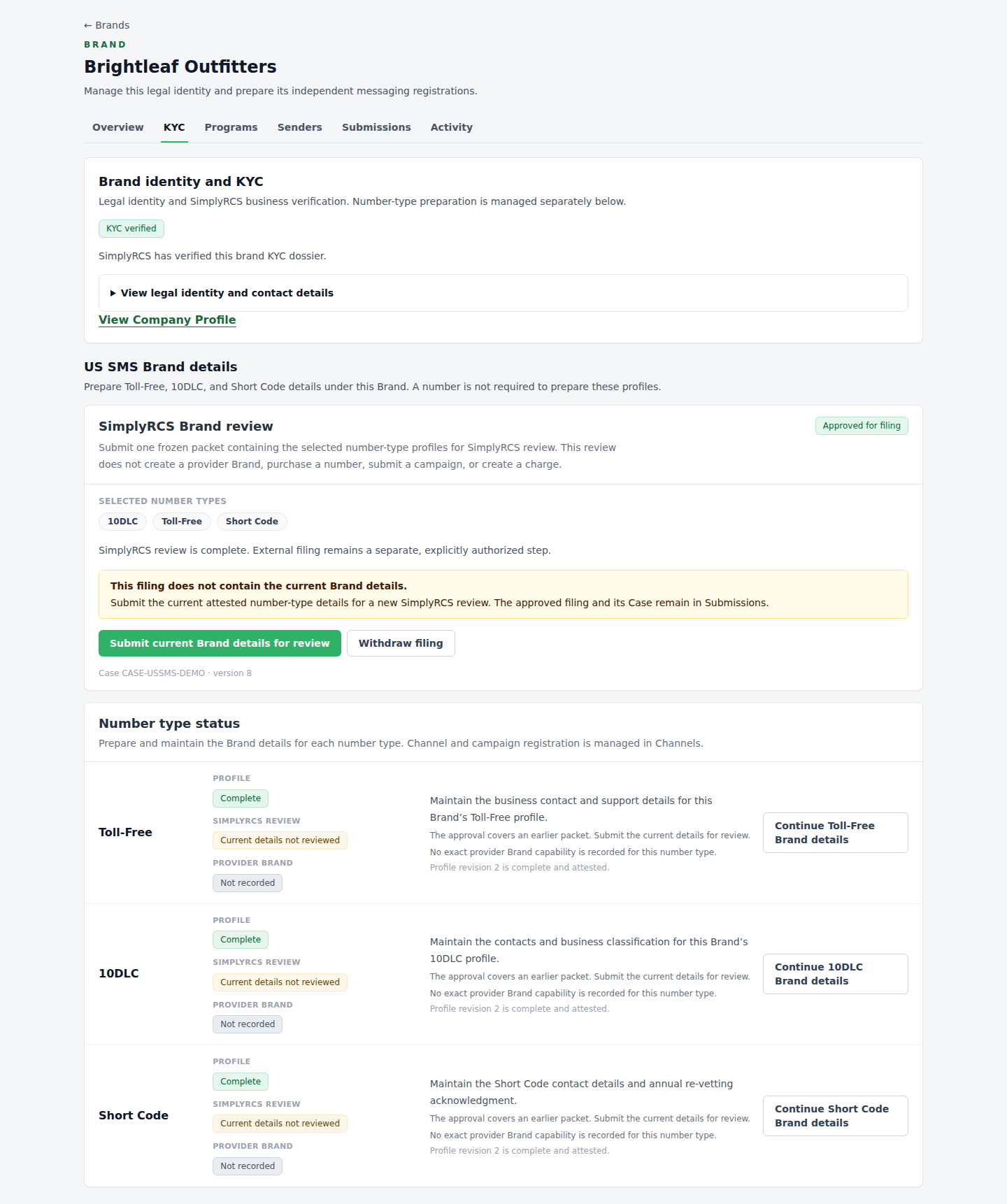
Fictional local component capture: the current-details action starts a new SimplyRCS review while retaining the approved filing.
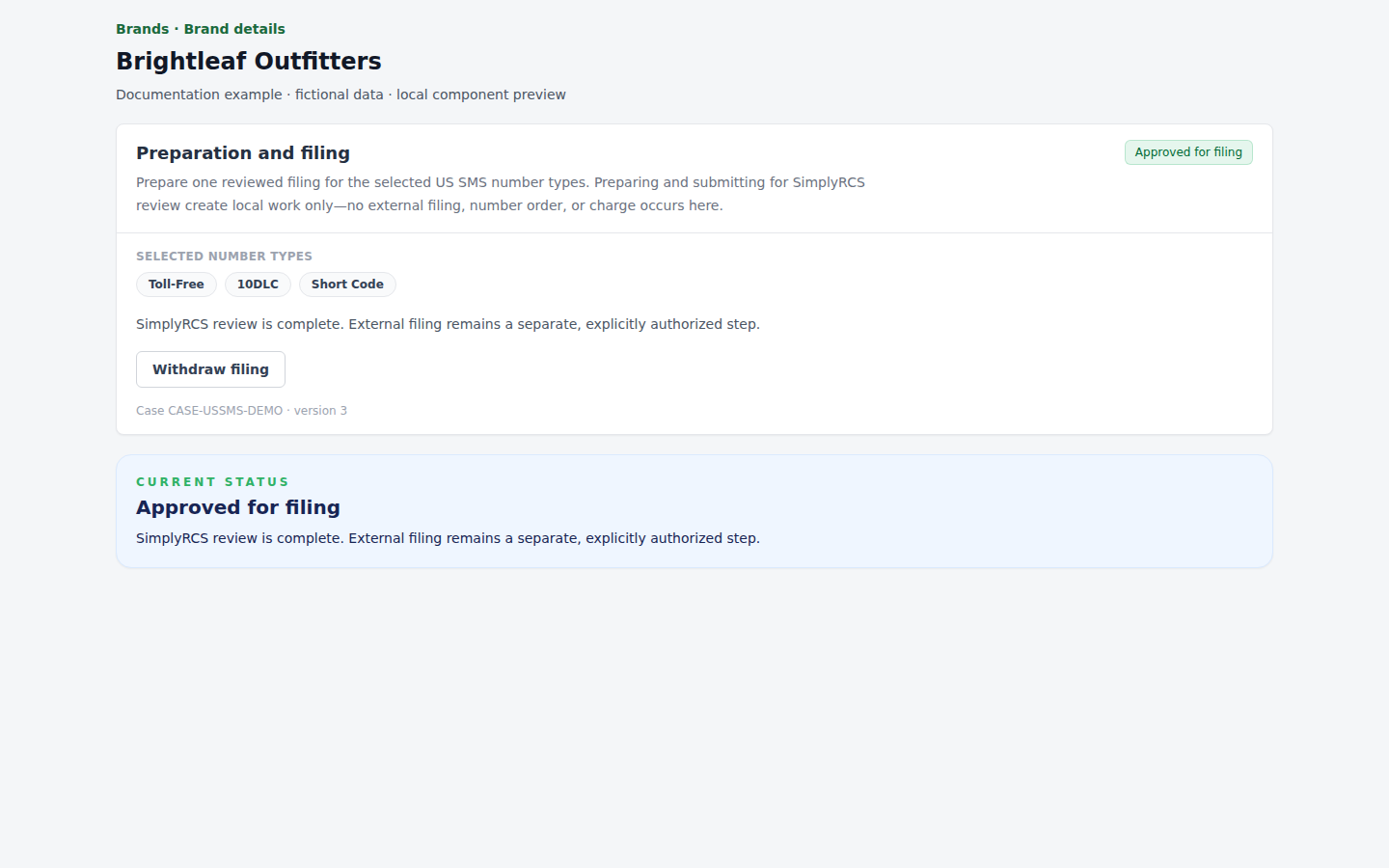
Fictional local component example: Brand Hub and the Case status panel receive the same approved filing state.
-
If SimplyRCS requests changes to a Provider Brand Filing, use the exact requested Registration Profile field links in the Brand Hub, correct and re-attest those fields, then select Resubmit changes. Each request identifies its number type: Toll-Free contacts, 10DLC support details and business vertical (plus public-company contacts when applicable), or Short Code contacts and optional extension. SimplyRCS verifies the requested corrections, freezes the updated profiles, and resubmits the same filing and Case. Unrequested profiles need not change. For an annual acknowledgment request, review the acknowledgment and confirm its renewal before saving and attesting; its valid answer remains checked. Frozen Brand identity fields remain read-only in this workflow and require a separately designed correction path. This local review decision is not a carrier rejection. A filing can be withdrawn only before separately authorized external work begins.
-
A direct link to a type that is not yet started offers Prepare … Brand details, which starts its local Registration Profile.
-
Open a number type to complete only the additional information required for that registration. The legal identity is inherited from the Brand; saving and attesting these local details still does not authorize an external filing.
-
10DLC public-company contact fields appear only when the canonical Brand identity is a public company. Private companies and nonprofits are not asked for or submitted with those fields.
-
The Short Code phone extension is optional. Leave it blank when the contact has no extension.
-
After the current profile revision is saved and attested, both save actions remain unavailable until a field changes, except when a reviewer explicitly requests renewed acknowledgment or the Brand identity requires re-attestation. A renewed acknowledgment creates one new attested revision; repeating the same save does not create another. The requested-corrections banner marks the acknowledgment renewed and directs you back to the Brand after completing any other corrections.
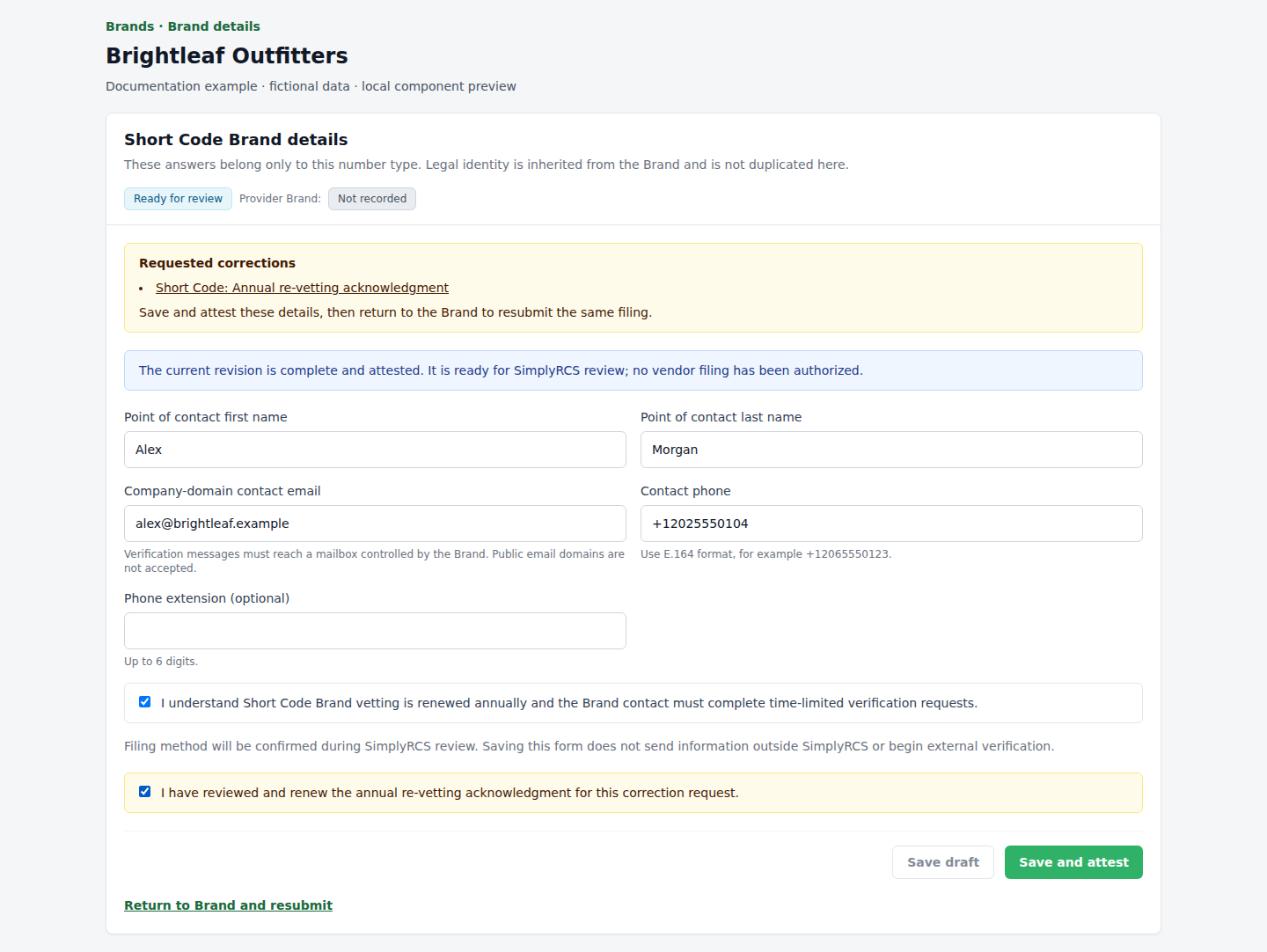
Fictional local component example of a requested acknowledgment renewal.
- Editing KYC-relevant information invalidates an older review and requires a fresh attestation. This prevents an approval from silently carrying over to materially different business information.
- Company-profile completeness gates contact import and sender-ID submission. SimplyRCS KYC is a separate launch prerequisite; carrier or registry approval is tracked on the relevant submission.
Tip: Use the legal entity name exactly as it appears on the IRS EIN letter. Mismatches are one of the most common reasons brand vetting fails.
3. Dashboard
After signing in you land on Dashboard. One Getting started area combines the practical order Company Profile → Brand → Channels with the optional educational shortcuts, so the same work is not presented as two competing progress guides. Recent submissions follow, then a compact activity summary, channel activity and ranked Bots and Blasts. Your organization, account number and Sign out remain in the expanded sidebar or mobile menu.
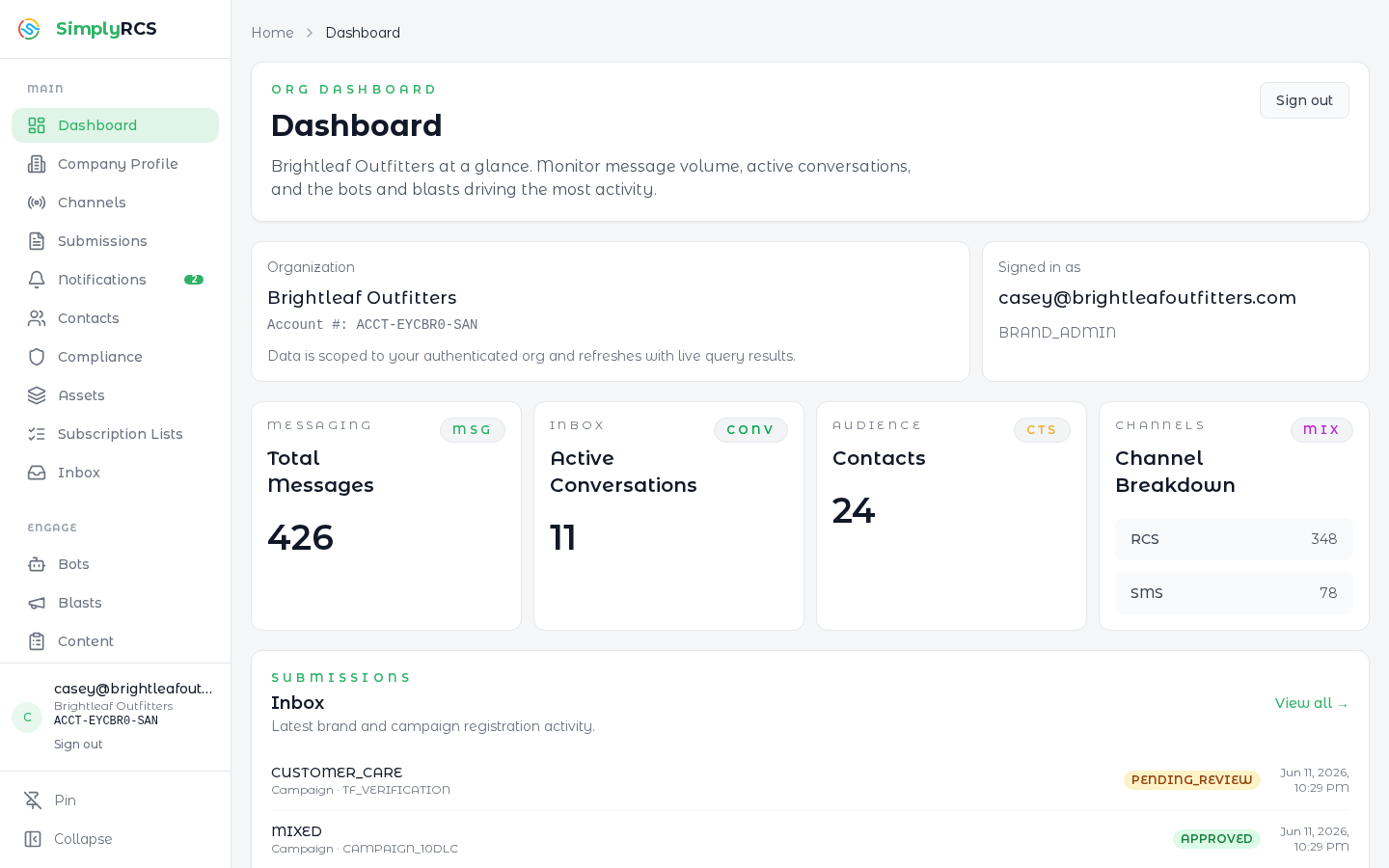
Fictional local workspace; no messages were sent to produce this example.
The image is the preceding Dashboard-composition capture. It must be refreshed from the reviewed task-guidance and navigation candidate before publication; it does not evidence the unified Getting started area or the new rail.
Key actions:
- Within Getting started, use the task guidance to review the existing Company Profile fields and submission signal, then the named Brands in this workspace, before continuing to Channels. The Channels link opens Sender IDs; existing channel-specific permissions and gates remain authoritative. This guidance does not determine whether messaging is ready to send.
- A Company Profile action may require an authorized workspace administrator. Brand KYC review, Brand standing and pricing sign-off are shown separately. A missing or failed source remains unavailable, never complete. Creating a Brand is offered only after the existing Company Profile entry gate and is optional when Brands already exist.
- The compact educational links in Getting started cover Company details, Sender setup, Registration details, Bots, Contacts and Inbox. They are not a launch checklist or permission to send. Sending remains subject to the owning channel, compliance and pricing gates. Dismiss hides only these educational links, not task guidance, submissions or activity.
- Open Recent submissions to review the latest Brand and campaign registration updates. Each row keeps its recorded status and links to its existing submission; this is not a new action-required or waiting queue.
- Review Activity summary for all-time message volume, current active conversations, contact records and channel distribution. A contact count does not establish reachability or consent.
- Switch Channel activity between 7D, 30D and 90D. Dates are UTC. Expand View channel data to read the same daily values without hovering over the chart.
- Open a ranked entry for its existing analytics detail. Top Bots by messages uses message count; Top Blasts by recipients uses recipient count, not chronological recency. Delivered retains its existing delivery-status definition.
- If a panel cannot load, it stays visibly unavailable. Its Retry repeats that panel's read; an unavailable result is not reported as zero activity. A Dashboard or submissions server-read failure offers a Dashboard retry link.
4. Senders & Numbers
The Senders & Numbers page uses the existing Sender IDs route to register and manage every sender identity for your organization: RCS Business Messaging agents, 10DLC long codes, toll-free numbers, short codes, and WhatsApp senders. It leads with the actual sender table after compact registration-health and inventory filters. The test/demo and Go-Live controls filter that table; they are not a separate workspace. Messaging Programs remains local to the existing Brand Hub Programs tab, while each sender row shows its attached programs and reveals the existing association controls only when Manage programs is opened. Compact registration rows follow below. Channel cards still walk you through onboarding for each type; existing senders show their enabled protocols, attached messaging program, and lifecycle status.
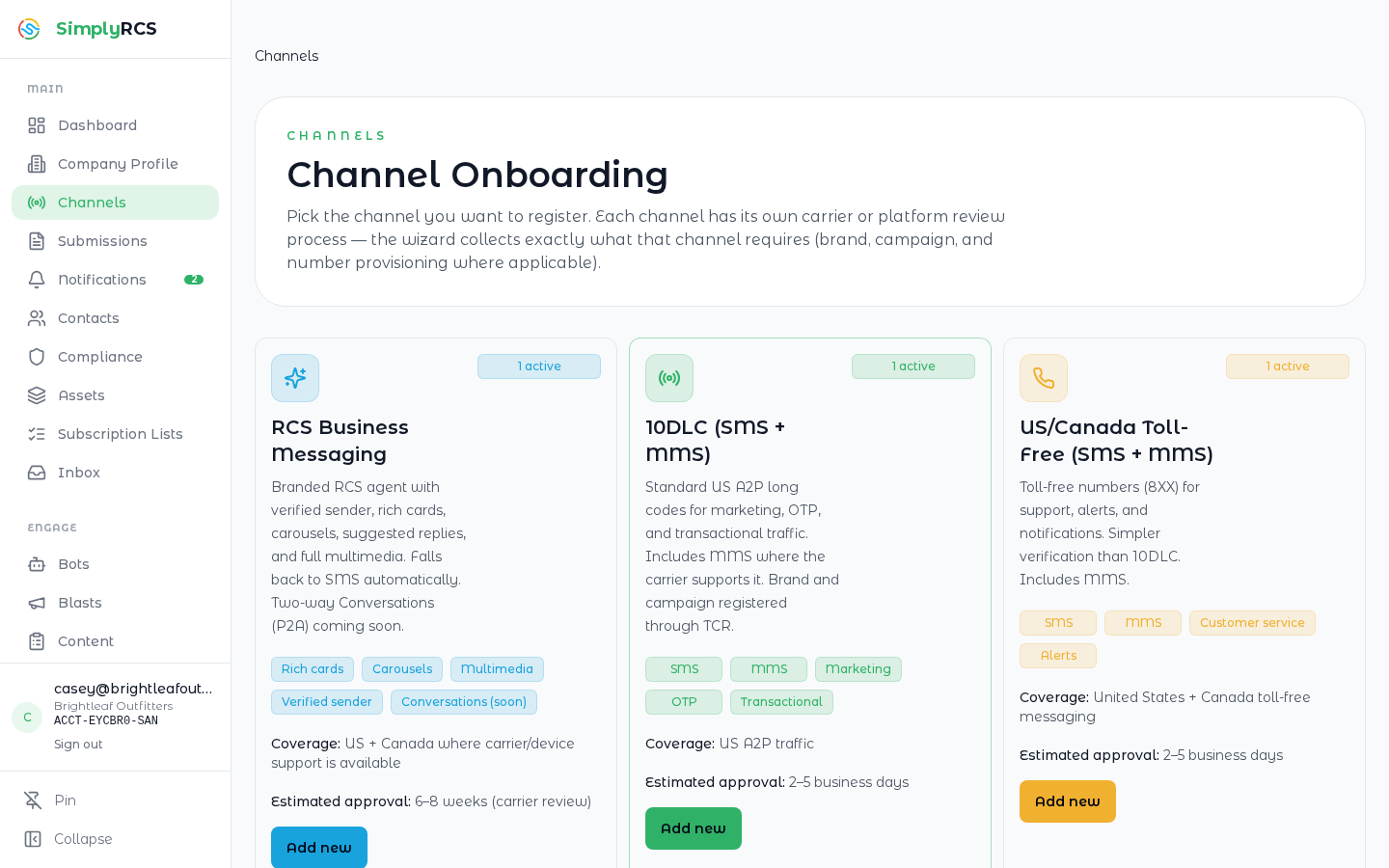
The image predates the table-first Senders & Numbers composition. It must be refreshed from the reviewed candidate before publication.
Key actions:
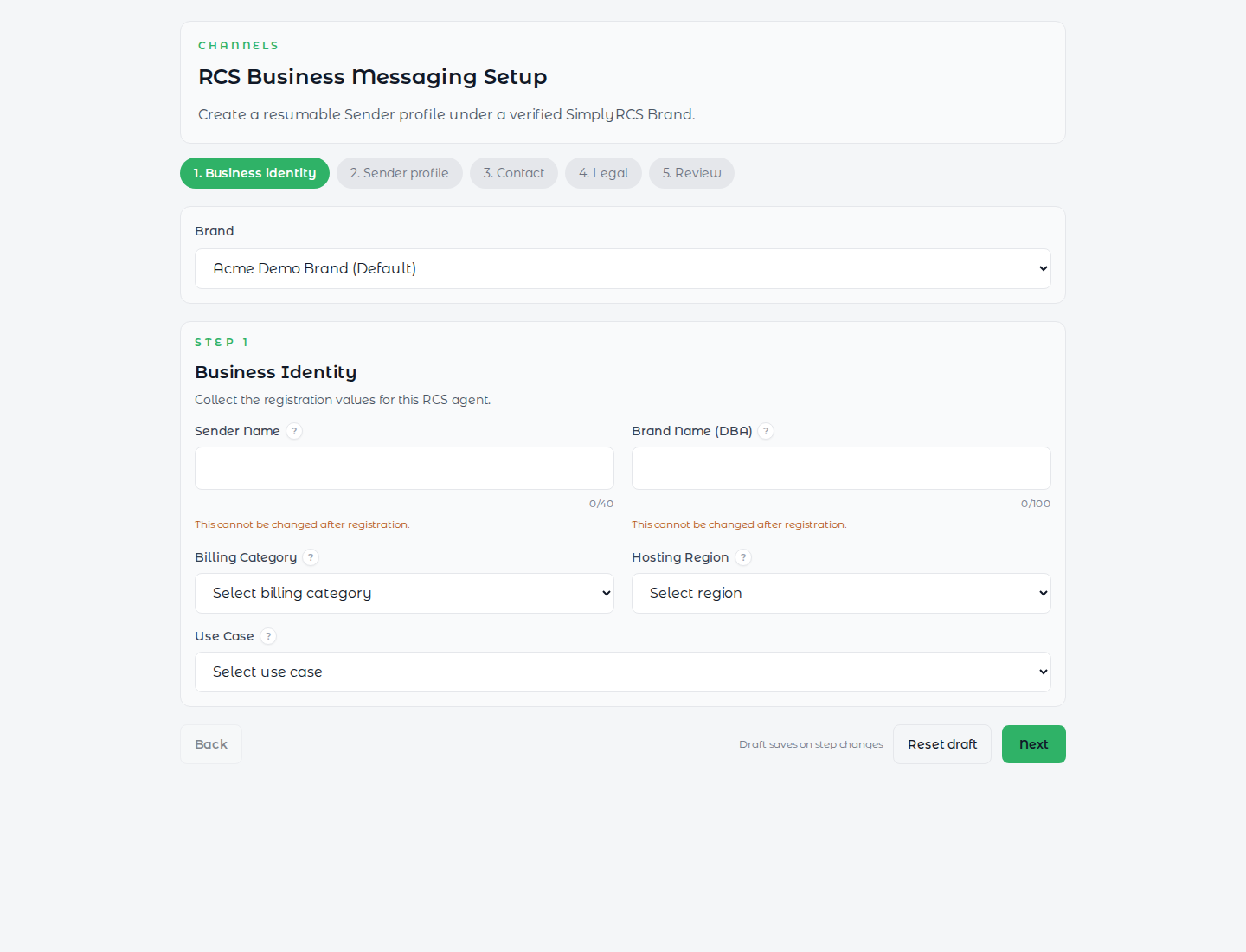
- Use the channel cards to start RCS, 10DLC, toll-free, short-code, or WhatsApp onboarding. RCS starts under a verified Brand and saves a resumable local Sender-profile draft: Sender and display names, billing category, hosting region, use case, brand color and uploaded images, contact methods, and public legal URLs. The final Review step preserves the existing wallet gate; Submit to SimplyRCS creates the local pending Sender and protocol records, marks the draft submitted, performs the internal billing handoff, and opens the canonical RCS Sender-profile Case for SimplyRCS review. An admin may request changes or approve the exact submitted revision. A change request reopens the same saved draft, and resubmitting it returns the same Case to review with a new immutable revision. Before provider submission, the customer may Withdraw registration from the Case; this ends SimplyRCS review but deliberately leaves the submitted draft closed, the local Sender pending approval, and completed charges unchanged. Approval is local only: the customer sees Approved by SimplyRCS; awaiting provisioning. Neither approval nor withdrawal contacts Infobip, creates a launch request, claims network submission, or establishes carrier approval. Provider provisioning remains a later, separately authorized workflow. Other channel wizards collect their channel-specific filing data. WhatsApp is a development/scaffold workflow until SimplyRCS exposes a production readiness source and completes live provider acceptance.
-
New 10DLC work uses a focused, resumable workspace under Channels. Choose a verified Brand and SMS/MMS product. Number is the first workspace section: search the active Infobip US local-number inventory, optionally narrowing by state, area code (NPA), exchange (NXX), LATA, rate center, or digits contained in the number. Prices shown are the organization's approved customer rates. Available inventory is selected by the exact displayed US local number; the customer does not need an owned-number key before purchase. Purchasing the selected number creates its recurring number lease and one-time setup charge, binds the owned number to the selected Brand, and confirms its exact owned-number key and requested SMS/MMS capabilities afterward. The purchase confirmation shows the exact customer setup charge and monthly lease, omits unavailable location details, and does not request an unrelated display name. Confirming the number does not register the 10DLC Brand or campaign. If the provider result is ambiguous, do not purchase again; SimplyRCS reconciles the same claimed purchase against owned inventory.
In Drafts in progress, each draft you can manage offers Resume and Delete. Resume opens that exact draft. Delete asks for confirmation and removes it from the resumable list; it does not delete the Brand, release an acquired number, or stop number charges. 10DLC keeps its Case and saved history as withdrawn. Submitted registrations are managed in their owning workspace, rather than deleted as drafts.
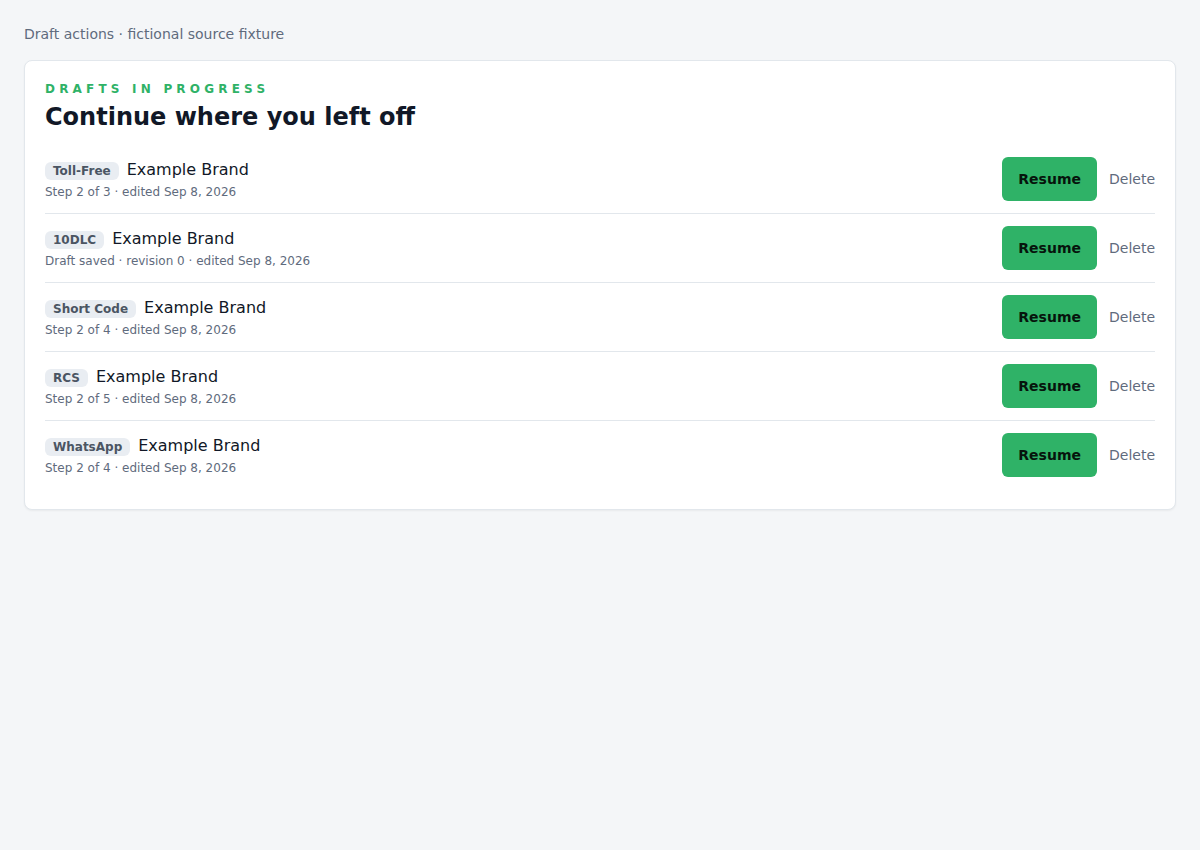
The canonical draft then appears under Continue where you left off and in the 10DLC channel card count. Number, Campaign, Messages, Consent & support, and Review use the same progress control and Back/Continue pattern; the four filing sections remain directly selectable after number acquisition. Draft edits autosave as immutable revisions, with a visible save-status indicator; the workspace keeps the Submit and Withdraw actions allowed by its current state. Length-bound fields show live current/minimum/maximum counts, and filing fields provide keyboard- and touch-accessible examples or format guidance. The four preparation pills show Incomplete or Complete, matching Toll-Free. Inactive incomplete sections are red; the current section keeps its active styling and completion label. An unsaved draft is incomplete. 10DLC indicators update from validation of the acknowledged saved revision; wait for Saved after an edit. Review remains incomplete when any section has a blocker. The complete blocker summary appears on Review or a submit attempt—not after an ordinary autosave. Submit for SimplyRCS review requires the already acquired number and creates one persistent Case; it does not register the Brand or campaign with Infobip, attach the number to an Infobip campaign, charge an undocumented registration fee, or authorize traffic. If an admin requests field-specific changes, the Case links back to the same workspace for correction and resubmission. The customer may withdraw while the local action is available. Approved by SimplyRCS means only that the exact local revision passed internal review; filing and carrier acceptance are later steps. If the draft's message types change after purchase, the workspace rechecks the attached number's stored SMS/MMS capabilities. An unsupported combination appears as a Number blocker and cannot be submitted.
After local submission, the same campaign opens as a read-only 10DLC object workspace from either Channels or its Submissions Case. Overview identifies the selected Brand, exact campaign, and retained revision; Readiness separates the local filing, SimplyRCS review, external Brand and campaign registration, number association, and send readiness; Filing shows the complete customer-submitted revision; Registration keeps Brand, campaign, and number work distinct; and Activity shows meaningful review milestones while collapsing ordinary autosaves into one draft-preparation milestone. The workspace never presents local approval as external acceptance and does not offer an external-status refresh until an authoritative external observation exists.
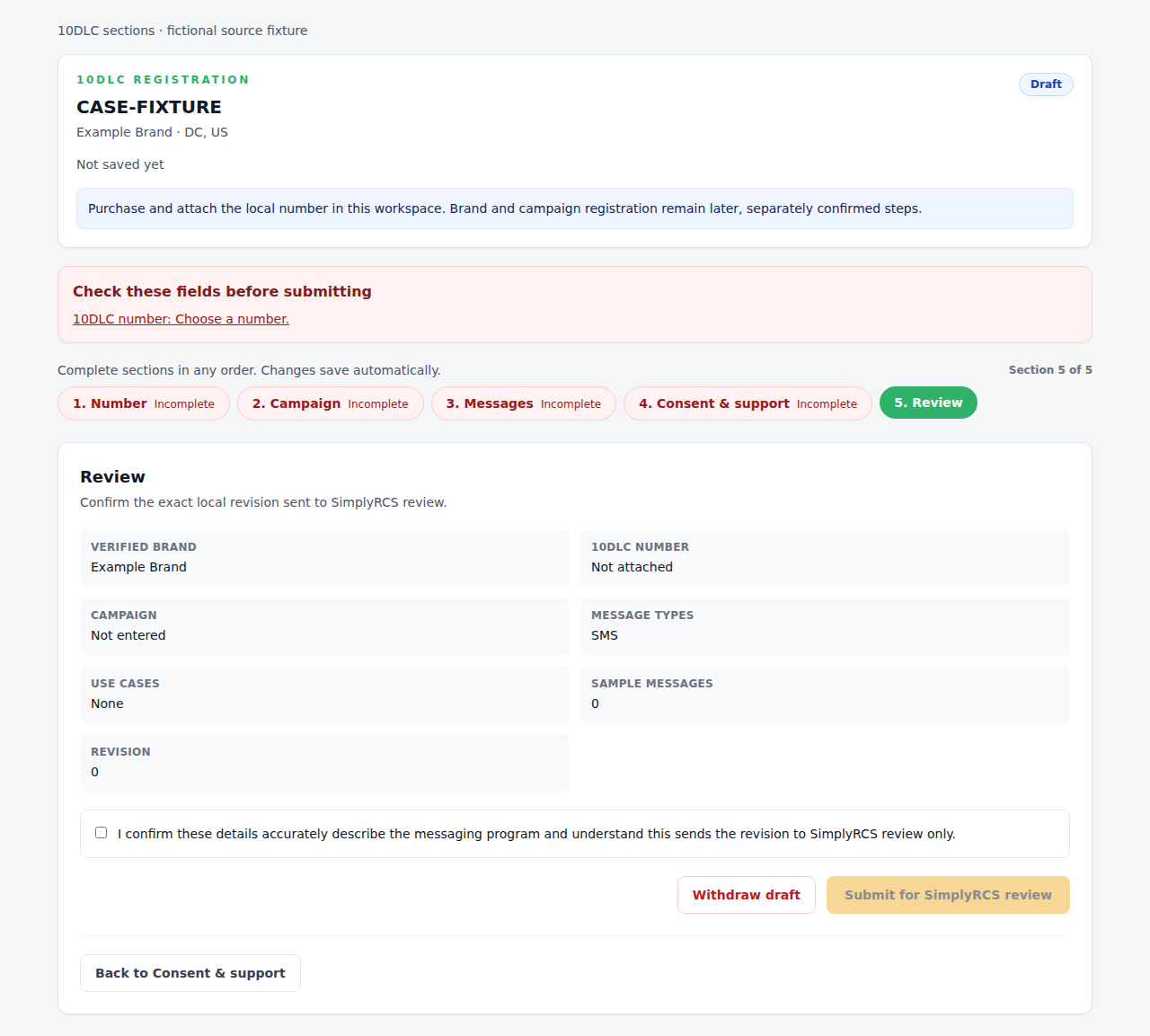
Capture 60 is a fictional local source fixture for the issue #46 correction; it is not authenticated Dev QA or provider acceptance.
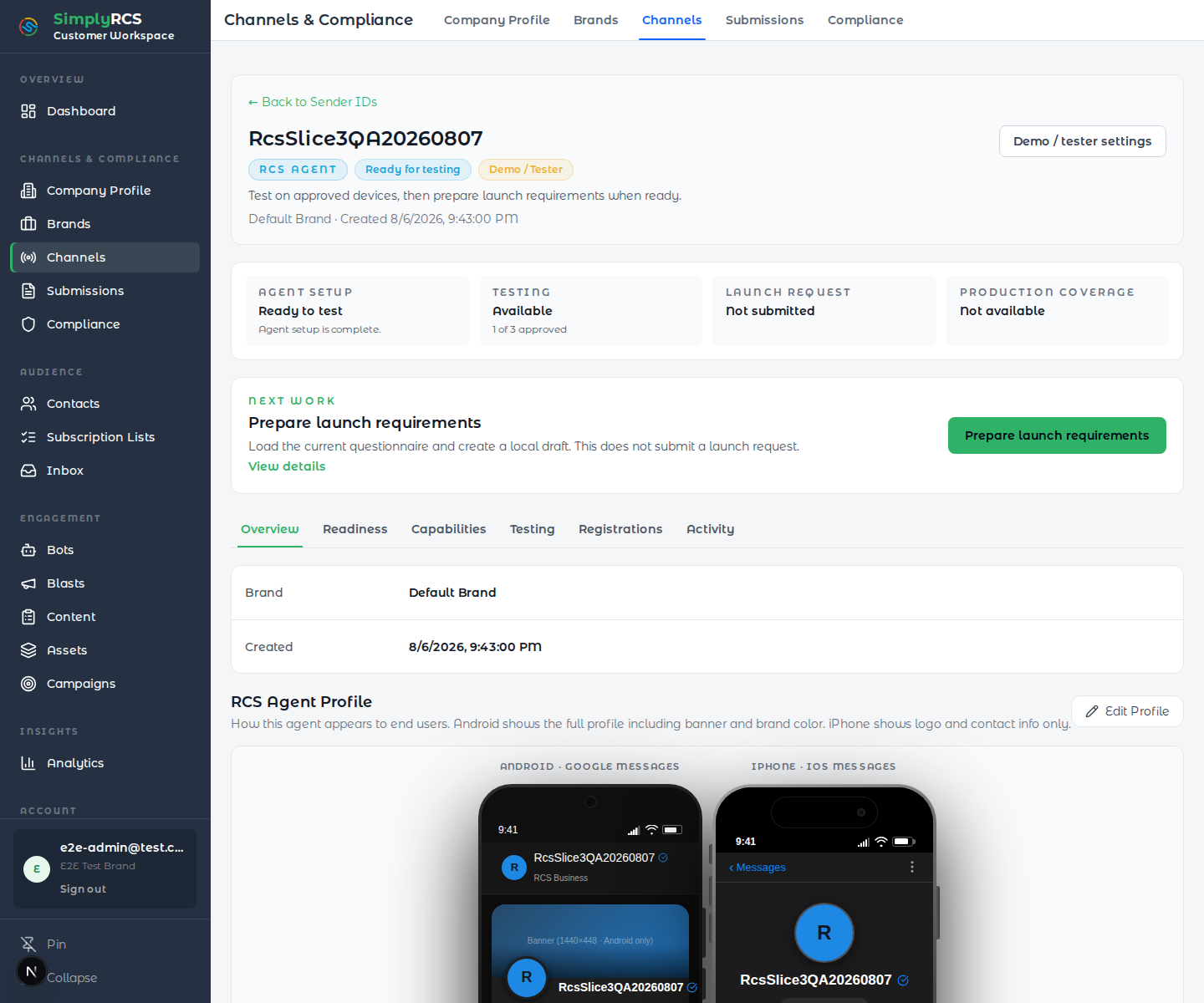
- An RCS Sender opens as one object workspace instead of a stack of competing status cards. The compact header identifies the exact Sender and selected Brand, shows only the earned lifecycle state, and keeps demo/tester settings secondary. Independent readiness facts distinguish agent setup, testing, launch request, and production coverage; Next work presents at most one customer action. Use Overview, Readiness, Capabilities, Testing, Registrations, and Activity to work with the Sender without losing that context. Testing tools appear only after the exact testing-ready state is earned, and testing remains distinct from launch review and production availability.
-
Toll-Free onboarding is number-first: Number → Campaign → Messages → Consent & support → Review. The verified Brand remains visible as inherited, read-only identity. Before inventory loads, SimplyRCS creates the owning, resumable draft; an older campaign-first draft without an acquired Sender resumes at Number. External-number import is not offered in this exact purchase journey.
As in managed 10DLC, you can click any preparation section and return to earlier sections. Changes save automatically; wait for All changes saved before leaving. If saving fails, your edits stay visible and Retry save retries them. Section indicators reflect required information, not which sections you have visited. Review lists incomplete sections and links directly to them. You can prepare campaign details before acquiring a number; submission still requires an eligible acquired number and all required fields.
The optional Toll-Free Prefix filter accepts three-digit NPAs such as
800or866; Contains may narrow the number pattern. Both filters are optional andstateis never sent for Toll-Free inventory. Results show the organization's approved one-time and monthly customer prices. A short-lived server verification binds the exact inventory reference, displayed number, Toll-Free type, and organization; a missing, expired, swapped, or mismatched binding fails before credentials, billing, or provider access.Selecting Purchase creates one durable Number Order before the external request. The exact selection is attempted once. If ownership cannot be confirmed immediately, SimplyRCS holds and reconciles that same order through read-only inventory checks; do not start a second purchase. Confirmed acquisition attaches one non-send-ready Sender and one pending lease to the same onboarding draft, then the customer continues to campaign details. No customer charge occurs at acquisition. The displayed setup fee and first monthly lease charge begin only when that exact number's registration is approved; recurring customer billing is anchored to that approval observation. Local/10DLC purchase remains a separate workflow with its own billing timing.
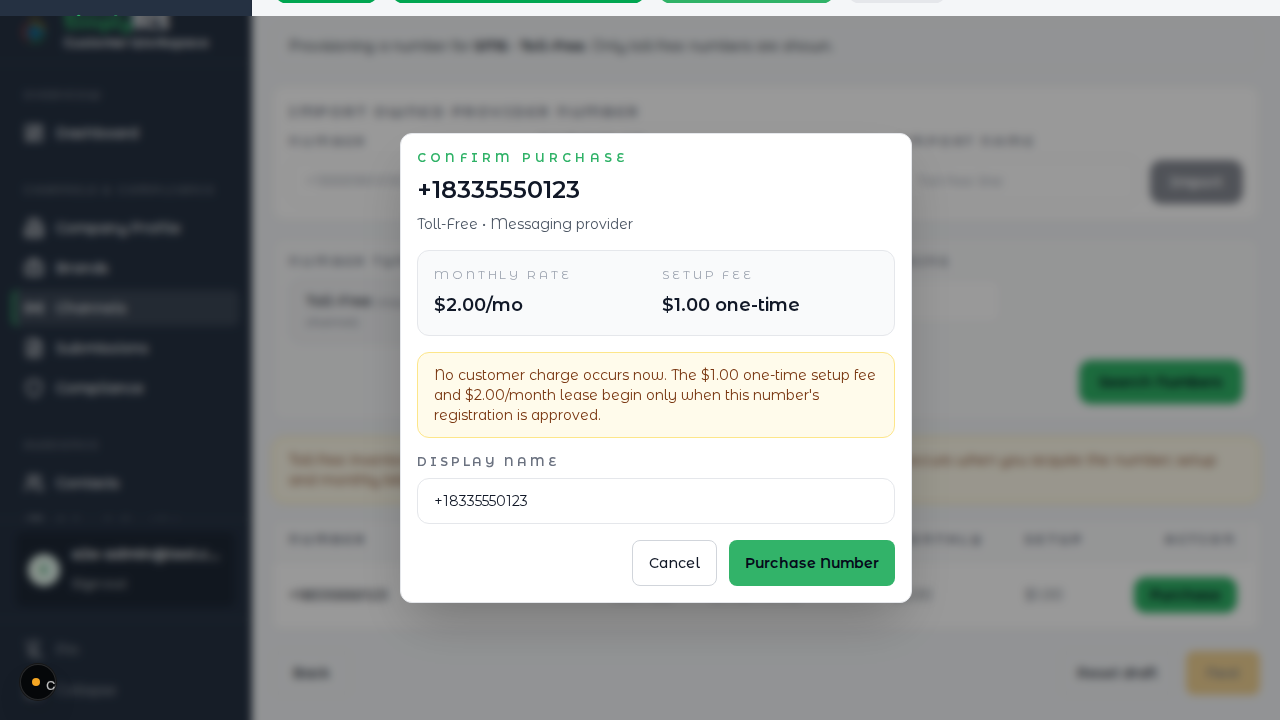
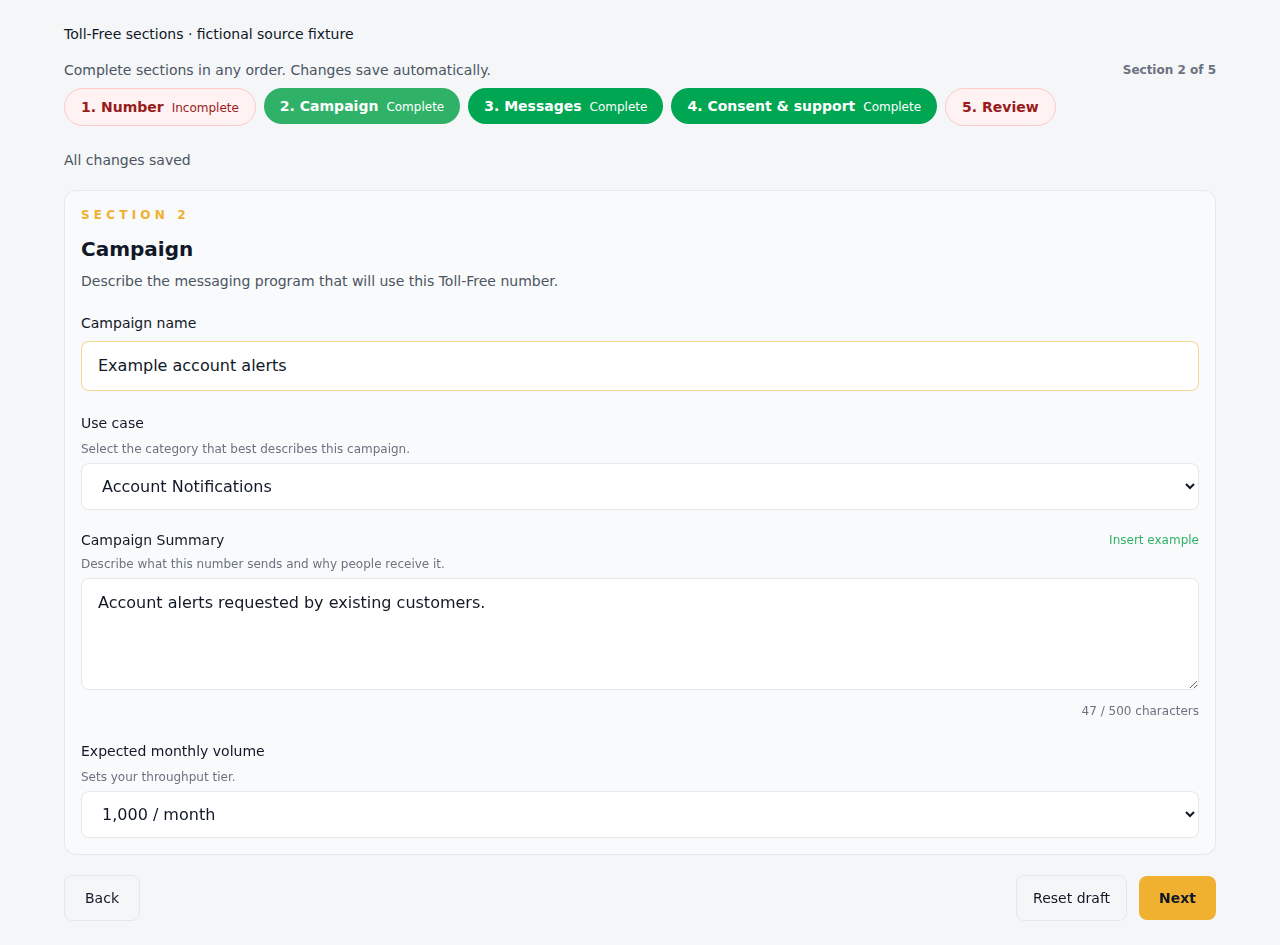
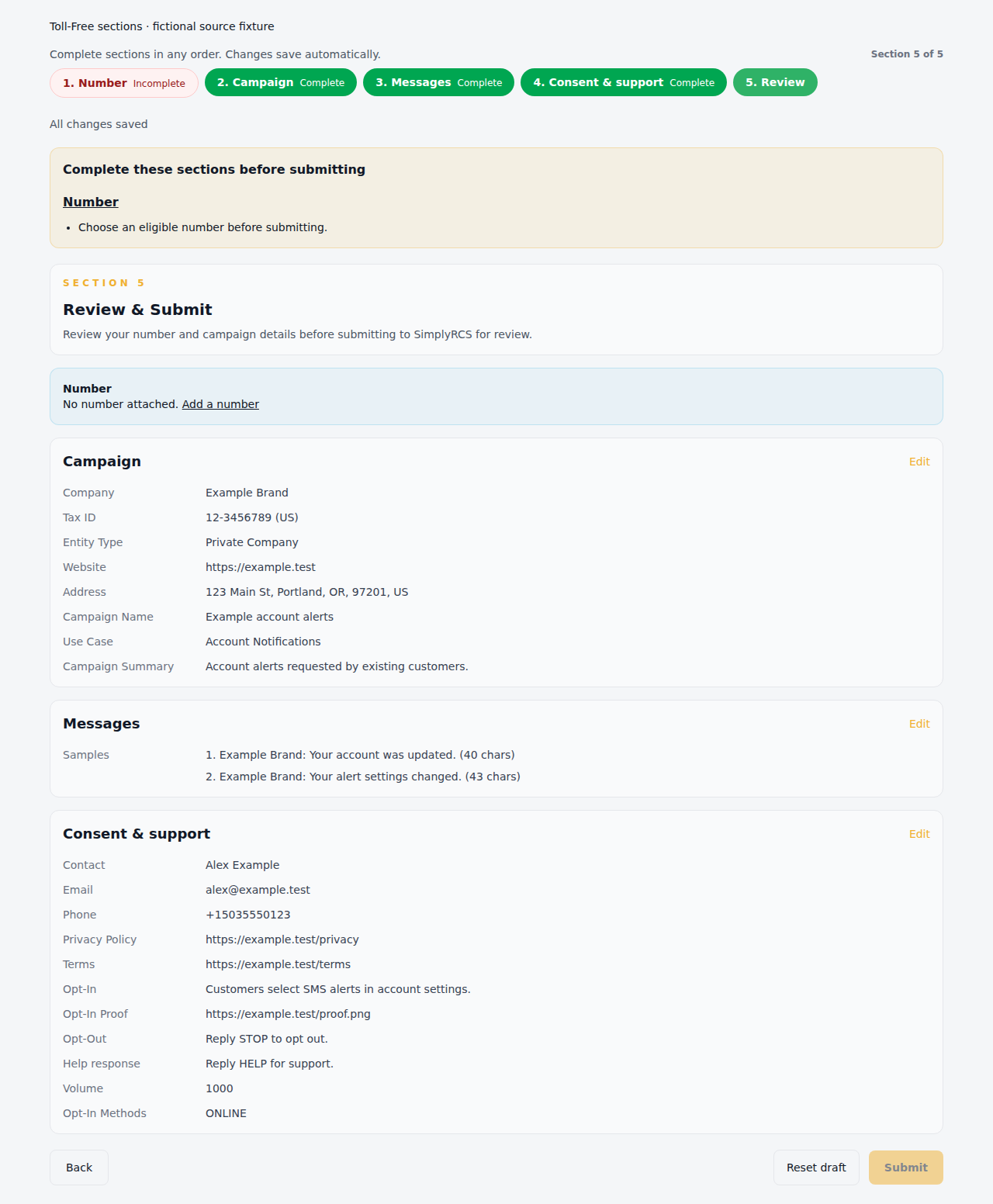
Captures 58–59 use fictional local data and intercepted draft saves. They illustrate the source candidate; authenticated Dev QA follows separate delivery.
-
An Infobip Toll-Free Sender uses its own consolidated object workspace; it does not inherit RCS testing, demo, launch, or coverage concepts. The compact header and readiness strip present the exact Toll-Free campaign observation that SimplyRCS projects onto both the owning Case and Channel, while Next work shows at most one customer action. Use Overview, Readiness, Capabilities, Registration, and Activity to see the acquired number, filing attempt, Toll-Free verification, registration eligibility, messaging protocols, filed evidence, and customer-safe milestones. Activity leads with the latest meaningful milestone, gives filing changes and provider observations distinct visual treatment, groups adjacent repeat observations, and keeps long feedback and older history available behind compact disclosures. A campaign in
APPEALEDreads Appeal in progress, remains ineligible to send, and requires no new customer filing while SimplyRCS monitors the same campaign. Refreshing status preserves that same Case-backed campaign state across the Channel and Submissions workspaces. Only an exactREGISTEREDobservation from the Infobip campaign API earns Registration approved; message-level send preflight remains a separate gate. -
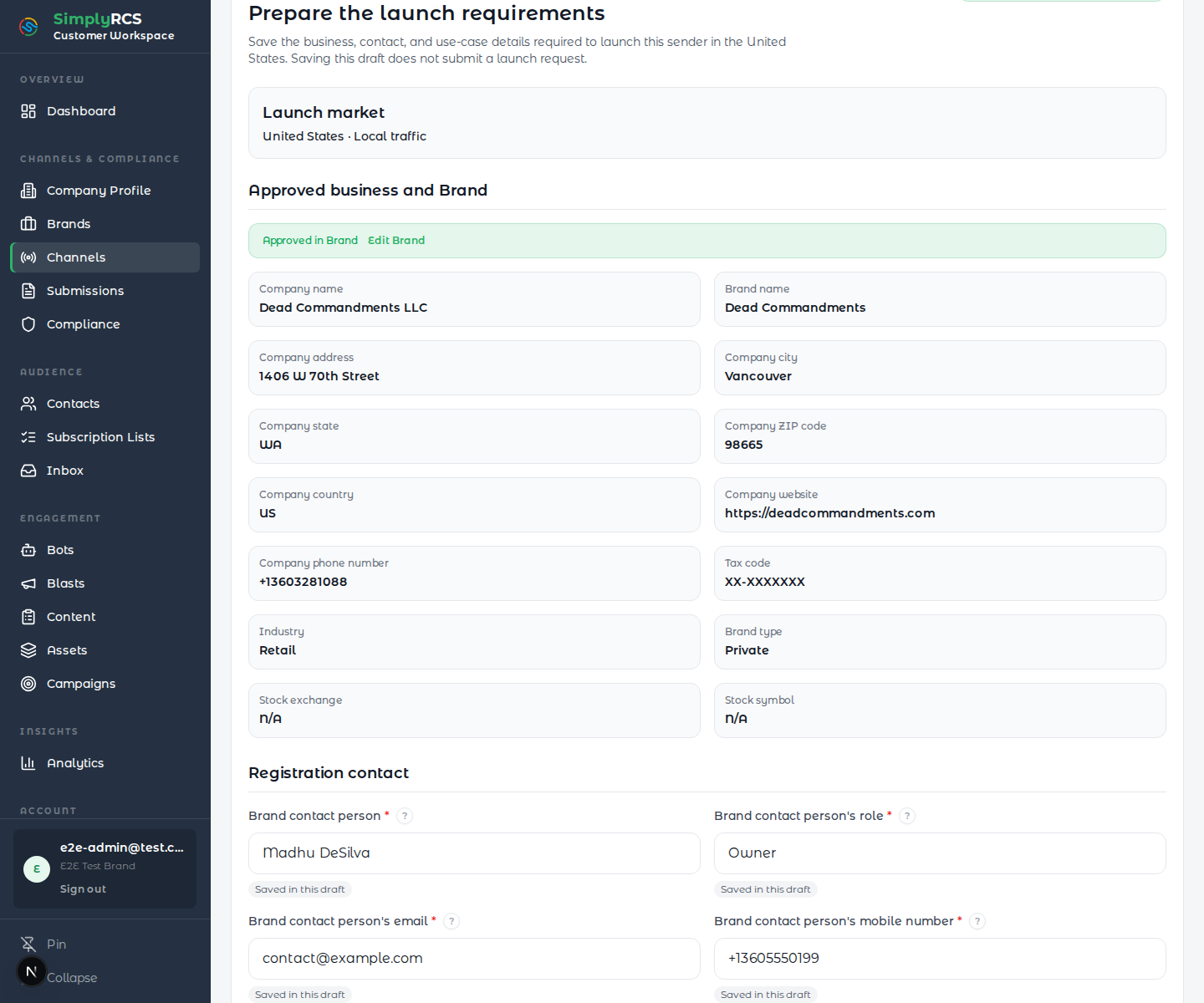
At the testing-ready stage, Prepare launch requirements loads the current United States / local-traffic questionnaire and creates a local draft. The selected SimplyRCS-verified Brand and approved business identity are shown read-only; corrections return to the owning Company Profile or Brand rather than creating a second identity in the RCS form. Internal carrier/provider inventory is not customer-visible. Editable work is grouped into registration contact, campaign and audience, consent and support, and launch evidence. Field-specific
?help explains the requested evidence, descriptor-backed limits have live counters, and estimated monthly volume uses clear approximate choices while preserving any valid previously saved exact value. Loading or saving this draft does not submit a launch request, contact a carrier for approval, or move the Sender off the test track; launch submission remains a later reviewed workflow.
Campaign corrections: the campaign-correction runtime uses the existing Toll-Free campaign form and ordinary 10DLC editor. A compact message at the top states how many requests remain. The actual field or section is marked where you edit it, with the reviewer's instruction beside it. Update a requested field in place. For a requested section, update the section or explain there why its saved answers are already correct. Save normally; the marker changes only after the saved revision addresses the request. There is no separate correction checklist to complete. Submit only after all requested work is saved and any request-refresh hold is resolved. Submission returns the exact packet to SimplyRCS review; it does not register the campaign or authorize traffic. Brand identity remains inherited and read-only in these campaign forms.
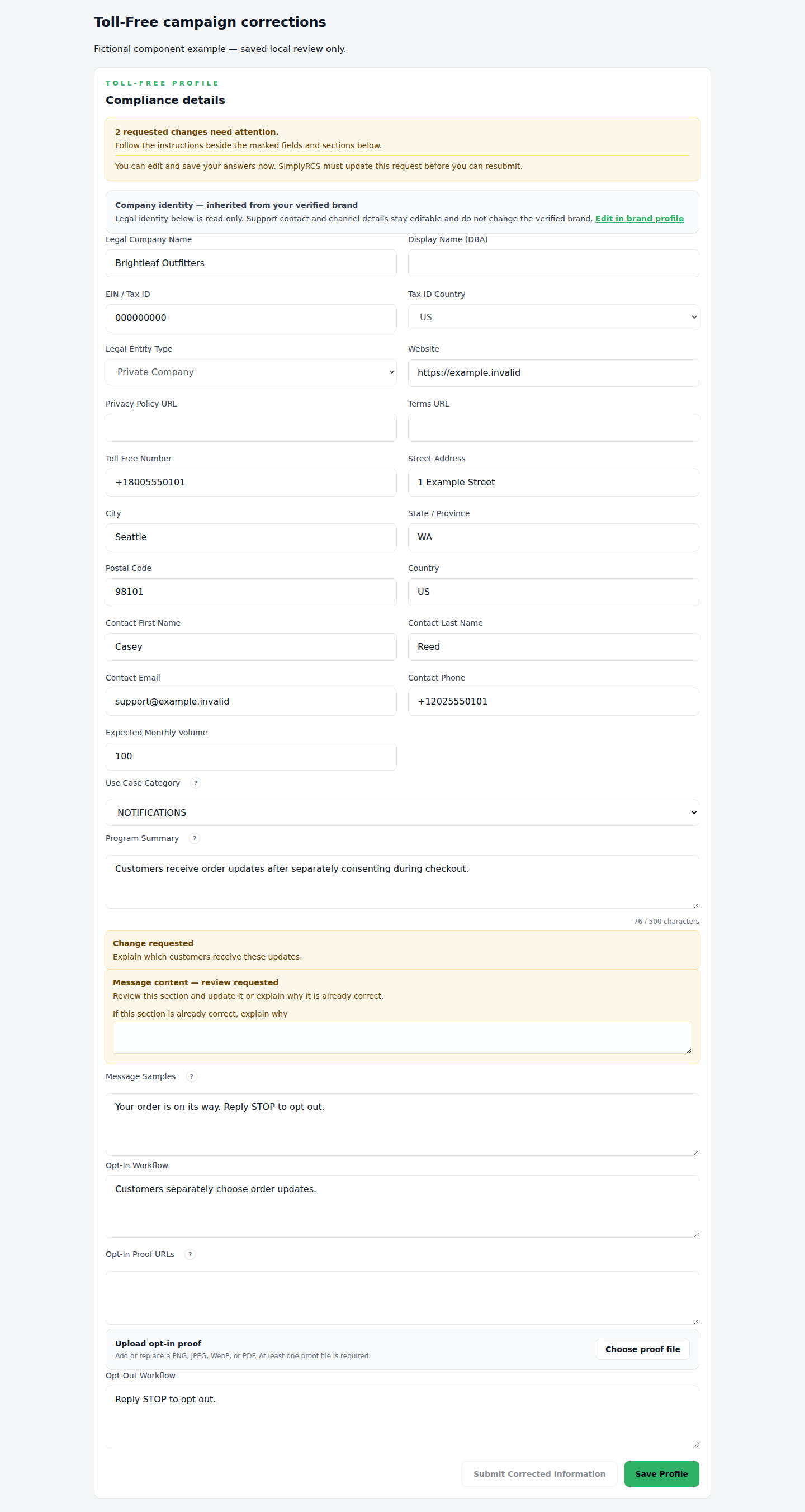
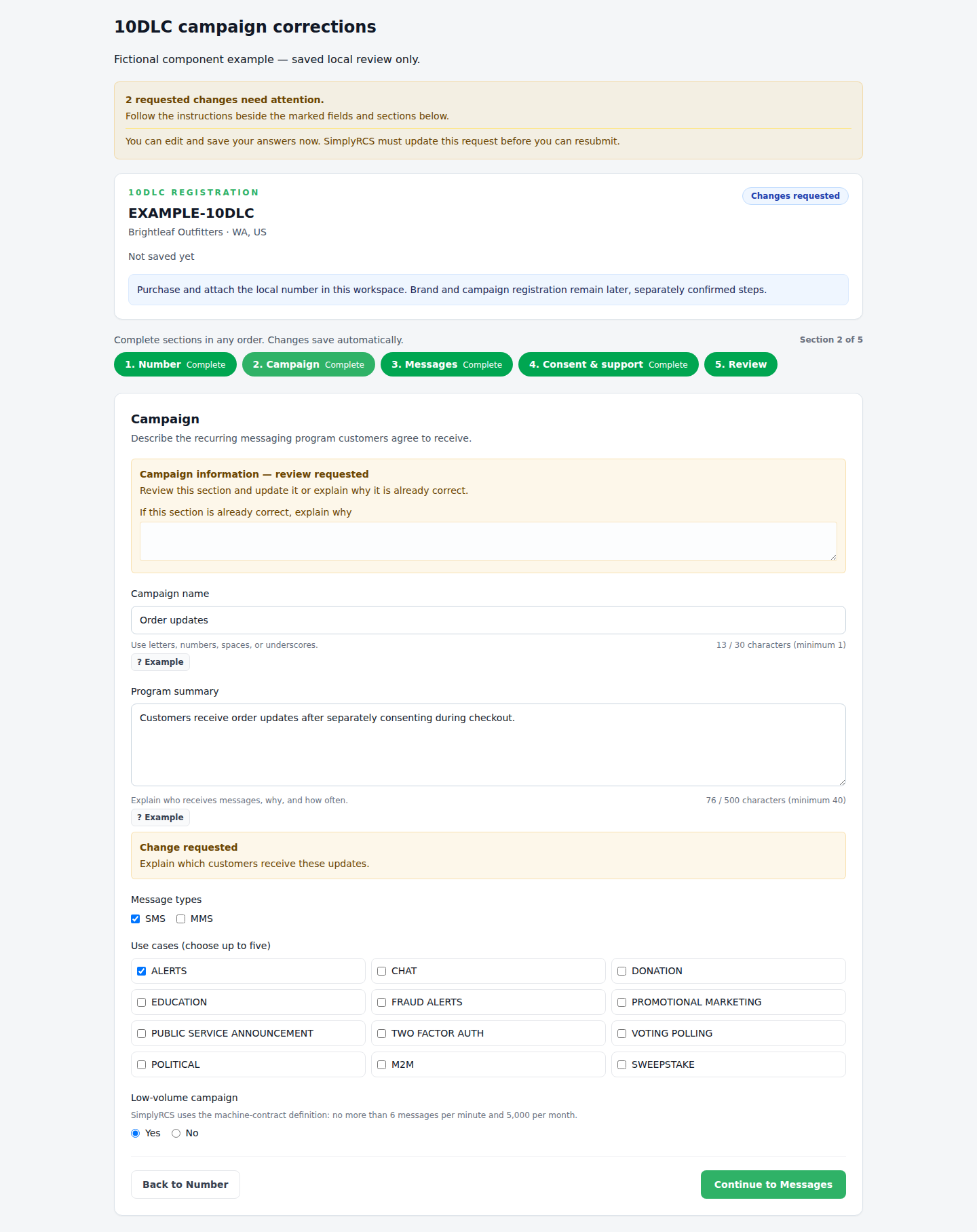
Fictional component captures using the production correction components. Authentication, transport and shared-environment behavior are not proved by these images.
- Use Messaging programs to confirm which senders are approved as primary, fallback, or test senders for a brand/campaign.
- Click any row to see its submission history, protocols, attached program, and channel-specific details. Messaging registration does not automatically include Voice; call-forwarding controls remain hidden until the exact number is provisioned for Voice and the routing workflow is available.
- Filter by channel type, status, or program. The Test vs Go-Live filter separates the two tracks: test/demo senders carry a prominent badge, are trialled on approved handsets, and are never submitted to a carrier; Go-Live senders are on the carrier-approval track for production traffic.
Tip: RCS-first programs should also have MMS or SMS fallback senders attached before live traffic is sent.
5. Compliance
The Compliance page tracks carrier and registry filings for brand vetting and campaign approvals. Brands represent the legal customer identity; campaigns represent approved use cases such as marketing, support, alerts, or authentication. Each row shows the latest external filing decision, score, and review feedback. SimplyRCS Brand KYC remains a separate internal state on Settings > Brands.
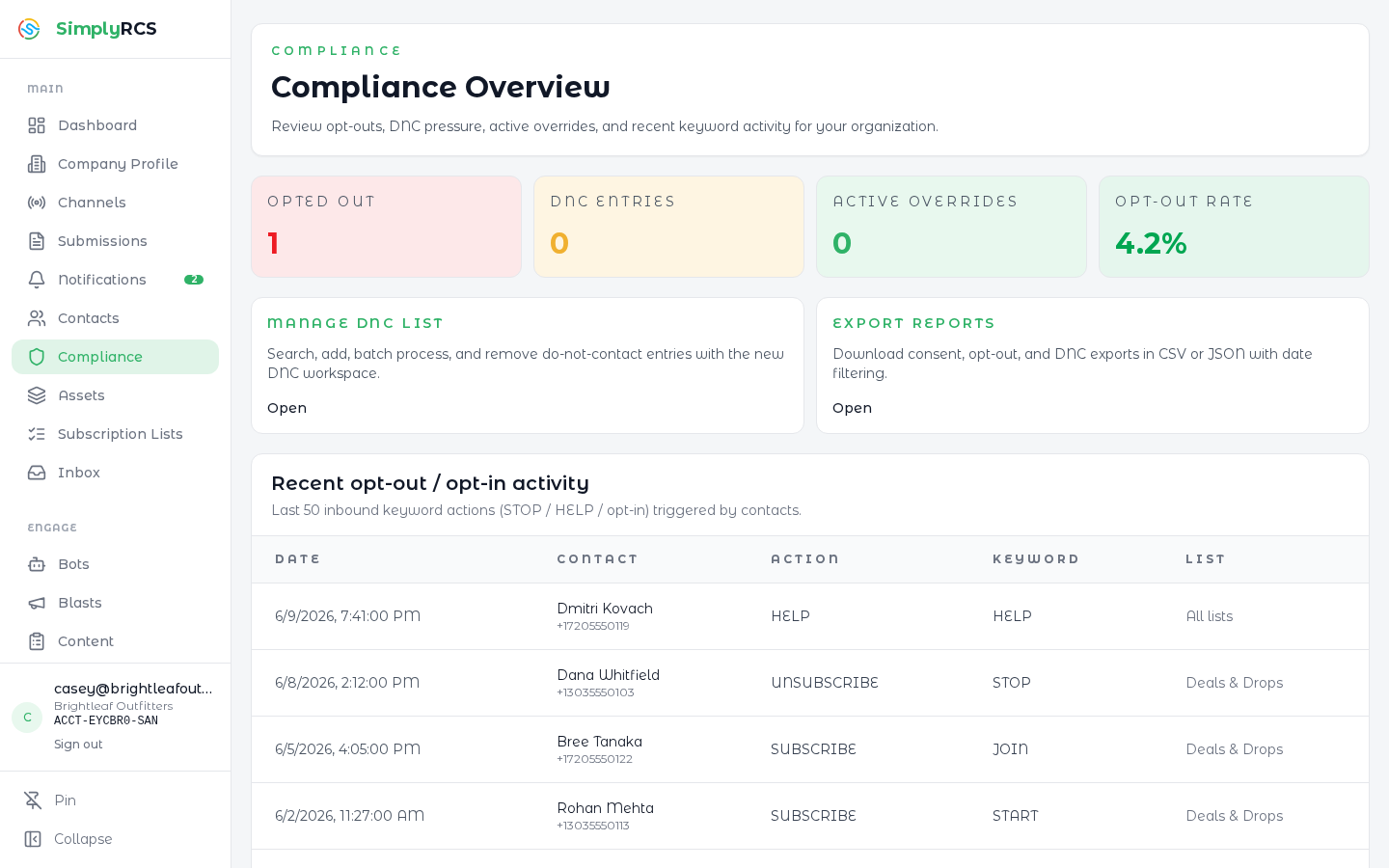
Key actions:
- Submit brand — create a new brand using your KYC fields. Choose enhanced vetting if your account team recommends it.
- Submit campaign — pick the parent brand, define the use case, opt-in flow, and sample messages. Campaigns can be reused across multiple sender IDs.
- Drill into a row to see the full audit trail (every submission attempt, review response, fee charged).
6. Contacts
Manage every recipient your organization can message. Contacts have first and last name, a phone number, optional email, custom attributes, tags, and a per-channel consent record. The built-in System Contact Fields (name, phone) double as personalization tokens — <<FIRST_NAME>>, <<FULL_NAME>>, and friends — usable in bots, templates, and blasts alongside your custom-attribute tokens.
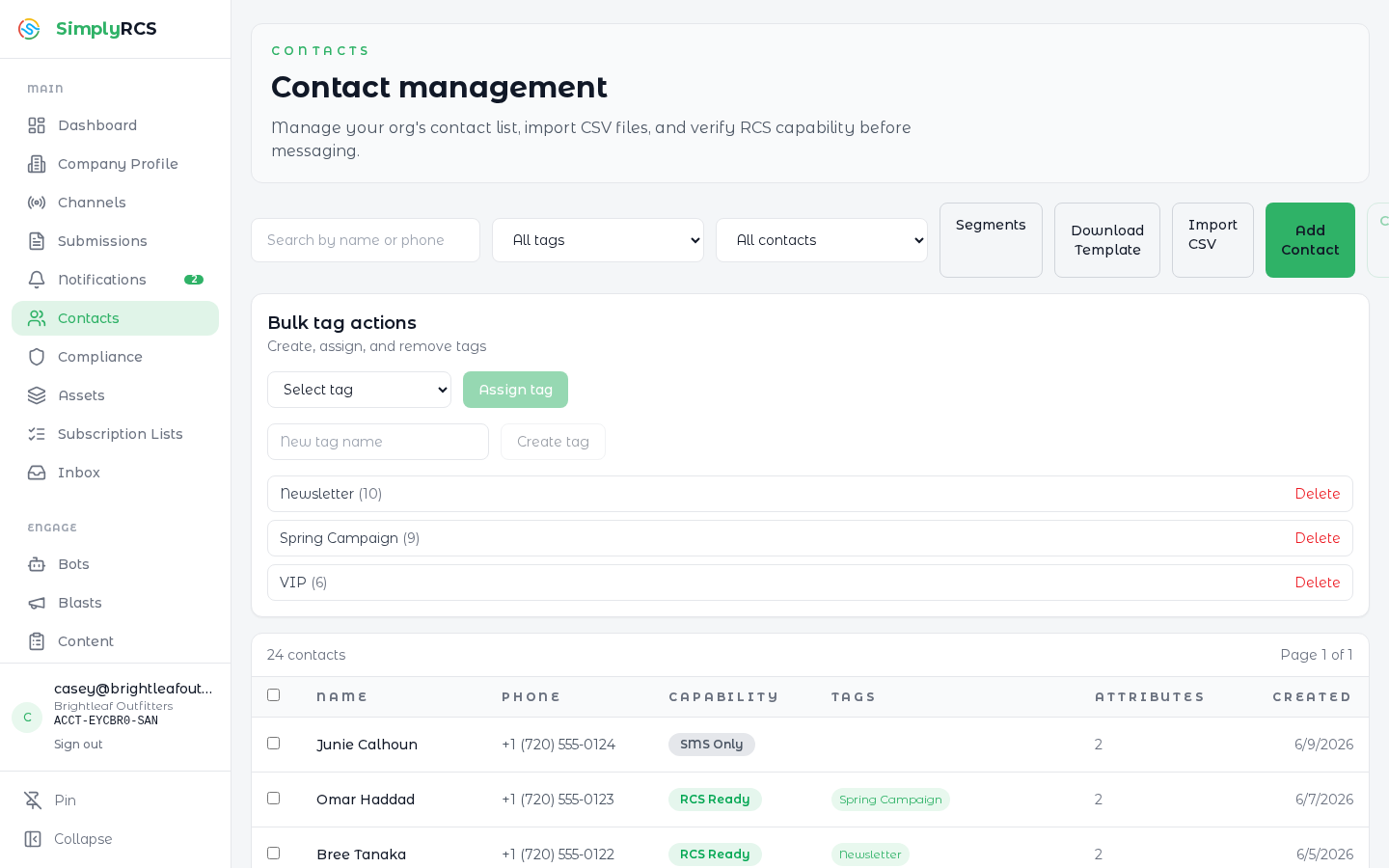
Key actions:
- Import — upload a CSV. Simply RCS validates phone numbers, normalises to E.164, deduplicates against the existing list, and shows a preview before commit. KYC must be complete before import is allowed.
- Add contact — manually create a single contact.
- Tag / segment — apply tags or build dynamic segments (
country = US AND last_message_replied < 30d) for use in blasts and bots. Tag names are normalised to one canonical form (lowercase, hyphenated —VIP Customerbecomesvip-customer), so the same tag can never exist in multiple spellings.
Tip: Consent is tracked per channel. A contact can be opted in for SMS but not RCS, or vice versa. The platform automatically suppresses sends to opted-out recipients on the relevant channel.
7. Subscription Lists
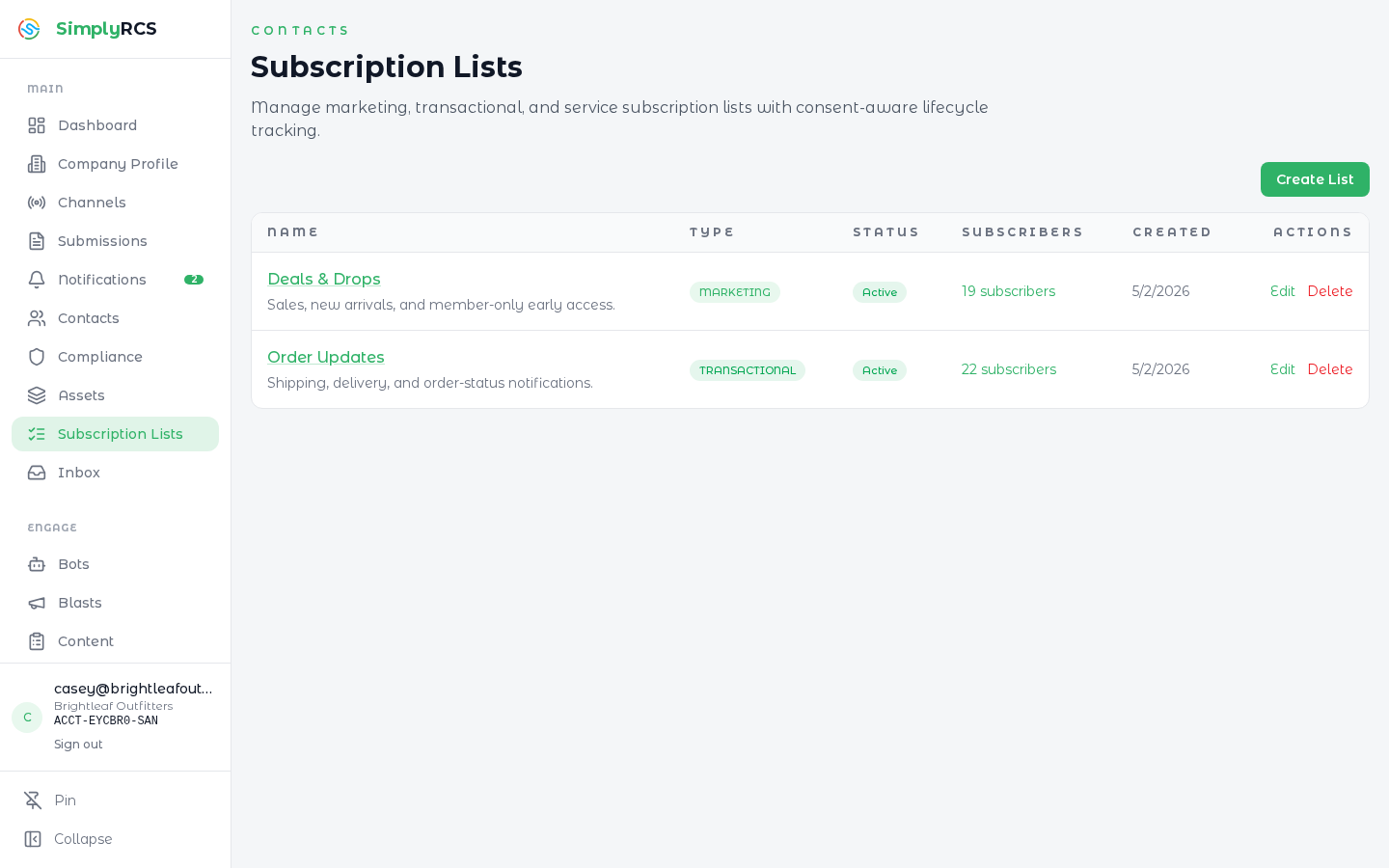
Subscription lists are named groups of contacts that have explicitly opted in for a topic. They are the primary audience selector for blasts and acquisition campaigns and the unit at which double opt-in / unsubscribe is tracked.
Key actions:
- Create a new list and define its keyword (e.g.
JOIN PROMO), opt-in confirmation message, and unsubscribe instructions. - Assign sender IDs that are allowed to send to the list.
- Review subscriber growth, churn, and the most recent opt-in/opt-out events.
8. Inbox
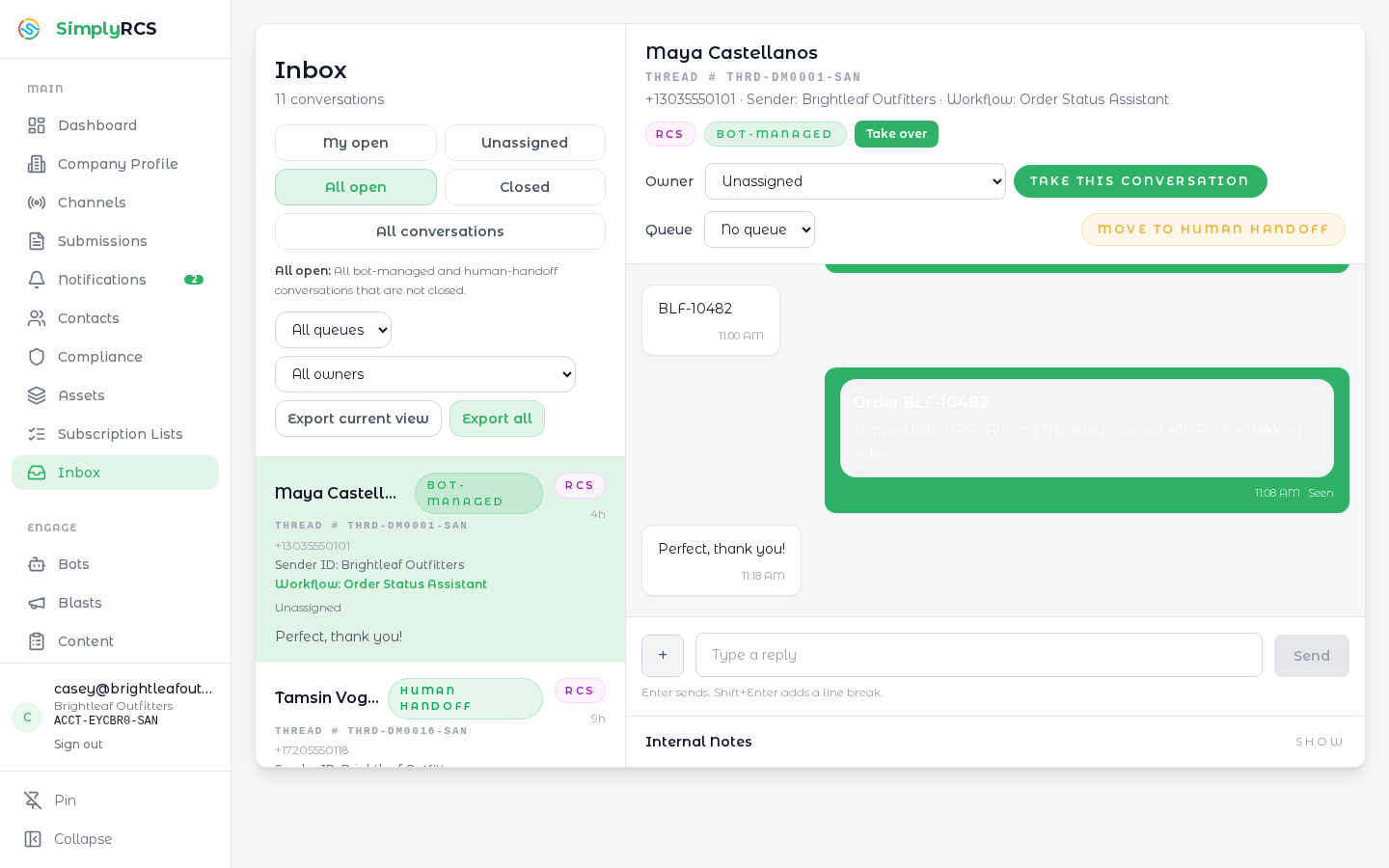
The Inbox is the live two-way messaging surface. Every reply from a contact lands here. Agents can take ownership of a conversation, send a reply, attach files, hand off to a bot, or close the thread.
Key actions:
- Use the filter buttons to switch between My open, Unassigned, All open, Closed, and All conversations, and narrow further by inbox queue or owner.
- Click a thread to see the full message history (including rich RCS card previews), applied tags, and the contact's profile.
- Take this conversation to assign it to yourself and reply inline. Taking over a bot-run conversation pauses the bot; Return to bot hands the thread back when you are done. The composer shows a live SMS segment counter as you type.
- Export current view or Export all to download conversation data.
RCS suggested replies show the option the contact selected, not its internal routing token. Card, carousel and list previews show their saved text; action labels in history are a transcript, not buttons that resend a reply.
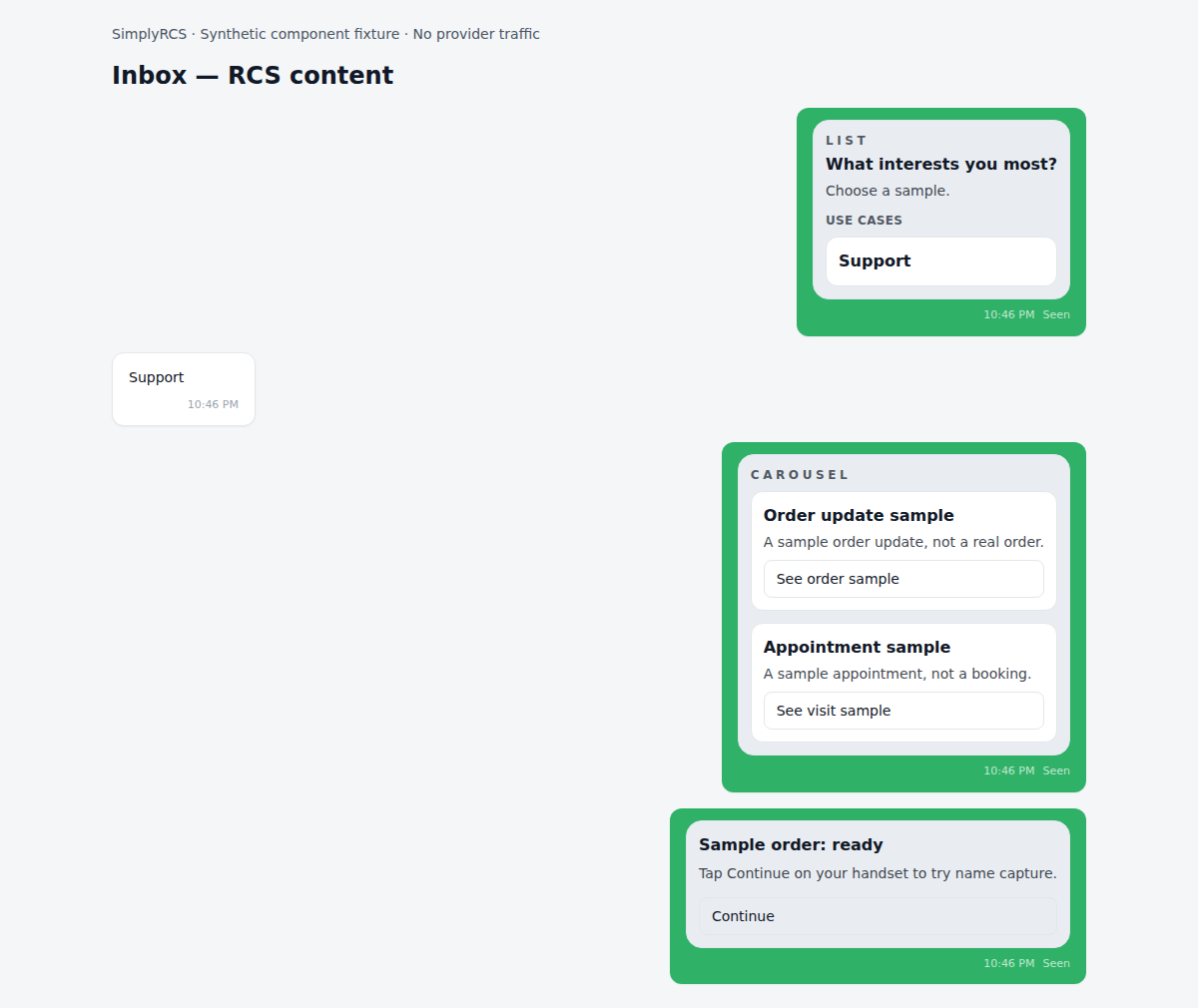
The detail above uses local synthetic data and the actual Inbox renderer. It is visual documentation, not evidence of a provider send.
9. Notifications
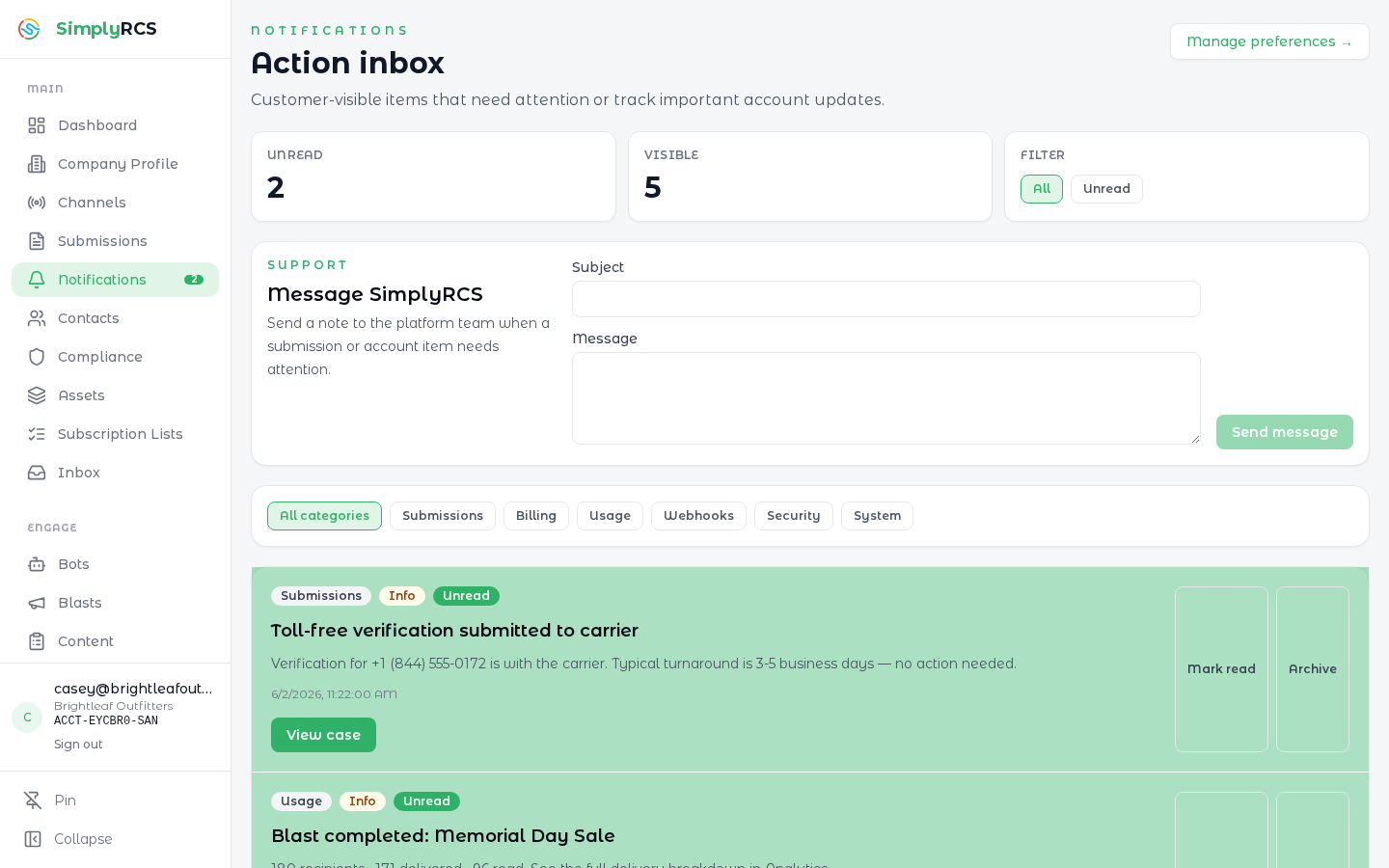
The Notifications page is your account action inbox — customer-visible items that need attention or track important account updates (submission decisions, billing events, usage thresholds, webhook failures, security notices, and system messages). It complements, and is separate from, the conversational Inbox.
Key actions:
- Scan the Unread and Visible counts, and toggle All / Unread.
- Filter by category: Submissions, Billing, Usage, Webhooks, Security, System.
- Each item shows its category, severity, body, timestamp, and the delivery status of any matching email notification. Use the per-item actions to mark read or archive, and follow the action link to jump to the page that needs work.
- Use Message SimplyRCS to send a support note to the platform team when a submission or account item needs attention.
Contextual support and privacy handoffs
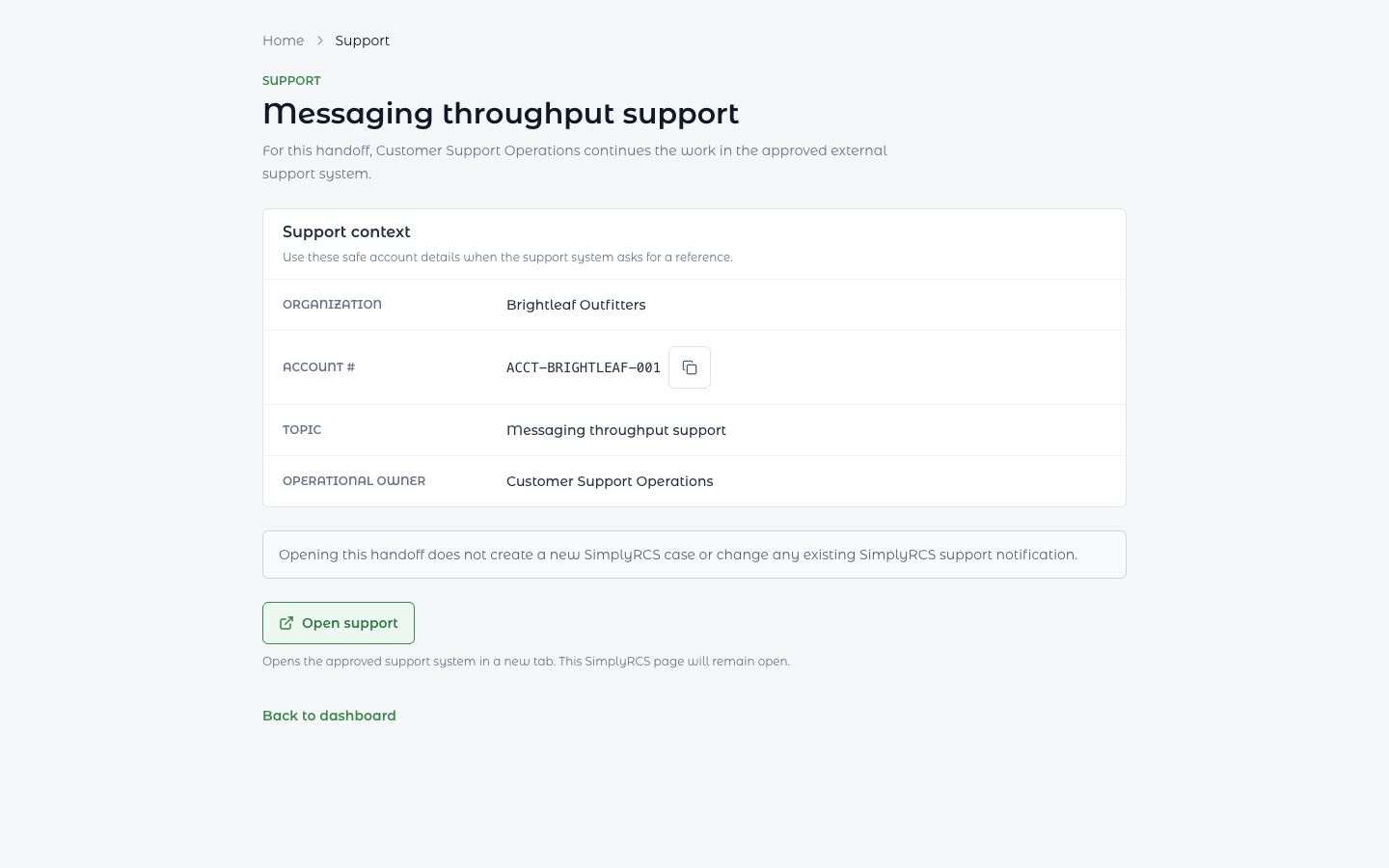
Contextual Help actions open /support?topic=.... The page names the
recognized topic and shows safe account context before opening the approved
external support system in a new tab. You can copy the Account # when it is
available. Opening the external destination does not create a SimplyRCS support
case, SLA, approval, or account change; it is distinct from Message
SimplyRCS in Notifications. If the destination is not configured safely, the
page says that no request was created and provides a return path.
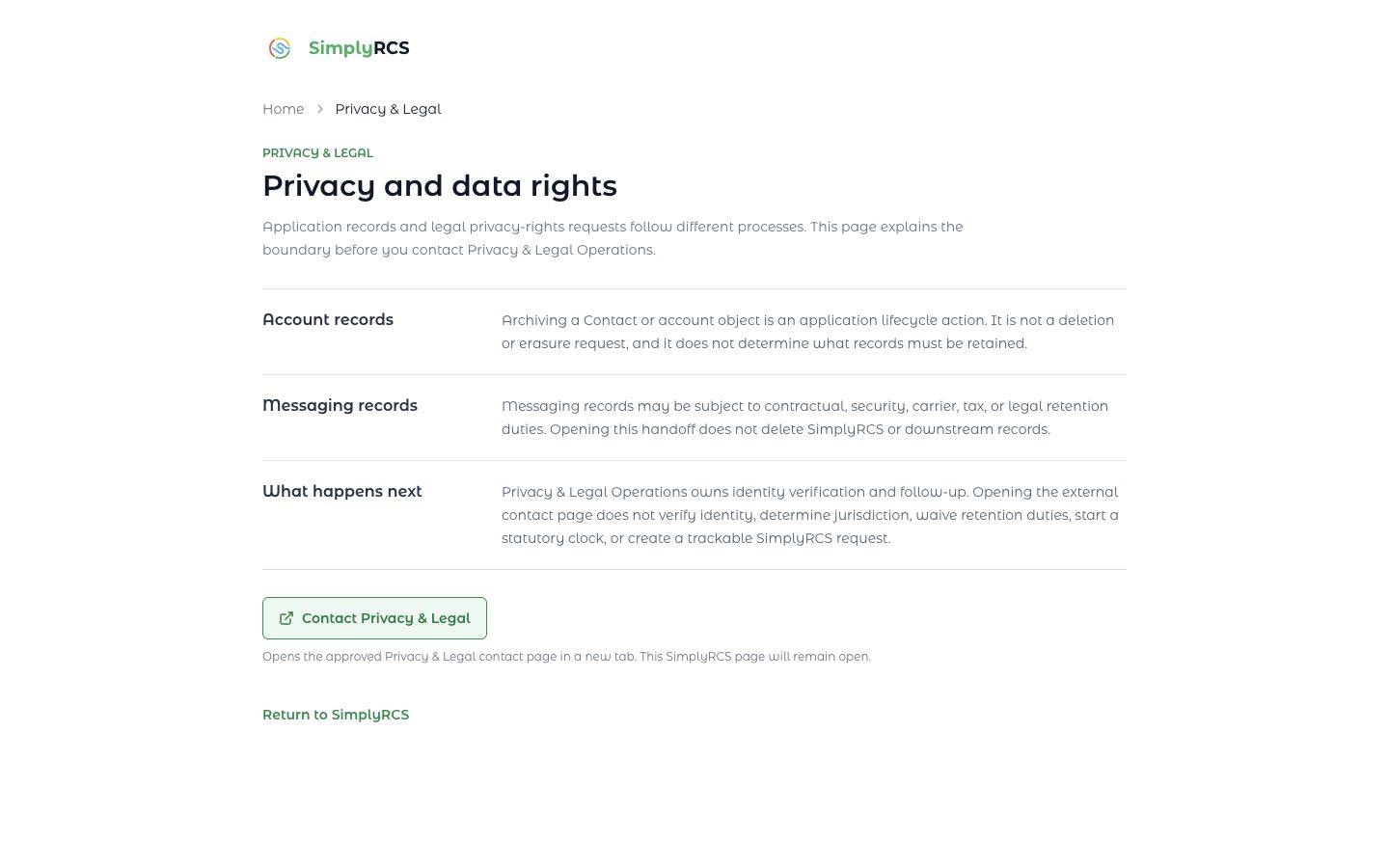
The public /legal/privacy#rights-requests page explains the boundary between
archiving an application record and making a legal privacy-rights request.
Archiving is not erasure. Opening the approved Privacy & Legal contact page does
not verify identity, start a statutory clock, or create a trackable SimplyRCS
request.
10. Bots
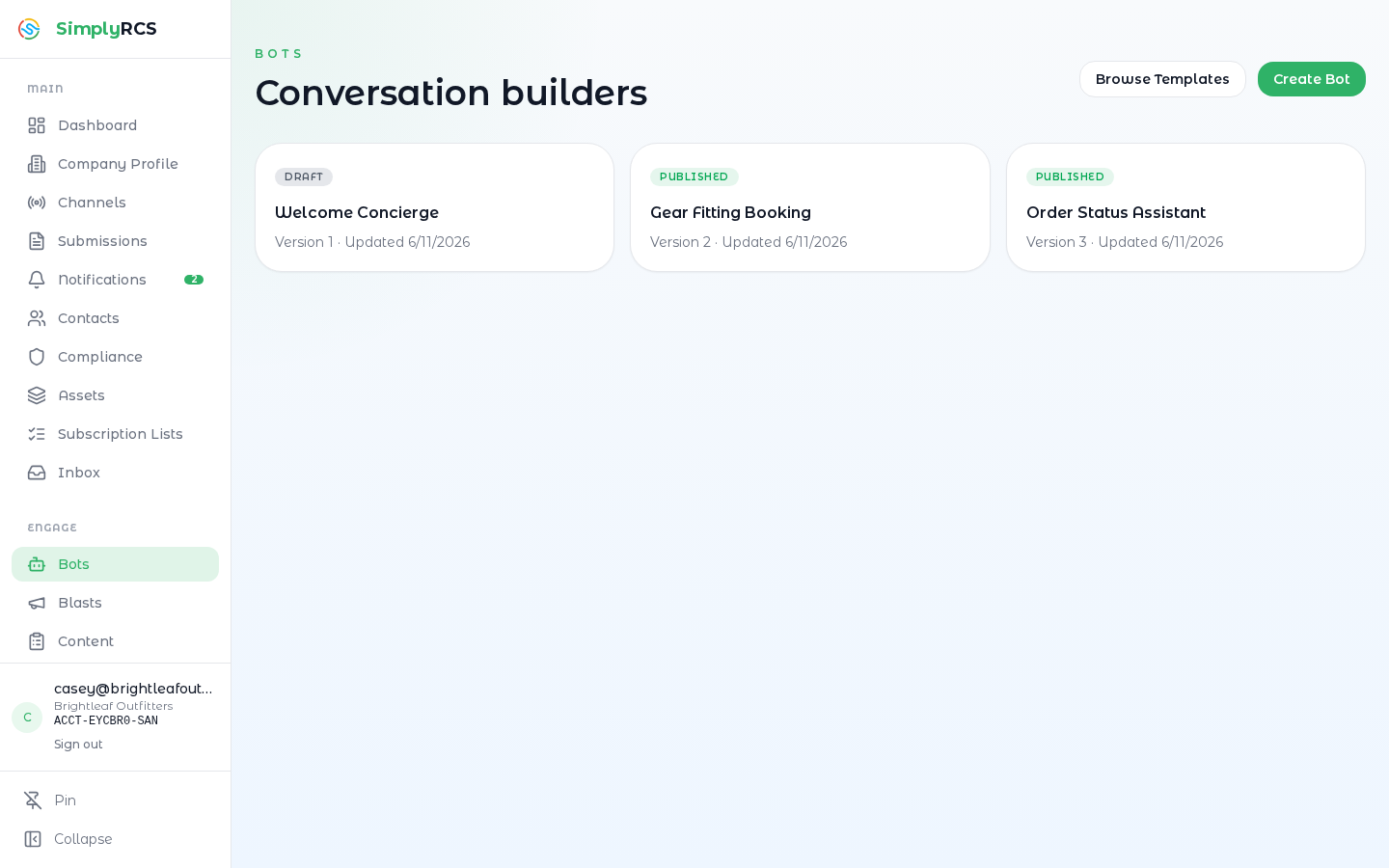
Bots are the no-code conversational flows that drive RCS rich cards, carousels, suggested replies, and SMS auto-responders. Each bot is composed of nodes connected on a canvas; the node palette is grouped into Messages (message, card, carousel, list message, JSON), RCS (RCS browser), Logic (condition, go to), Actions (input, assign tag, assign attributes, data capture, execute, human handoff), and Flow (delay, note, end).
Key actions:
- New bot — start blank, or Browse Templates to pick from the full pre-built catalog (appointment booking, restaurant ordering, product catalog, customer support, lead generation, survey & feedback) or any flow your team has saved as a reusable org template.
- Drop nodes onto the canvas, connect them, and edit each node's payload in the right rail. Variable and intent fields are picked from the org-wide Variables and Intents dictionaries (under Settings) via comboboxes, so the same tokens route and report consistently across every bot. Plain message text is capped at 160 characters at authoring time — the counter keeps every message inside a single SMS billing segment — while rich-card titles and descriptions have their own longer limits.
- Use Choice Capture on list and carousel nodes — "Save the customer's choice as" stores the option the customer taps into a variable, the counterpart of Data Capture for typed replies.
- For a static list with multiple options, drawing a connector opens Choose the button for this connector. Select the option that should take that branch; its item ID is saved with the connector. Use Create unlabeled connector when all selections should follow one shared next step. On RCS, list options appear as suggested-reply buttons beneath the message. Place Data Capture after those choice nodes when the name should be requested later.
- Use Test for the built-in emulator or the handset dialog. In the #41 candidate (release pending), the handset dialog follows the selected Sender's state; there is no test route for a LIVE Sender.
- For Ready for testing, select an Approved masked test device. Entry or selected-node sends exercise the saved draft through the canonical rich-content runtime. Passive steps advance automatically until a choice, capture, handoff or other wait boundary. Existing media and content rules still apply.
- For Launched, search for an existing Contact. Choose the actual message purpose and, for marketing, the applicable subscription list. Send Bot to Contact uses the published LIVE Bot already assigned to that Sender, normal consent and normal usage charges. It does not publish, promote, reassign the Bot, enroll the Contact or send draft/selected-node content. Refresh Sender status reloads the selector after a lifecycle change; it does not change Sender state.
- If an open Inbox thread would be replaced, confirm before it closes and the Bot starts from the beginning. Cancel keeps it untouched. History and Contact consent stay retained. If that thread changes while you review it, confirm the updated thread again. An uncertain or partial result is not permission to repeat the messages; check Inbox. A repeated submit uses the same send identifier. Prepare another send explicitly starts a new intent after a definite result; normal charges apply again.
- Send to test device creates a durable test run and may incur real message traffic. Submitted to provider means the provider accepted the message; it does not mean the handset received it. Delivered to handset, Reply received, and Handed to Inbox appear only after separately correlated evidence. If the outcome is uncertain, do not click again automatically.
- Publish to attach the bot to a channel and / or a keyword. Publishing pins a snapshot: once a bot has been published, live customer conversations always run the published version, so you can keep editing the draft without affecting live traffic — changes go live only when you republish. A bot that has never been published runs its draft, and handset test runs always exercise the current draft.
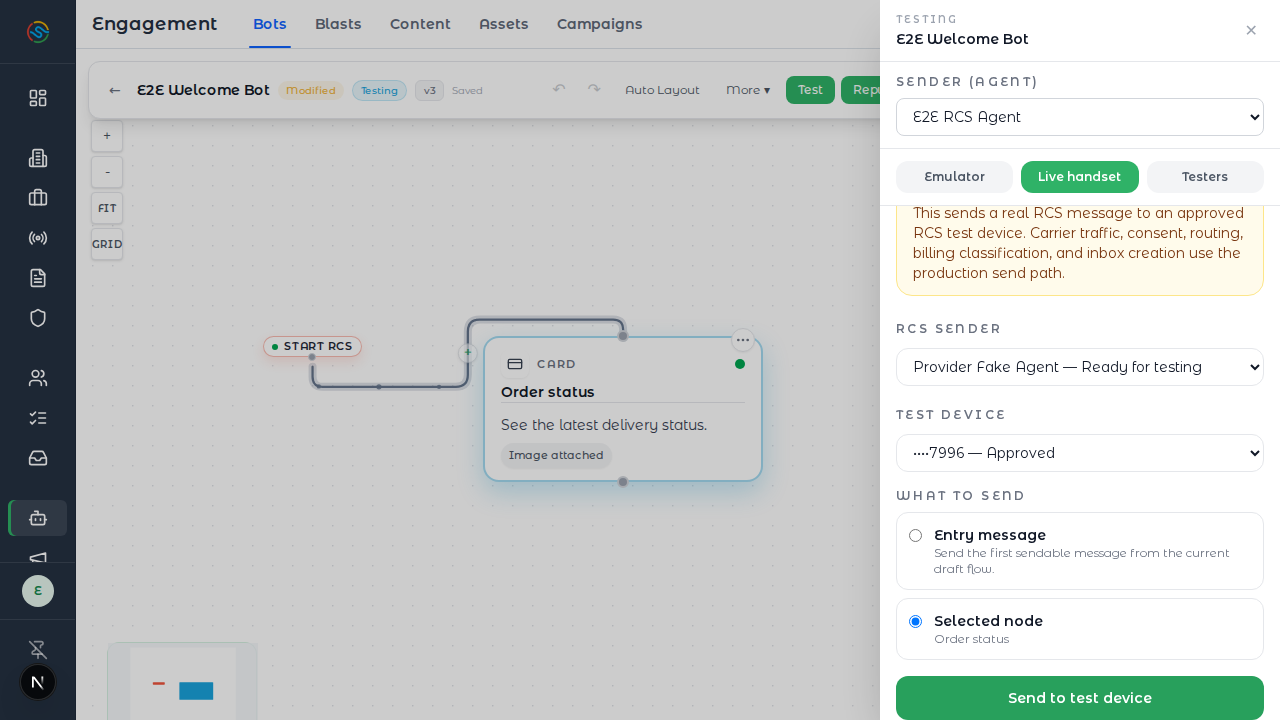
The screenshot shows the existing TESTING-device panel. The LIVE Contact branch's visual capture remains deferred under owner direction until deployment; it is not represented as visually or Production verified by this image.
AI features (where enabled for your account) add two tabs to the builder. The Assistant edits the flow conversationally. Describe the journey in your own words, including what people should explore, what to remember, and when to ask for information. You do not need to specify every node or button. On a blank Start-only canvas it can build the nodes and their connections together; it edits existing drafts without replacing them wholesale. Supported AI steps are messages, cards, list menus, carousels, data capture, and human handoff. Add images and other node types through the canvas.
The Assistant establishes a request checklist before editing and checks the
result against it. Asking it to thank someone personally should produce both
a name-capture step and later text using that name, such as Thanks, <<NAME>>!.
Capturing a value alone does not display it. For remembered choices, the AI uses
list menus with a named selection variable; the stored value is the option ID,
not its display label. Do not use that ID as a person's name or friendly label.
It attempts bounded repairs when connections or checklist items are missing. Its report is generated from the actual draft's formats and captured-value use, not the model's description of what it intended to build. Draft incomplete means it has not finished: the response lists remaining problems or explains a time, work-budget, or model-response limit. Draft changes lists edits, not proof that the whole request succeeded. Intentional removals and disconnections can leave warnings; they are not automatically reconnected by a removal/disconnection-only edit. Review each branch, the saved variable names, and the canvas before publishing. Changes remain undoable drafts. A structurally valid draft is not proof that every instruction was followed or that the Bot works on a handset. The AI still interprets your request when forming its checklist; review that interpretation and the actual content, especially after a broad plain-language request.
The Agent tab generates a knowledge base (FAQs and facts grounded in the bot, plus your own instructions) that you curate item-by-item and try out in a built-in Test your agent chat. Switching on the per-bot live agent toggle then lets the agent handle free-text replies that don't exactly match an authored option: it picks the authored option (from the published flow) the customer most likely meant, or escalates to human handoff — it never writes its own customer-facing text, and on any doubt the conversation falls back to standard keyword behaviour.
Tip: Use Condition nodes to branch on contact attributes (tier == "vip") and Execute nodes to call an external API — <<VAR>> tokens interpolate into the URL, headers, and body.
11. Blasts
Blasts are one-shot broadcasts to a contact list, segment, or subscription list. The composer estimates cost per channel before you send, runs through your active content rules, and queues the messages for delivery on the routes you have configured.
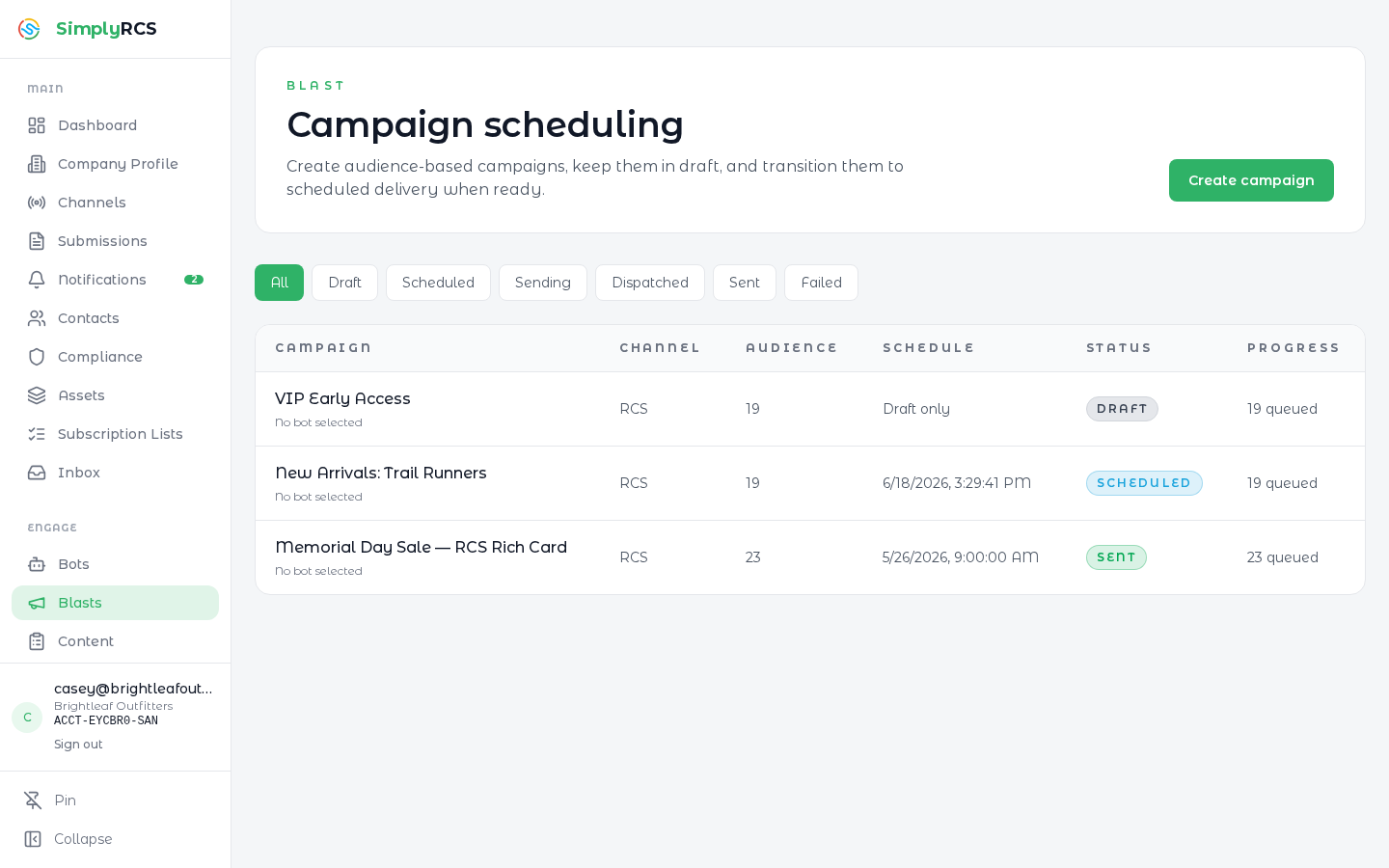
Key actions:
- Choose the audience (subscription list, segment, or contact tags).
- Choose the channel: SMS, MMS, or RCS. RCS programs can fall back to MMS and then SMS when a recipient cannot receive the richer format.
- Compose the message (text, media, suggested replies for RCS) or pick a template from the Content library.
- Review the cost preview, which preserves positive sub-cent estimates
instead of rounding them to
$0.00, then click Send or Schedule.
Fallback planning: Simply RCS uses an RCS-first authoring model and can preserve delivery through MMS or SMS where a fallback sender and protocol are configured. The blast wizard shows the primary and fallback previews before launch.
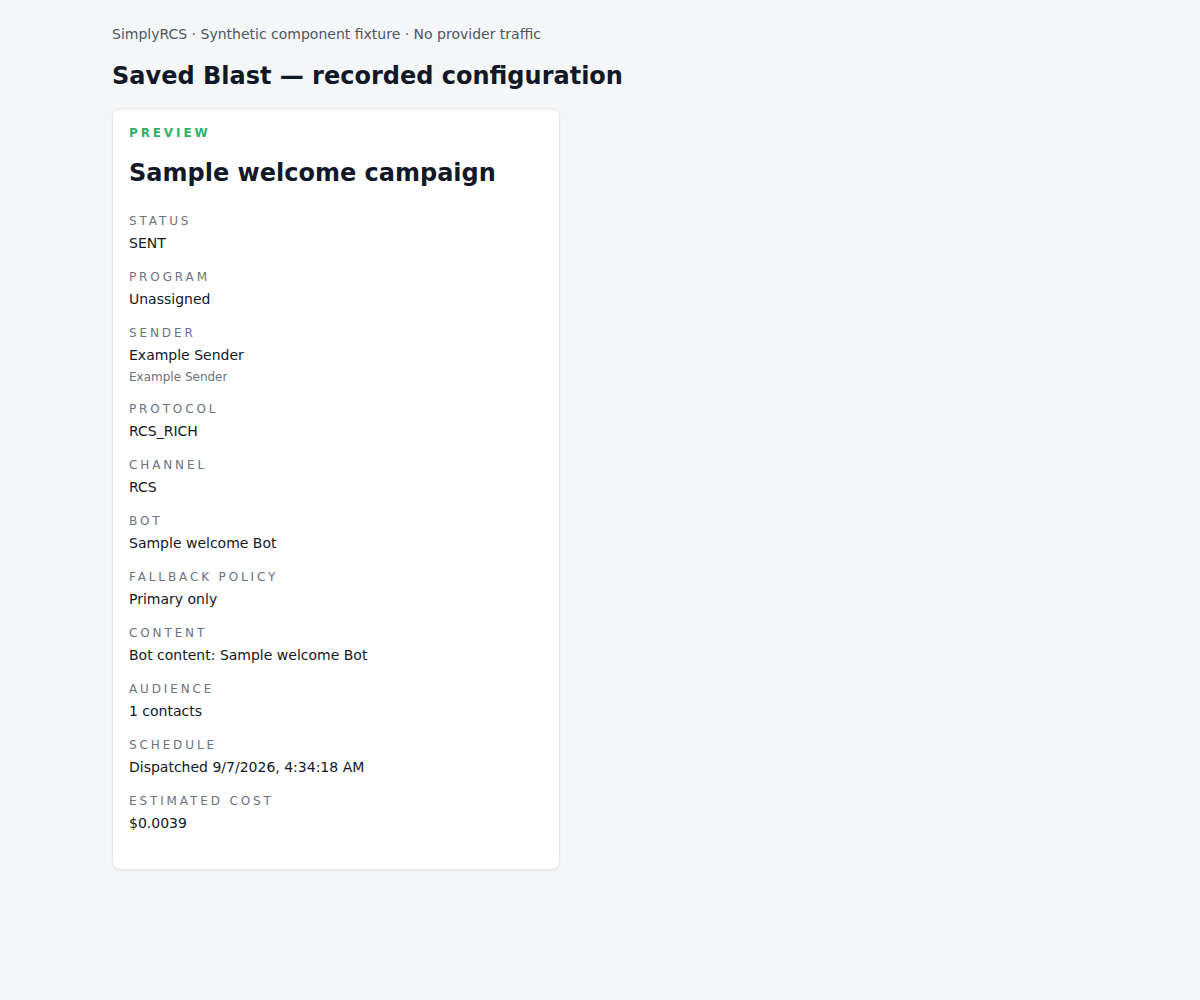
The saved Blast Preview shows its stored sender, protocol and content source. Bot campaigns show Bot content rather than asking for custom text. An existing schedule is shown when retained; otherwise a sent campaign shows its recorded dispatch time. Dispatch is not proof of delivery. Missing historical metadata is labeled unavailable, not presented as a draft setup task.
12. Content
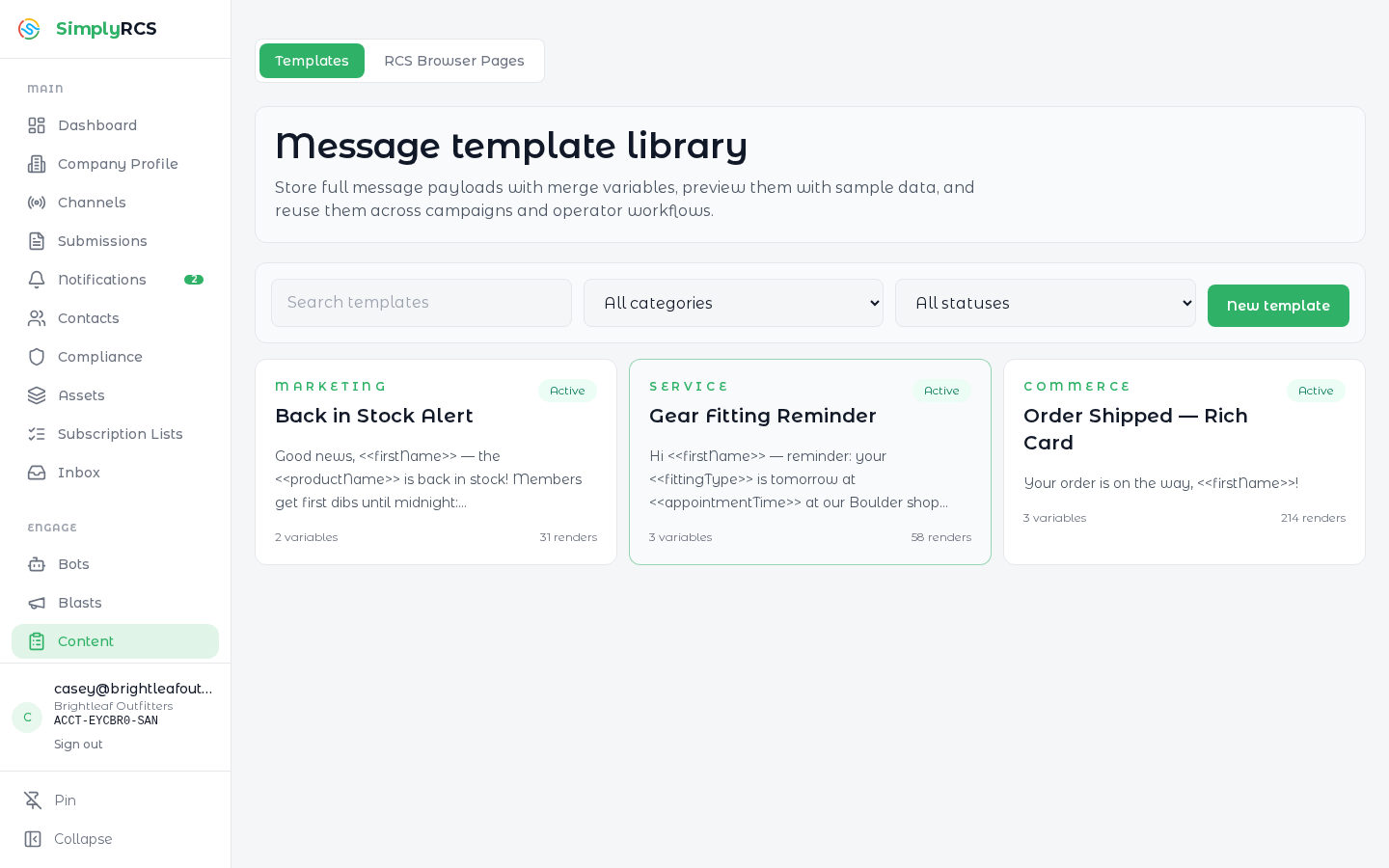
The Content library holds reusable messaging assets: message templates, RCS rich cards, and landing pages. Templates can be approved by carriers ahead of time so blasts using them do not need to wait for per-send review. Binary media (images, video, PDFs) lives in the separate Assets library (next section).
Key actions:
- Create templates for common transactional and promotional messages. The template editor uses the same rich-message designer as the bot builder, with guardrail warnings grouped by severity as you author.
- Build landing pages for opt-in flows and short-link redirects. Pages are assembled from blocks — hero, text, image, video, form, CTA, FAQ, testimonials, countdown, and RCS-launch — and an Agent chat block adds live web chat answered by the bot's AI agent on pages opened from a bot conversation (requires AI features enabled for your account, a published page, and the bot's live agent switched on).
- Reference uploaded media from the Asset library when authoring cards and templates.
13. Assets
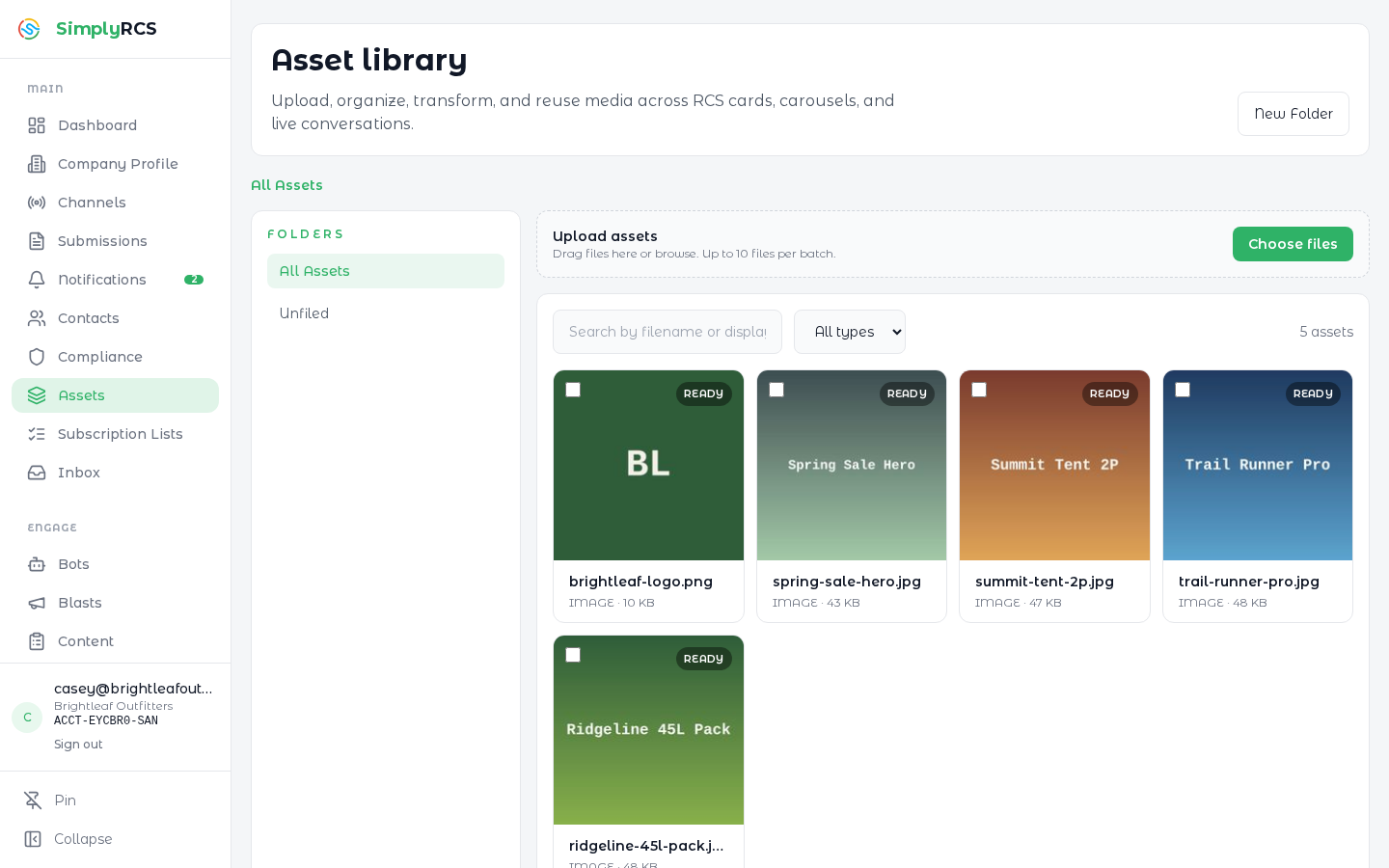
The Assets library is the organization's media store for the images, video, and documents used in RCS cards, MMS, bot media, brand logos, and landing-page hero images. Assets are organised into folders and served via signed URLs.
Key actions:
- Upload assets — drag and drop or Choose Files to add media. Files are validated and stored durably.
- New Folder — organise assets by campaign, vertical, or brand.
- Reference an asset from the Bot Builder, Content templates, or the blast composer.
Note: Customer assets are durable — binary uploads are persisted in object storage and never wiped by routine deploys.
14. Acquisition Campaigns
Acquisition campaigns are multi-step flows for growing a subscription list — short-code keyword opt-ins, QR codes, web widgets, and click-to-chat deep links.
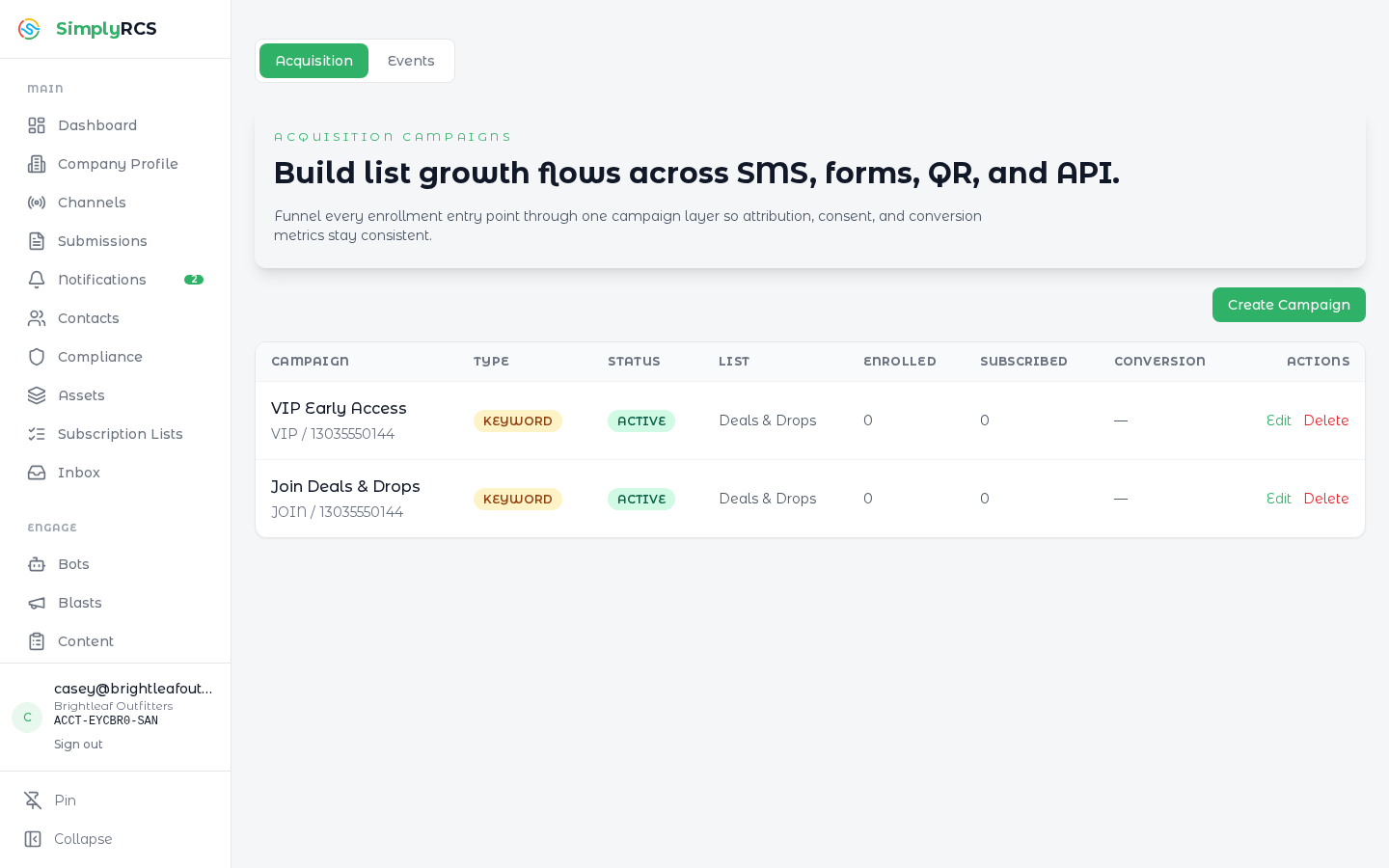
Key actions:
- Create a new campaign and choose its acquisition surface (keyword, QR, web widget).
- Configure the confirmation flow (single or double opt-in) and the welcome message.
- Track conversions on the campaign detail page.
15. Analytics
The Analytics page aggregates message volume, delivery rates, opt-out rates, click-through, and cost per channel. Drill in by date, channel, sender ID, campaign, or delivery receipt status.
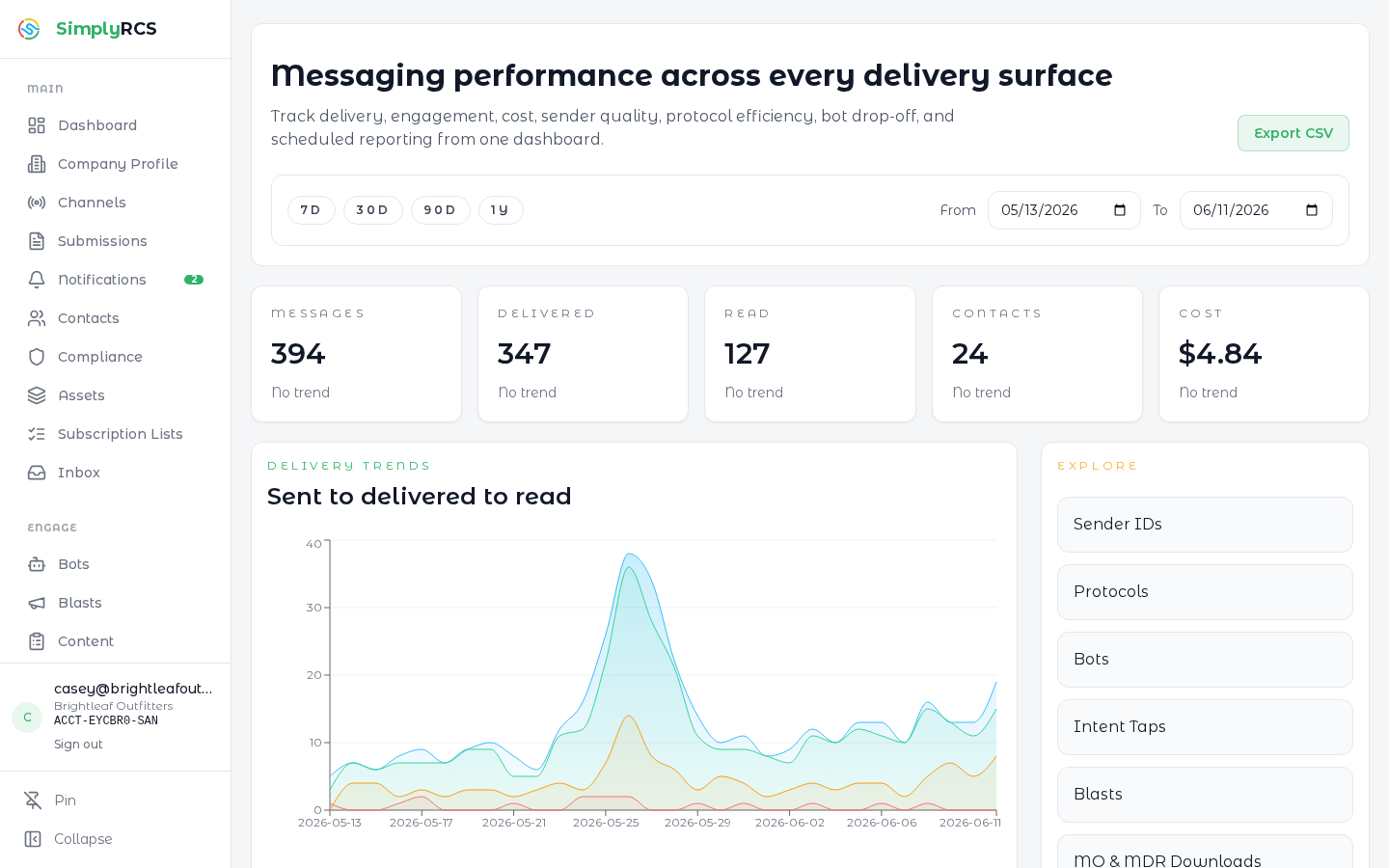
Key actions:
- Compare channels side-by-side to see where engagement is highest.
- Open Intent Taps to see suggested-reply chip taps counted by intent — which options customers actually choose, across every bot.
- Open MO & MDR Downloads to review inbound messages and delivery receipts by primary channel, actual channel, fallback outcome, wireless carrier, sender ID, brand/sender, program, campaign/workflow, status, contact, and receipt time.
- Export CSV reports for offline analysis. Customer reports are scoped to your account and do not show backend routing details or raw delivery payloads.
- Review account notifications and send an in-app support note via Notifications (the action inbox), or use a contextual Help handoff when one is offered.
Usage values recorded usage events at current message rates for the selected
UTC date range and brand/campaign filters. It is a message-usage estimate, not
the wallet total: pass-through surcharges and other wallet charges are excluded,
and historical messages without usage events are not reconstructed. Fractional
unit rates remain visible; the CSV includes unitPriceMicros and preserves the
same filters. Export CSV waits for the completed download in one request;
if it fails, the error stays on the page and the selected dates remain intact.
Retry using the button rather than reopening an old export URL. If pricing
cannot be loaded, the page shows an error instead of suggesting free usage.
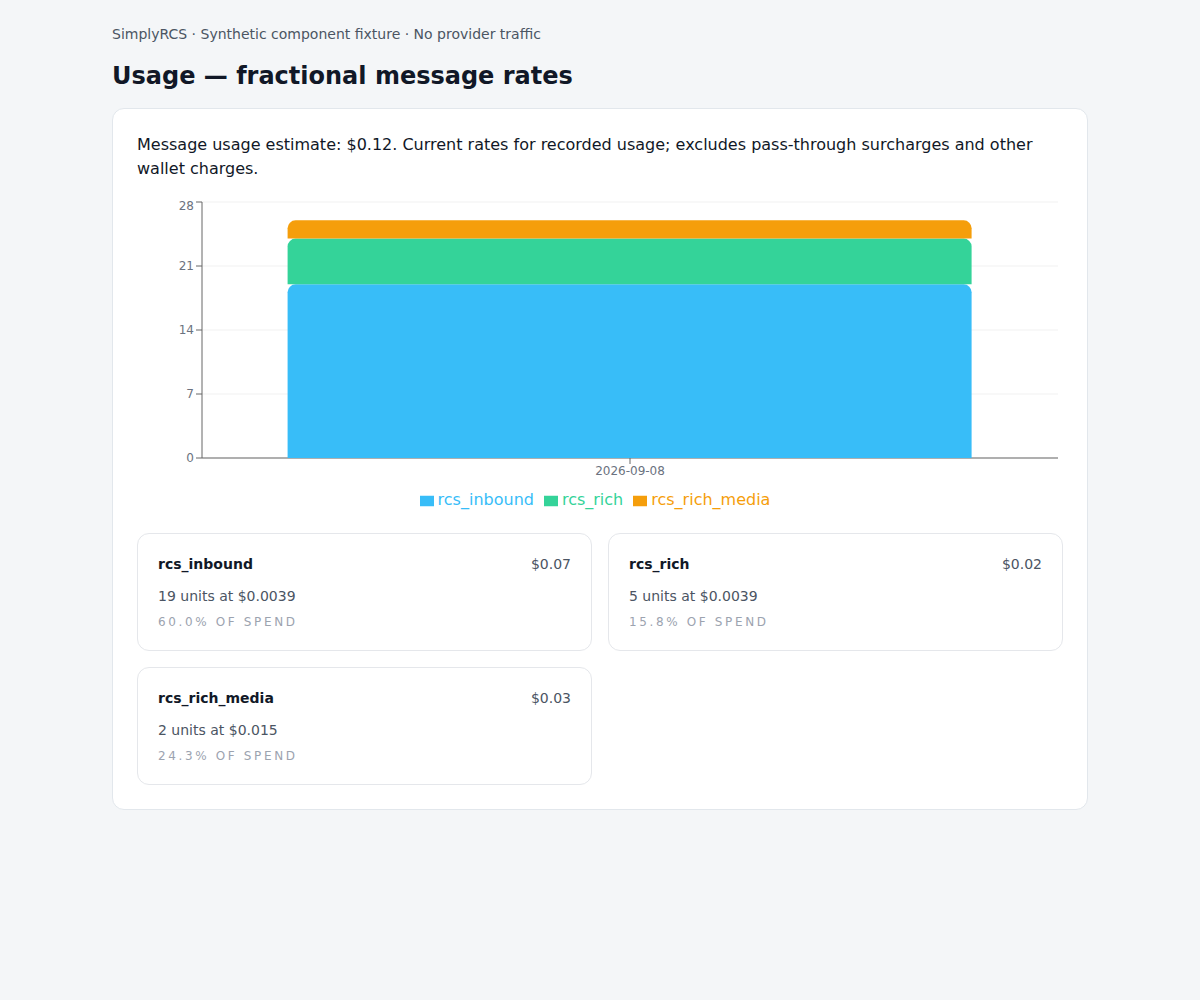
These are synthetic example rates, not a published price list. In message reports, Status detail explains both successful receipts and failures; Unknown wireless carrier means the stored evidence does not identify it. Blast dispatch processed measures attempted recipient dispatch, not handset delivery or reads. Receipt counts remain separate.
16. Submissions
The Submissions page is a unified queue of every regulatory submission your organization has filed: brand registrations, campaign approvals, toll-free verifications, short-code requests, and RCS agent reviews. Its In flight filters lead the compact five-column queue: submission, channel, status, next step, and updated time. Each row retains its exact customer-safe lifecycle state and direct continuation; this presentation does not infer carrier progress.
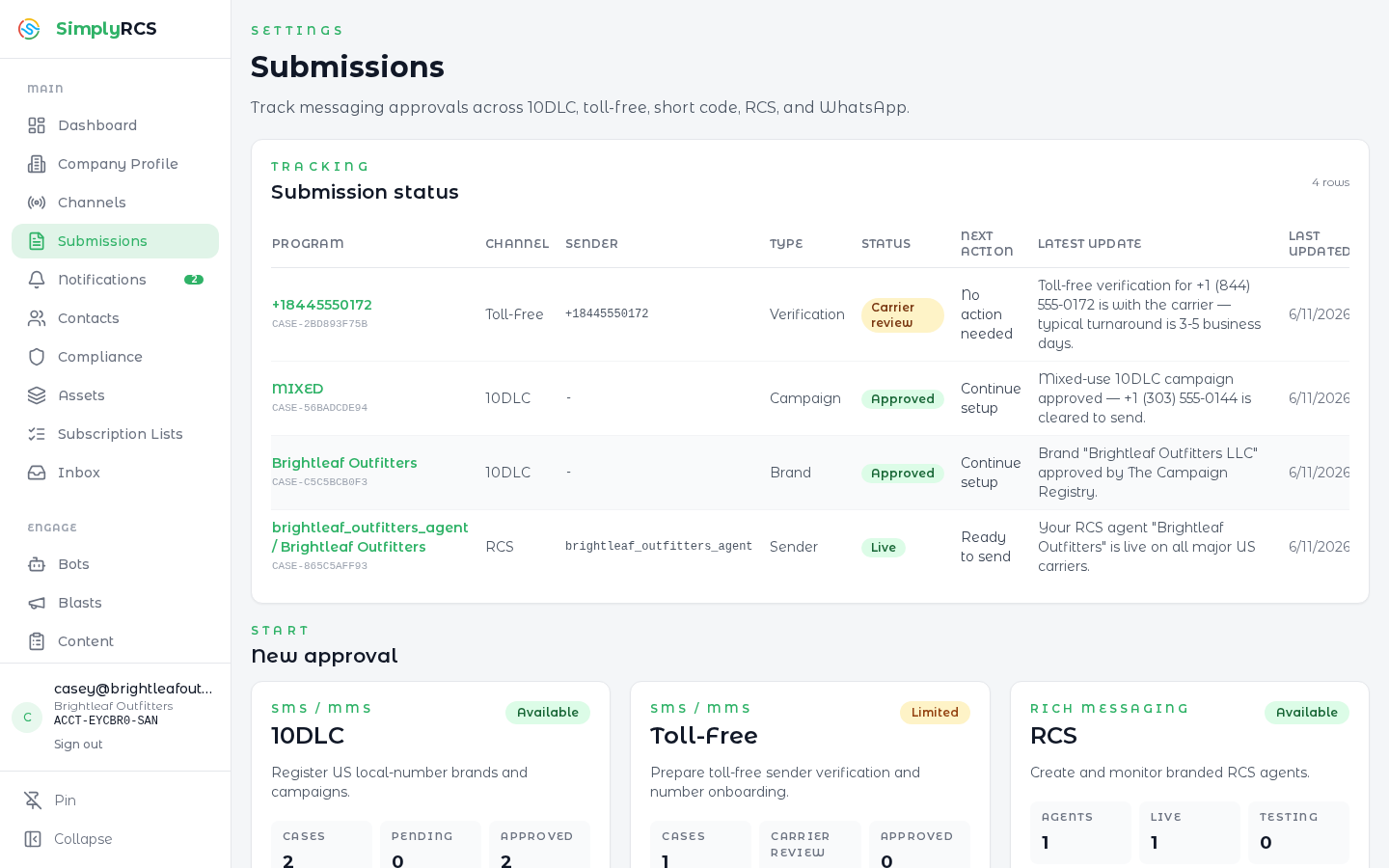
The image predates the compact In flight queue. It must be refreshed from the reviewed candidate before publication.
For a toll-free verification, your final submit first creates an Under
SimplyRCS review case. It does not immediately file a Brand or campaign with
the messaging provider. After SimplyRCS approves and submits the case, the provider campaign
progresses
through campaign submission, Infobip compliance review, upstream supplier review,
and TFN verification. Provider Brand readiness is completed with campaign
submission and is not a separate customer-facing review phase. Only
Registration approved means the campaign is exactly REGISTERED, provider
verification is complete, and that Infobip API result has been projected onto
both the owning Case and Channel. Neither surface is an independent status
authority.
Message-level send preflight still runs separately. Provider identifiers, raw
Brand/campaign codes, snapshots, and diagnostics remain admin-only; the customer
workspace presents customer-safe wording derived from the exact campaign state.
The Submissions row and Case detail use the same exact Toll-Free campaign status
as the Channel workspace—for example, an APPEALED campaign is labeled Appeal
in progress, not reduced to the broader carrier-review phase.
Key actions:
- Filter by submission type, status, or sender ID.
- Click into a submission to see the full event timeline (request, acknowledgement, review response, fee posted, fee paid).
- When SimplyRCS requests changes—or a Toll-Free filing is rejected—correct the flagged fields and resubmit the same case. The correction creates a new filing attempt and returns it to SimplyRCS review; it does not silently alter an active provider review or require purchasing another number.
- For a Mixed Toll-Free use case, the saved original consent text appears as Program opt-in 1. Use Add another opt-in to describe each additional separate, optional consent choice. Enter normal prose—no program-name prefix or delimiter is required. At least two distinct descriptions are required. Proof files are managed separately; one complete proof may show multiple consent choices.
17. Settings
General
Update your organization name and review read-only workspace metadata (account number, immutable slug, creation date).
Content Rules
Org-level content policy. Block specific keywords, require disclaimers on certain campaigns, force opt-out language on every promotional send. Customer rules layer under platform and org-admin rules — the more restrictive rule always wins, and the TCPA STOP / START / HELP keywords are immutable.
Keywords
Manage the keyword router. Inbound STOP / HELP / JOIN keywords are mapped to subscription lists, bots, or canned responses.
Intents
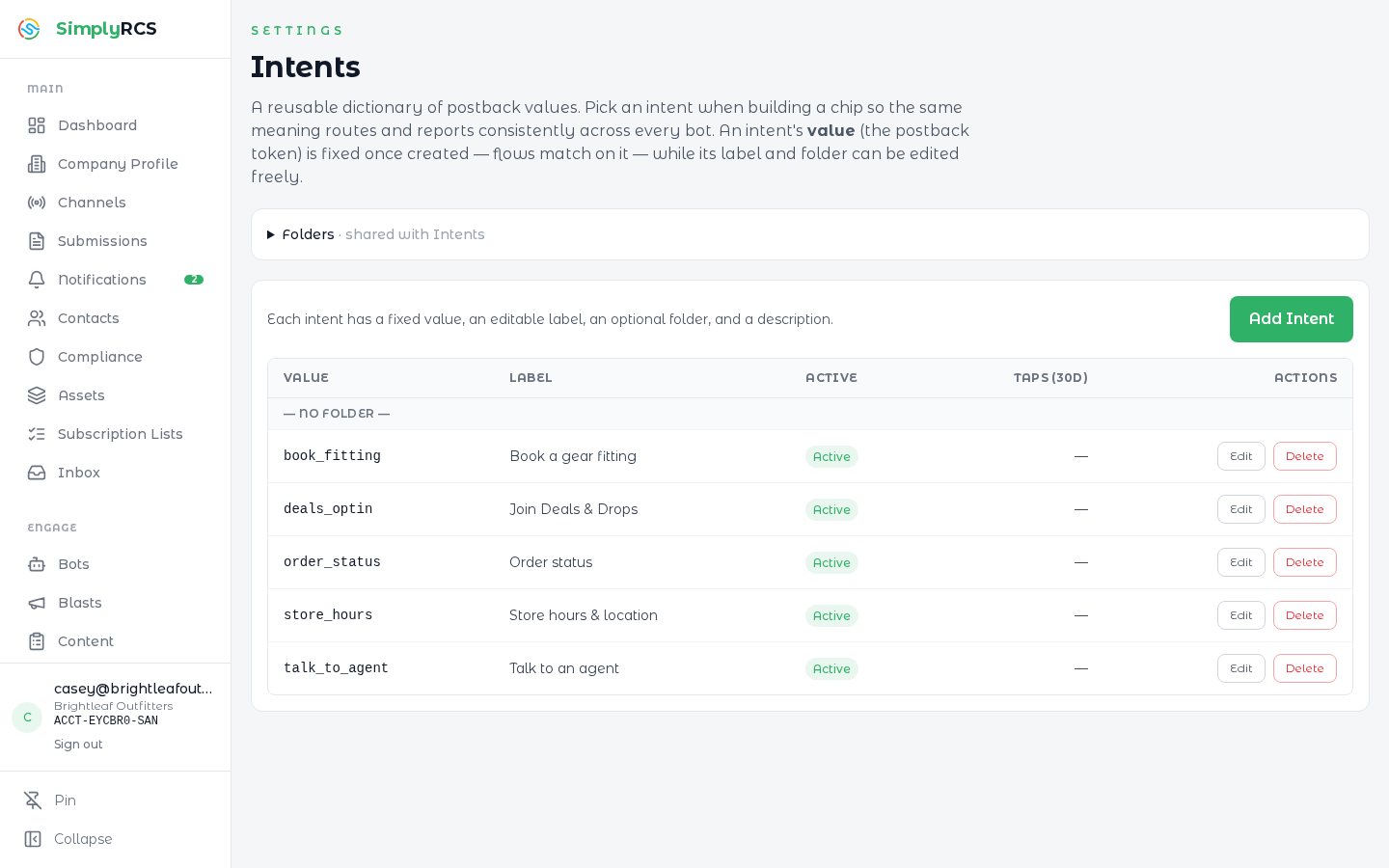
A reusable dictionary of postback values. Pick an intent when building a suggested-reply chip so the same meaning routes and reports consistently across every bot. An intent's value (the postback token) is fixed once created — flows match on it — while its label and folder can be edited freely.
Variables
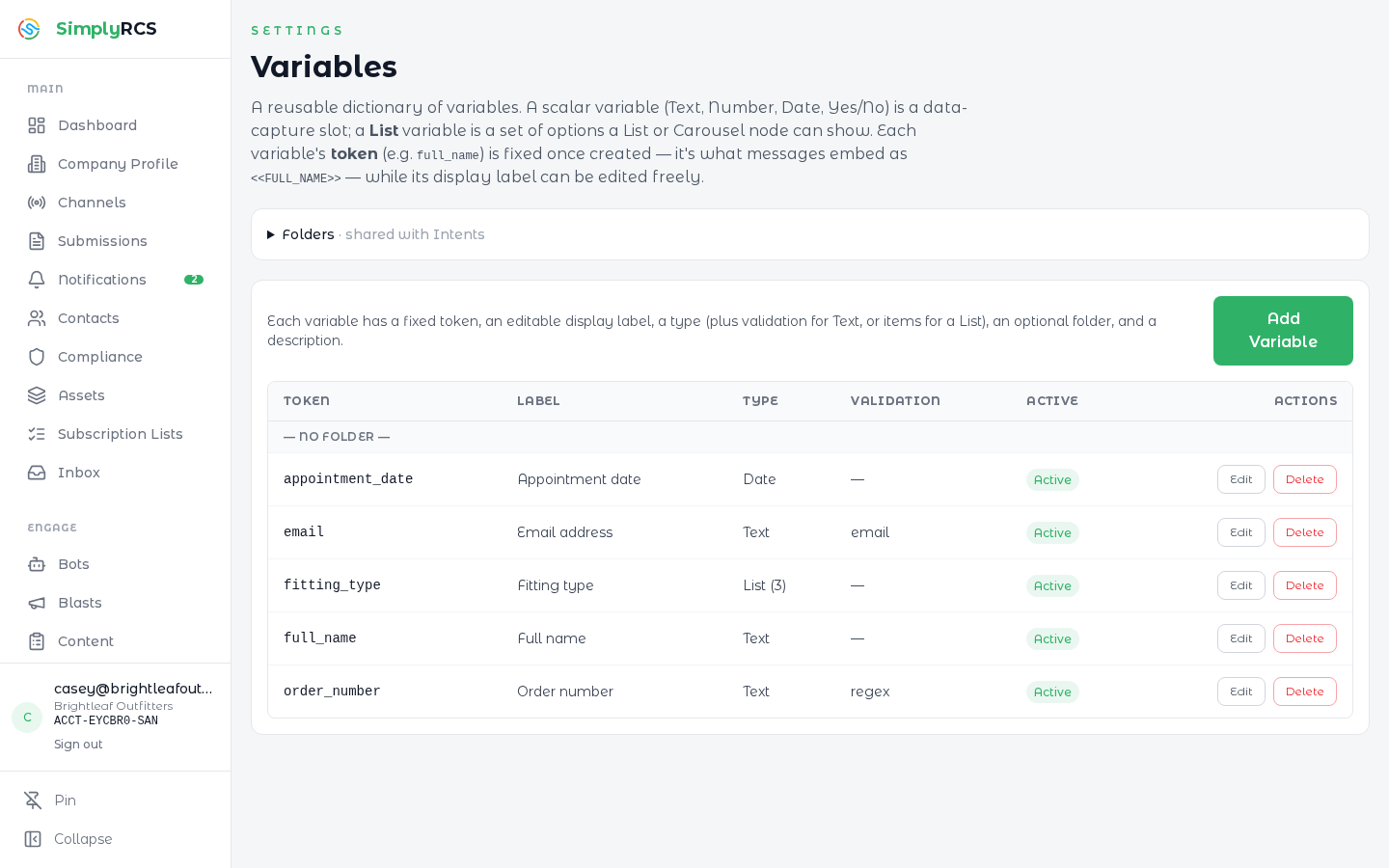
A reusable dictionary of variables for capture and personalization. A scalar variable (Text, Number, Date, Yes/No) is a data-capture slot; a List variable is a set of options a List or Carousel node can show. Each variable's token (e.g. <<FULL_NAME>>) is fixed once created, while its display label and folder can be edited freely. The dictionary also shows where each entry is used.
Inbox Queues
Define the queues that incoming conversations are routed into and assign team members to them. Queues power the All queues filter in the Inbox so handoffs reach the right group.
Team
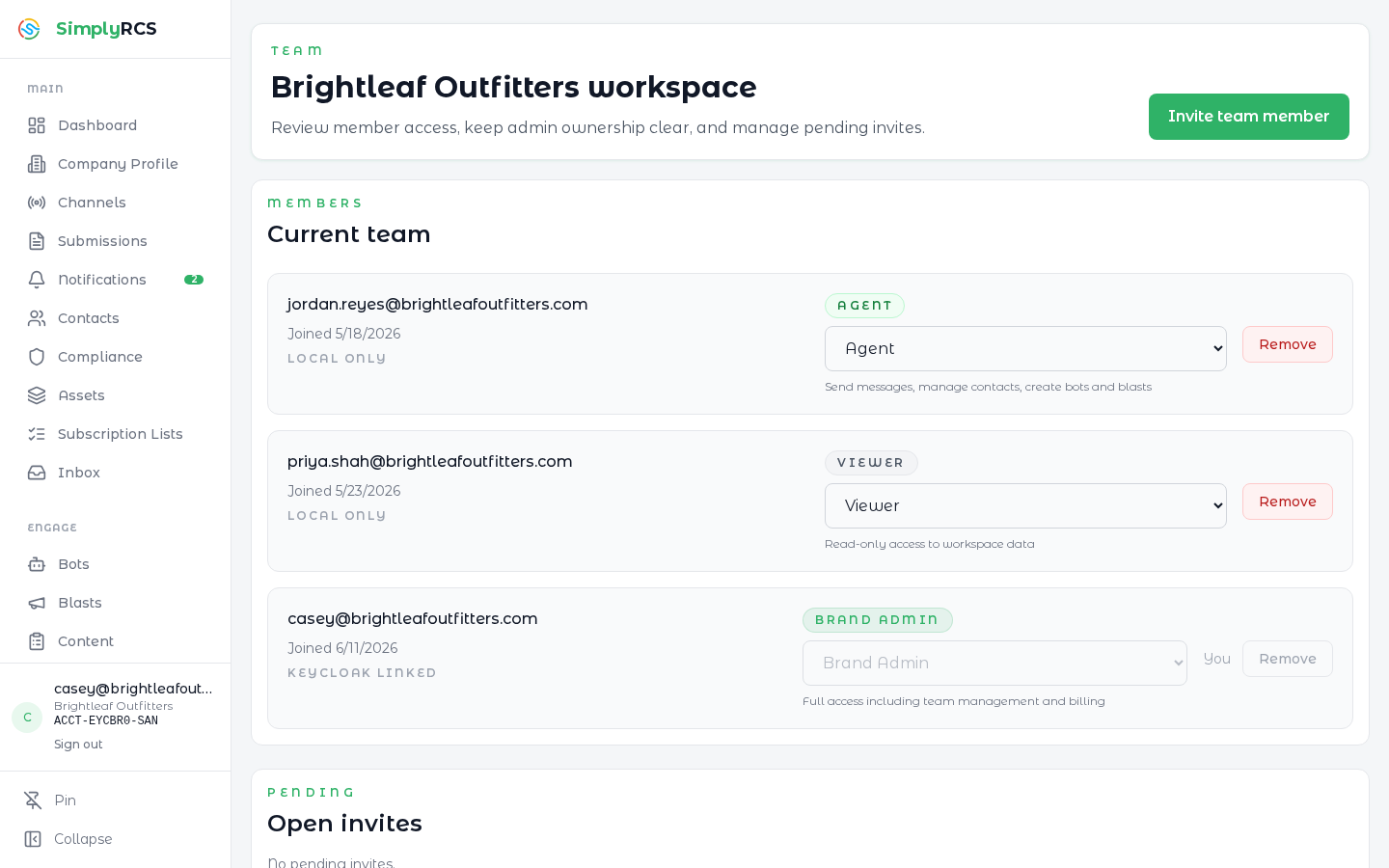
Invite teammates, assign roles (BRAND_ADMIN, AGENT, VIEWER), and revoke access. Role permissions are enforced both in the UI nav and at every API endpoint.
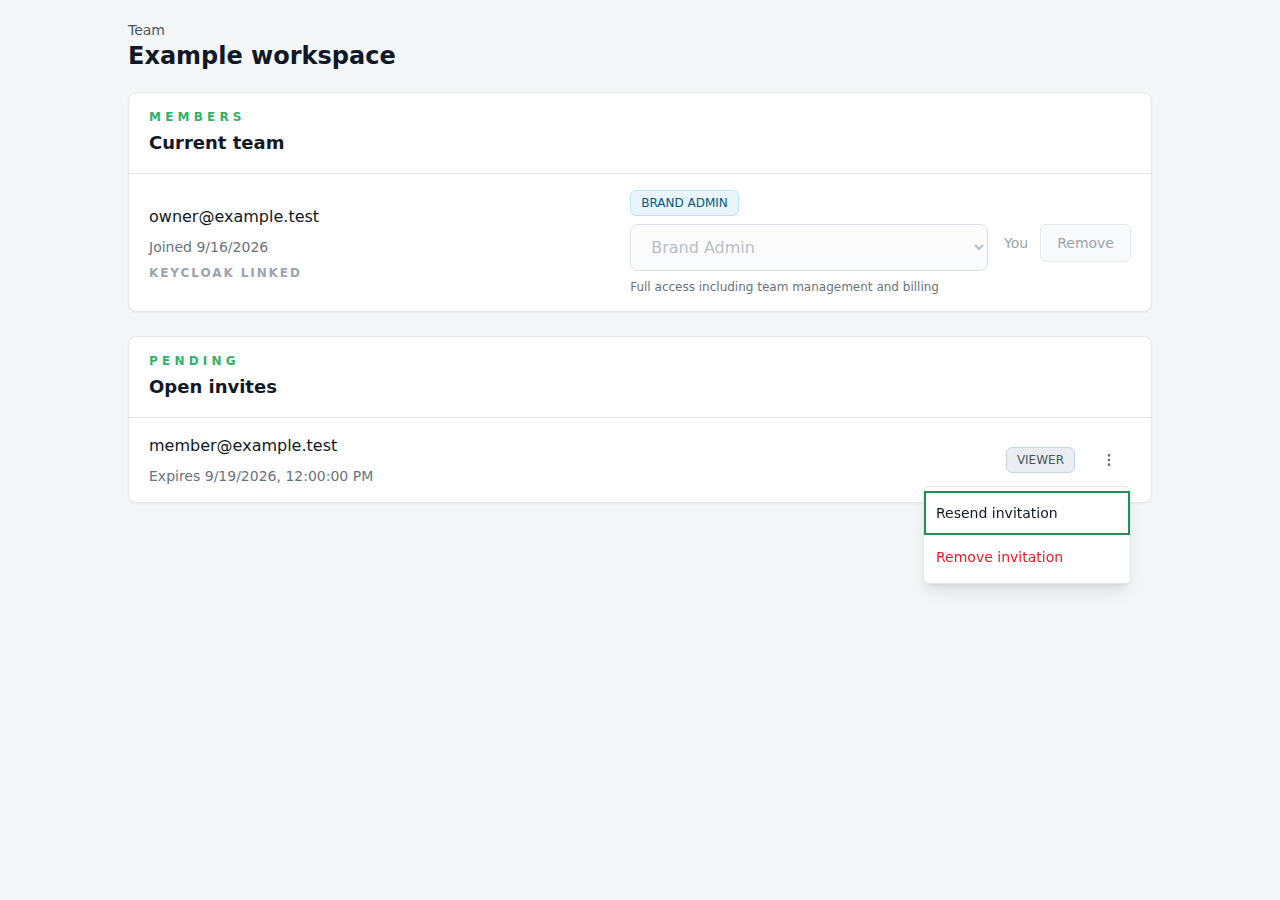
Invitation controls (MR !186; Dev checklist passed by owner report on 2026-09-17): the Open invites row menu offers Resend invitation and Remove invitation to workspace managers. Resend emails the same link without extending its expiry; submission confirmation does not guarantee inbox receipt. Remove asks for confirmation and revokes only that invitation, not the person's account or existing workspace access. Expired invitations require a new invite. If someone renews the invitation while your page is open, a changed expiry causes Remove to refresh the list and ask you to review it again. Failed email submission does not consume the successful-resend allowance; an overlapping send or a previous successful send can still require waiting before retry.
Invite acceptance checks the password on the server. A breached-password rejection asks for a different password and leaves the invite pending. Passing the form's basic requirements does not mean the breach check has passed. The breach service check is best effort when the service is available.
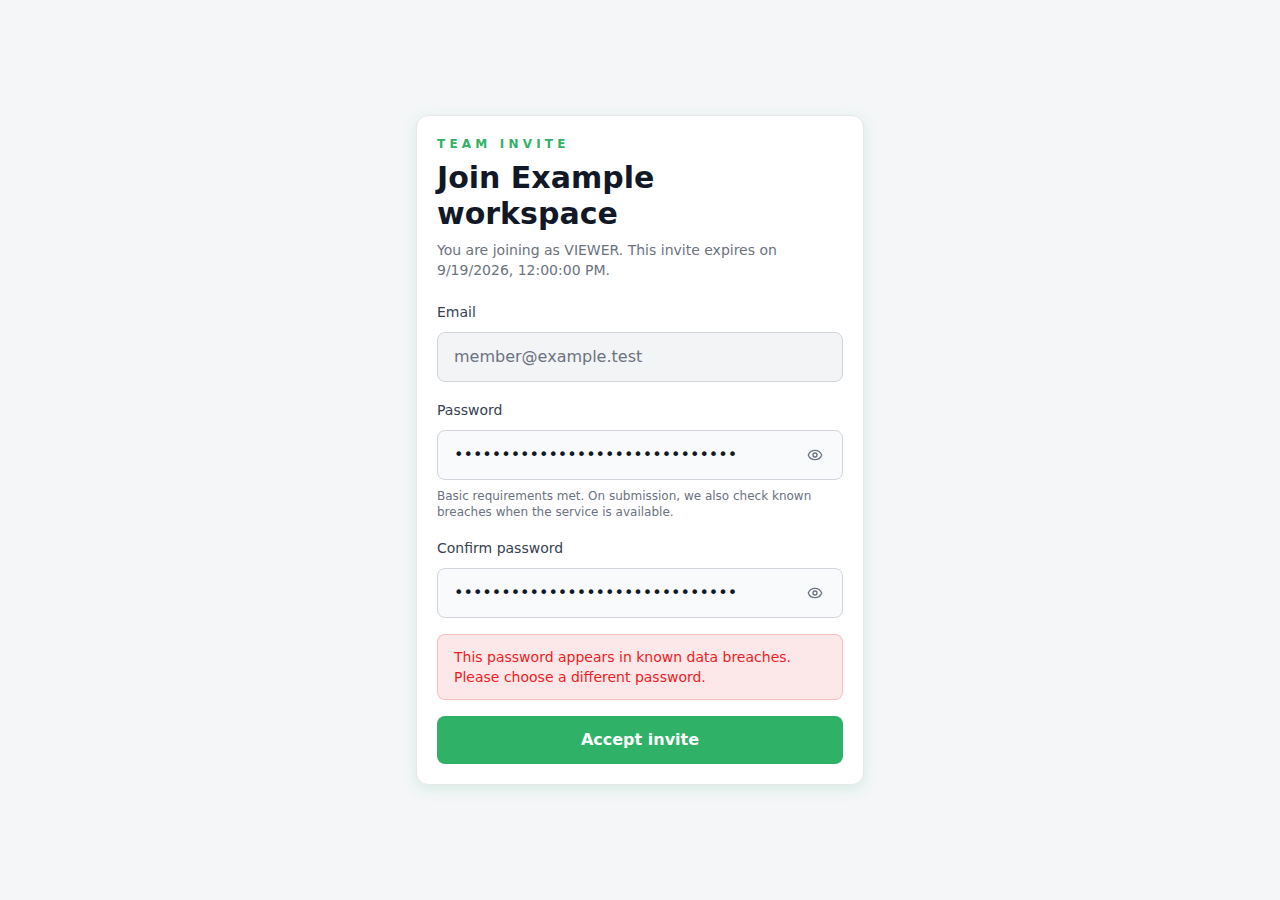
These two screenshots use fictional data and intercepted APIs, not deployed QA. One identity joining multiple workspaces remains unsupported; see the invitation implementation record and membership research. The later owner QA report is separate from these fixture screenshots. Main promotion is owner-planned; Production availability for this slice is not established by the Dev pass.
Billing
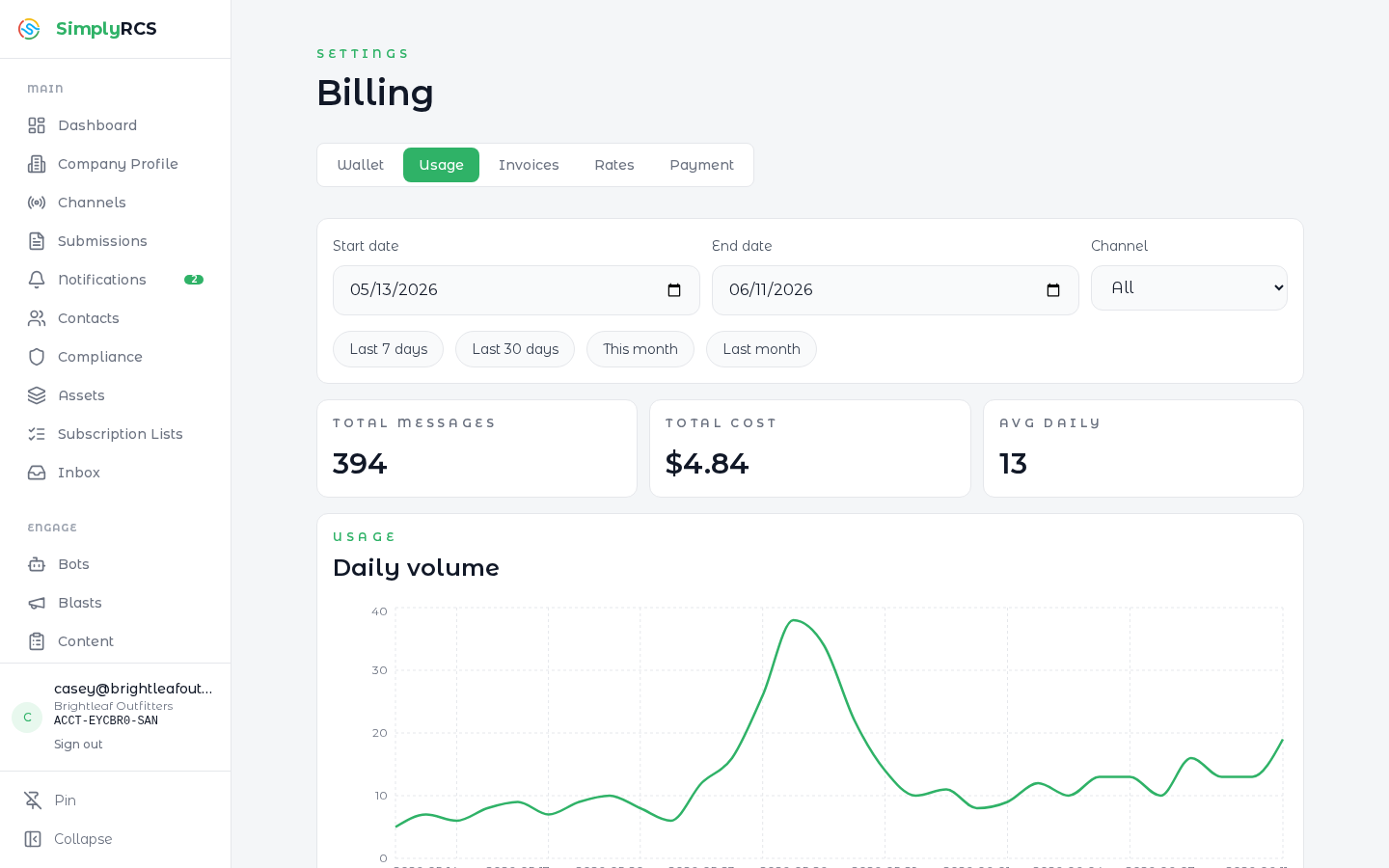
Review usage, invoices, rate plans, and payment methods.
Tabs:
- Wallet (prepaid accounts) — current balance, Add Funds, auto-recharge settings (threshold and top-up amount), and the transaction history. Wallet funding itself is not taxed; applicable taxes are calculated when funds are spent on taxable services.
- Usage — current message volume and estimated charges for the selected date range, with a daily-volume chart.
- Invoices — invoice history and invoice detail pages. Stripe PDF download is shown only when an invoice has a Stripe PDF available.
- Rates — read-only Service Plan / Customer Rate Plan rates assigned to your organization, showing billable item, category, SKU, direction, region, unit, and price.
- Payment — saved payment methods. If Stripe is not configured for the environment, the page shows a disabled state instead of a payment form.
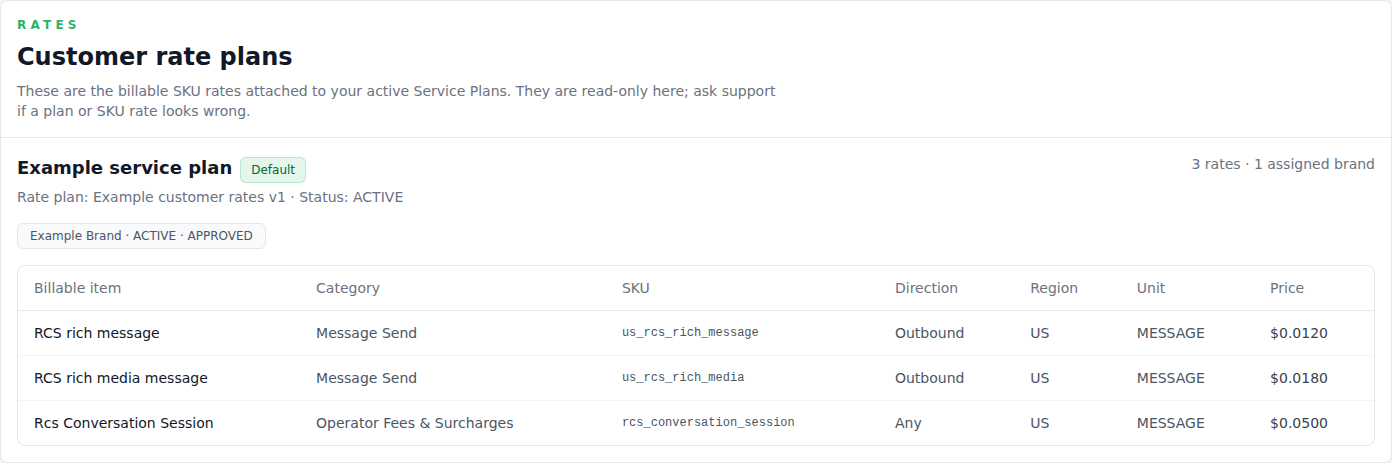
Invoices may include separate operator-fee line items when carrier pass-through charges are reconciled for the billing period. These are intentionally shown apart from message usage so customers can distinguish platform/service rates from carrier-imposed fees.
Wallet amounts retain fractional cents internally. Signed whole-cent API projections round symmetrically; changing that display conversion does not recalculate or refund past charges. Billing estimates count a linked pass-through cost/revenue mirror once, while retaining genuinely unmatched costs for review.
New organizations start on prepaid wallet billing: fund the wallet, sends draw it down, and auto-recharge keeps the balance above your threshold. Postpaid invoicing is available for established, contracted accounts.
18. Developer Portal
The Developer Portal is a self-service surface for issuing API keys, configuring webhooks, and browsing the supported customer OpenAPI contract. Public integration operations are the routes present in that OpenAPI document; private browser-session handlers used by the UI are not customer API commitments.
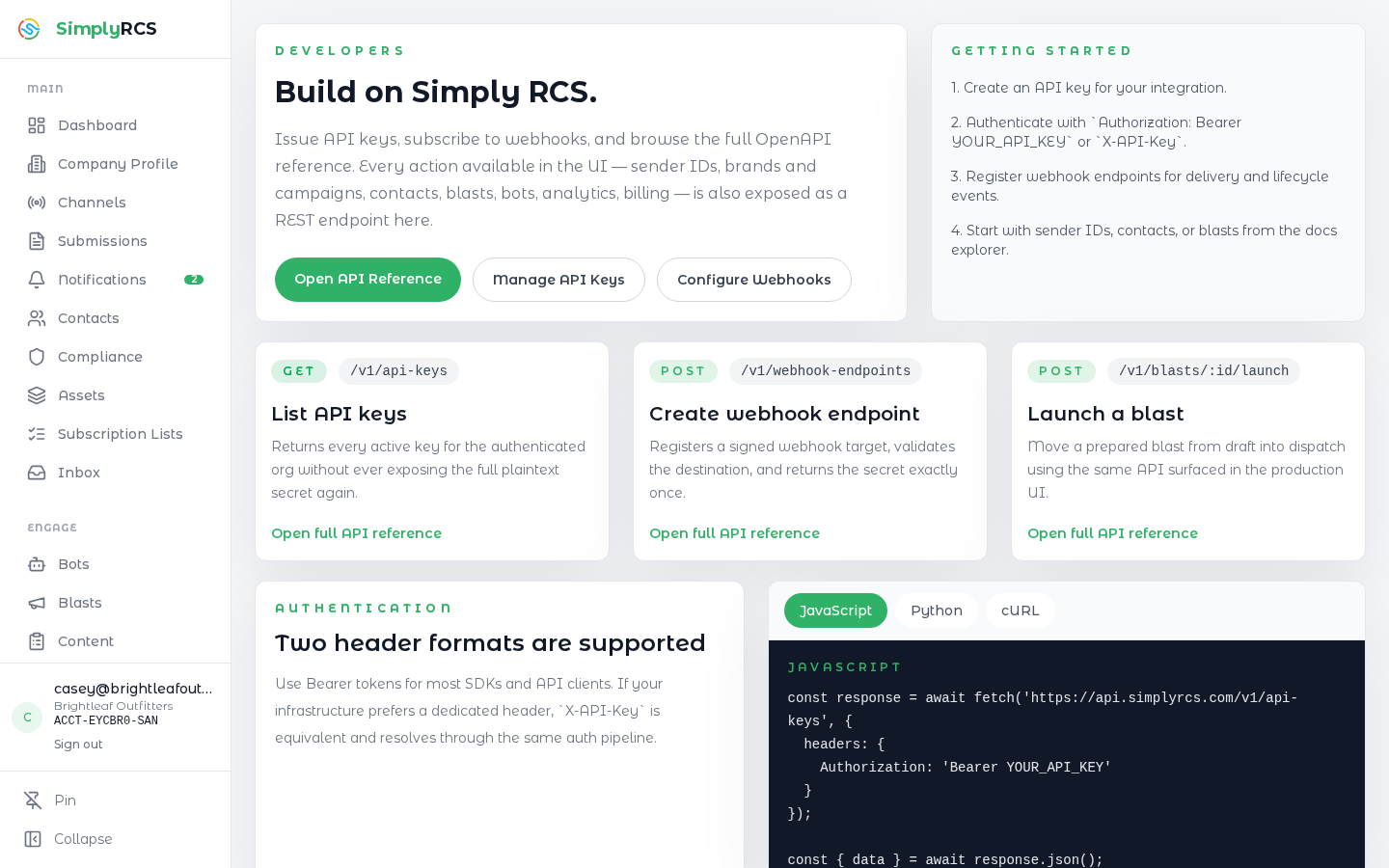
Key actions:
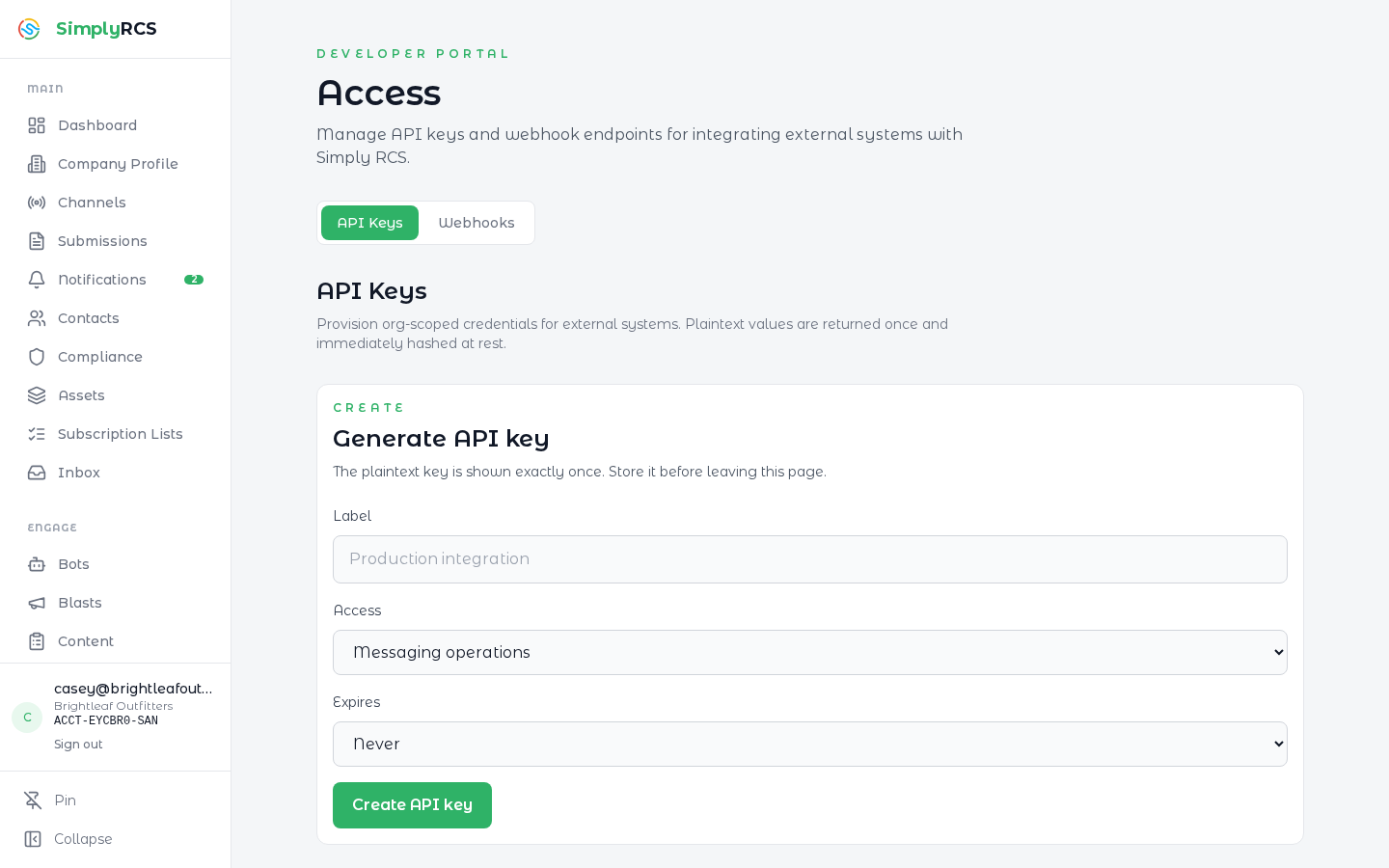
- Access → API Keys — create a key, scope it to Messaging operations (
messaging), Read-only (read_only), or Full workspace access (full), set an optional expiry, and rotate or revoke. The plaintext secret is shown exactly once at creation (and once on rotation). Expand a key to see its recent request log — the last 50 requests, filterable.
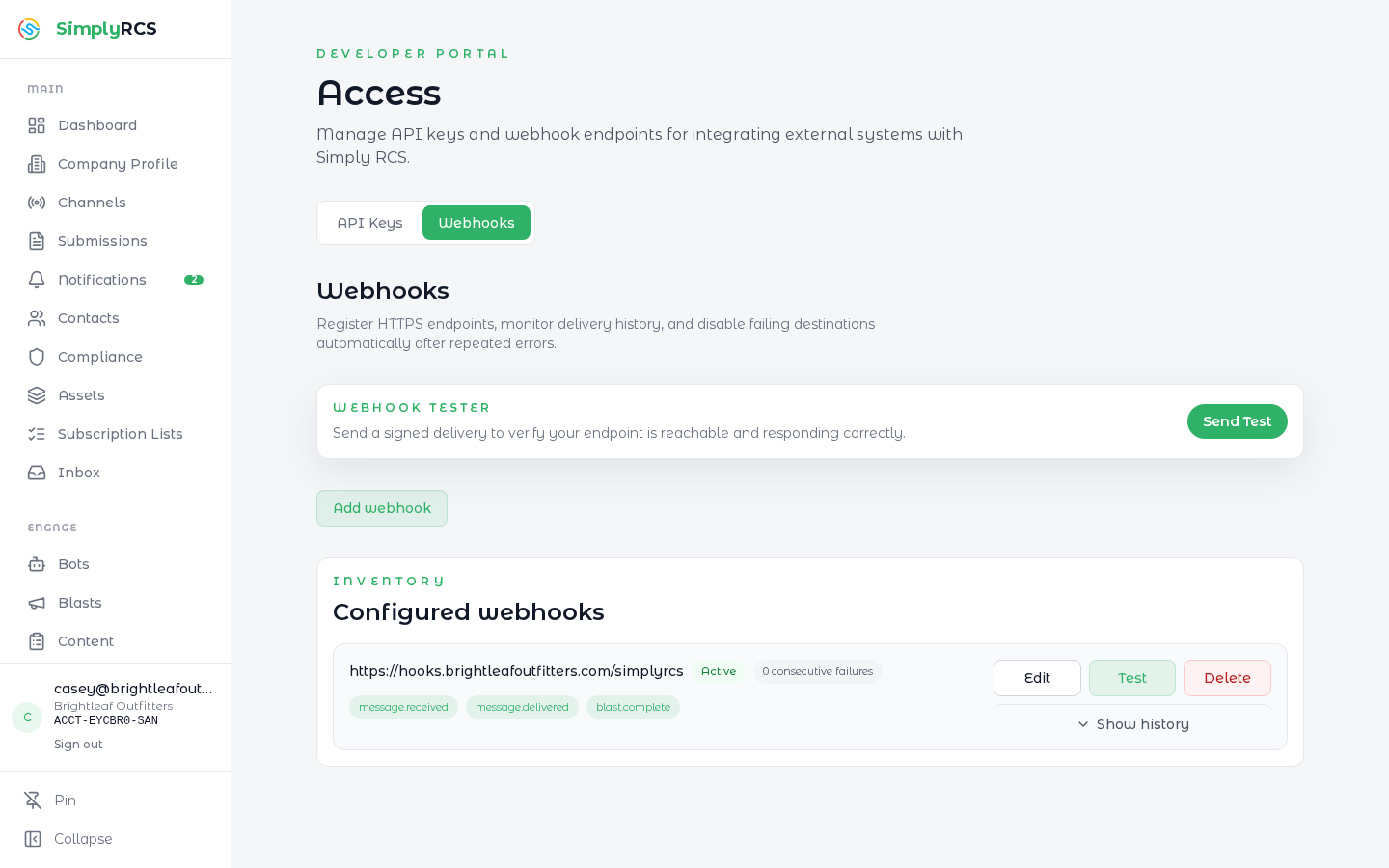
- Access → Webhooks — register a signed callback URL for delivery receipts, inbound messages, submission events, and billing events. The signing secret is returned once. Use the built-in Webhook Tester to send a signed test delivery and confirm your endpoint responds correctly.
- Authenticate requests with
Authorization: Bearer YOUR_API_KEYor the equivalentX-API-Keyheader. - View the inline OpenAPI spec at /docs/api-reference and download the machine-readable customer spec from /api/openapi/customer.
Reference
- API reference: /docs/api-reference (OpenAPI 3 spec)
- Machine-readable customer spec: /api/openapi/customer
- Status & uptime: contact your account manager for the dashboard URL
- Support: use Notifications → Message SimplyRCS